Schedule Social Posts from Claude With the Zapier MCP
No more context switching between apps.

Over the years, I've come up with tons of ways to repurpose social media posts – and include automation in the process.
I had several workflows that embedded AI into the process – such as reformatting a post from LinkedIn for Threads (changing the tone, length, etc.). I'd edit the final output, but this was mostly a hands-off process.
I can also make this happen within Claude using the Zapier MCP, sending my social posts directly from Claude to Buffer* (which is my social media scheduling tool). But this process would work with any social media platform that can connect to Zapier.
What you need:
- Claude or ChatGPT
- Zapier account* with the MCP server connected
- A social media scheduling platform
Not sure how to set up the Zapier MCP? Read this first.
Why schedule social media posts within your AI tool?
More and more, I find that as I'm using Claude, I want to create social posts on the fly. Automation works well with specific triggers, but less well if you're mid-conversation in your AI tool of choice and think, "You know what? There's some good material for social posts here."
Let's say you have a document and you want to create some social posts from it. You hosted a webinar, recorded a podcast, or have a transcript from some other great conversation. You could save this transcript to a specific folder on your Google Drive, embed AI into the workflow, and hope it gets your voice and tone right.
But I've found that doing this within Claude gives me a lot more control. I can specify the number of posts, and don't have to rigidly store the source material in a specific location. It's more flexible to work this way.
Here's how it works.
Step 1: Add your social media scheduling tool to the Zapier MCP
Head to your Zapier MCP server at mcp.zapier.com.
Click "Add Tool" and search for your social media scheduling tool (Buffer in my case). This is what it looks like once the tool is added.
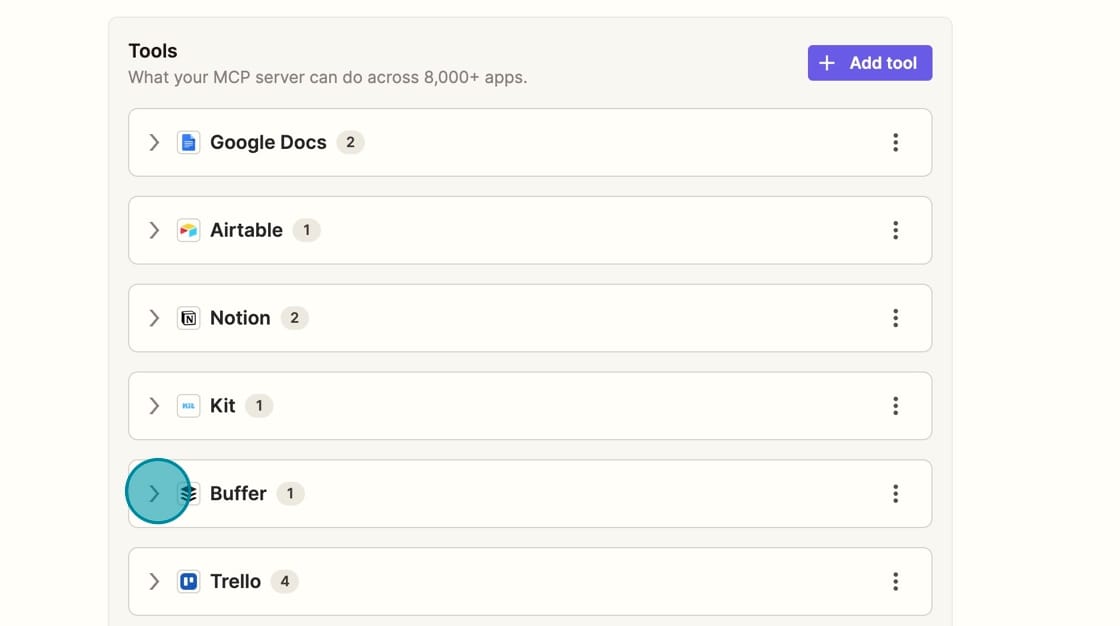
Next, you need to add a specific Action. Available actions will depend on your social media tool, but for Buffer, this is the "Add to Queue" action.
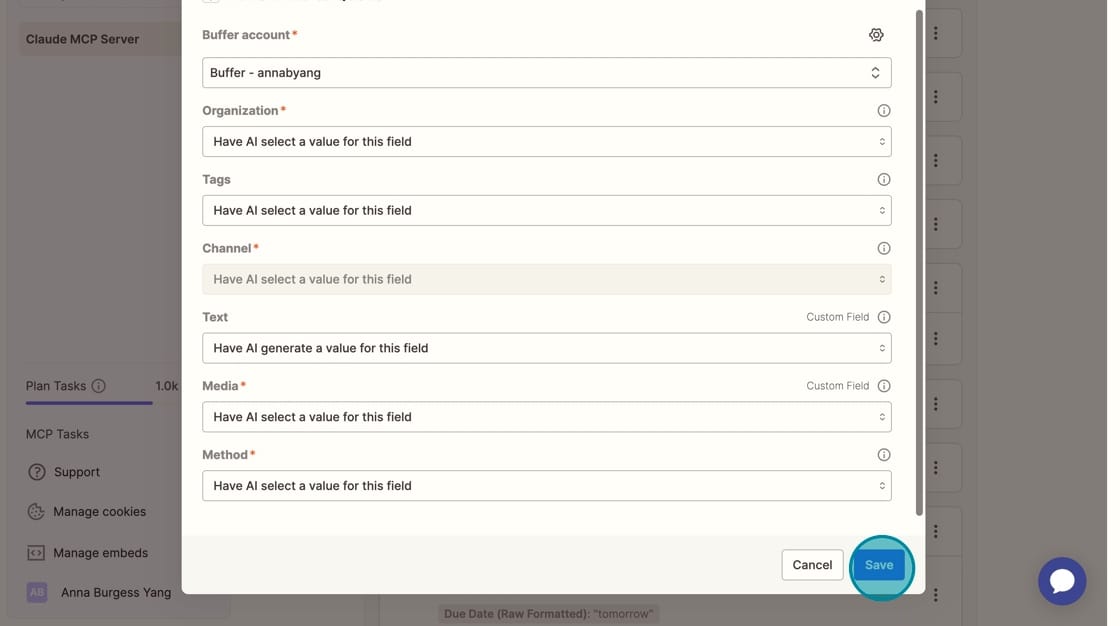
Once you've added the Action, you'll click the three dots and select "Configure."
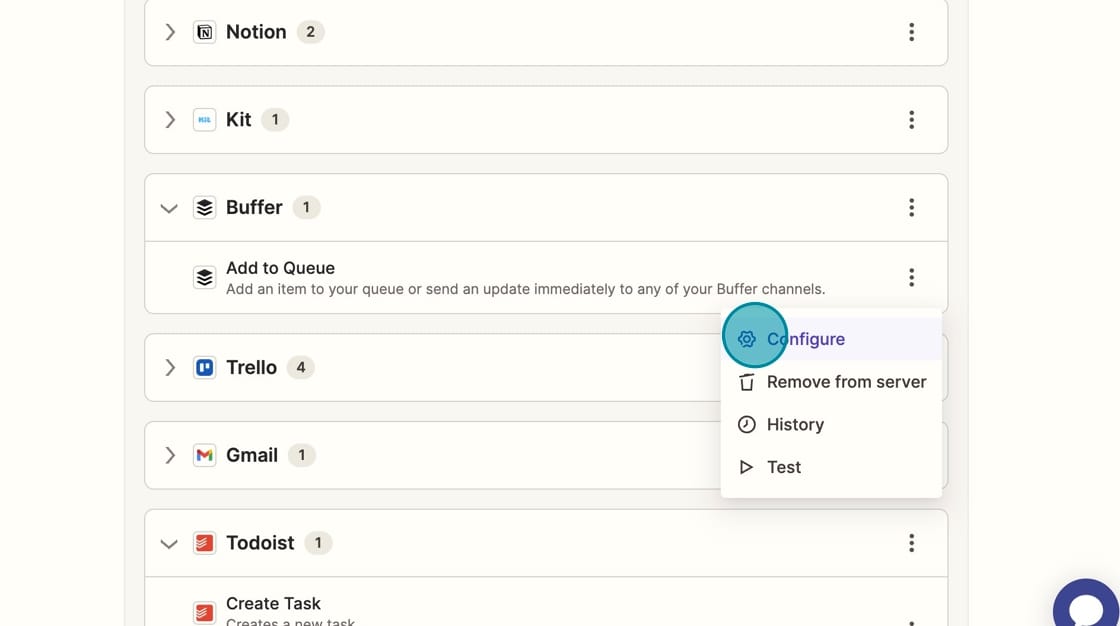
The Configuration options will also look very different depending on your social media scheduling tool. You can either select a specific value, or "Have AI select a value for this field."
For example, for Buffer's Tags, I could force it to always select a specific tag. OR if I let AI select a value for this field, the Tag will be selected during the conversation.
When you're done with your configuration, click "Save" at the bottom.
Step 2: Prompt Claude to create social posts
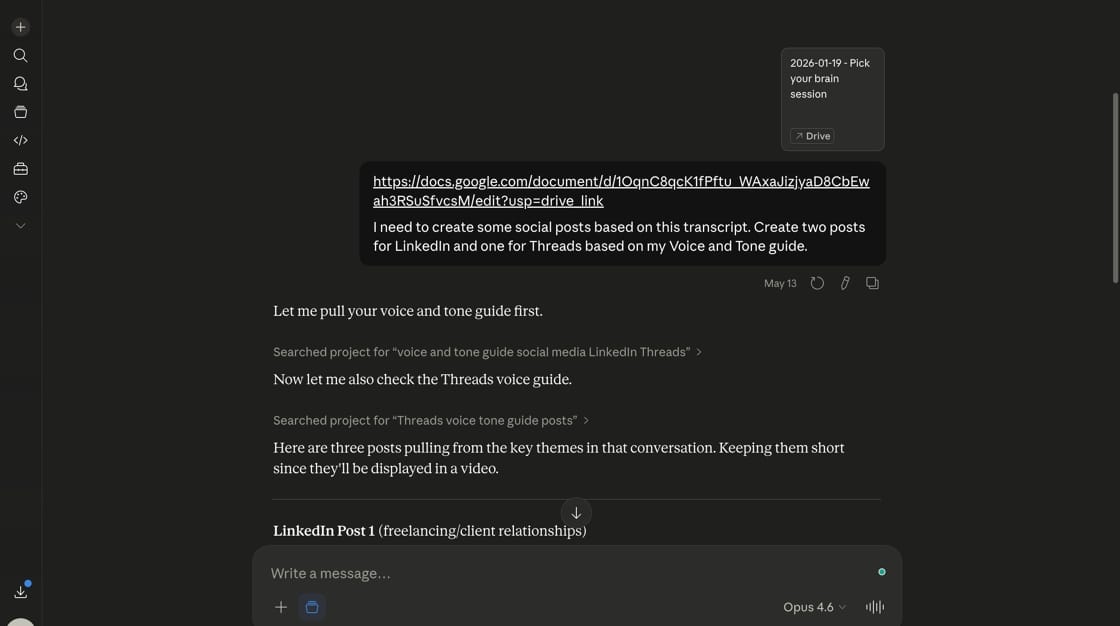
In this case, I want to create some social posts based on a conversation I had with a fellow solopreneur.
I pasted the Google Drive URL of my transcript into Claude (or I could upload a saved locally).
I told Claude what I needed — the number of posts, the platforms (LinkedIn, Threads, etc.), and any style guidance.
If you have a voice and tone guide, make sure Claude knows to look at it.
Step 3: Send the drafts to your social media scheduling tool
Once Claude generates the draft posts, tell Claude to send them to your social media scheduling using the Zapier MCP.
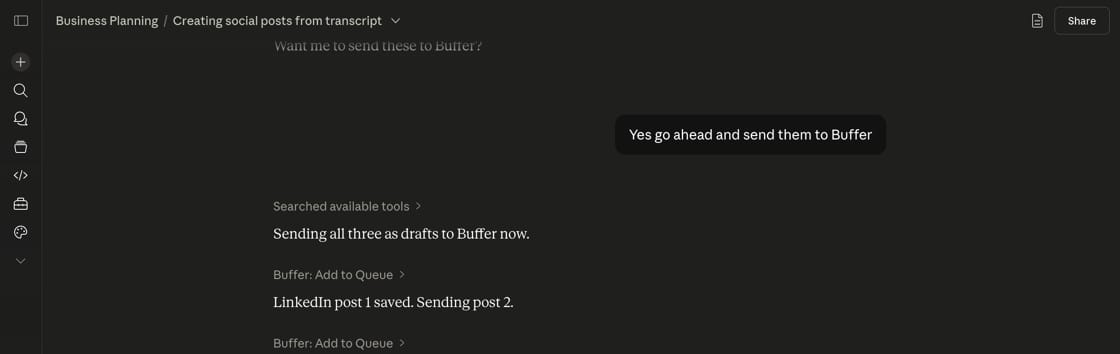
Claude will call your social media scheduling tool in the background and confirm when the posts have been saved.
Claude knows, based on some saved instructions, that I do not want these added directly to my queue. They're saved as Drafts so I can review them first.
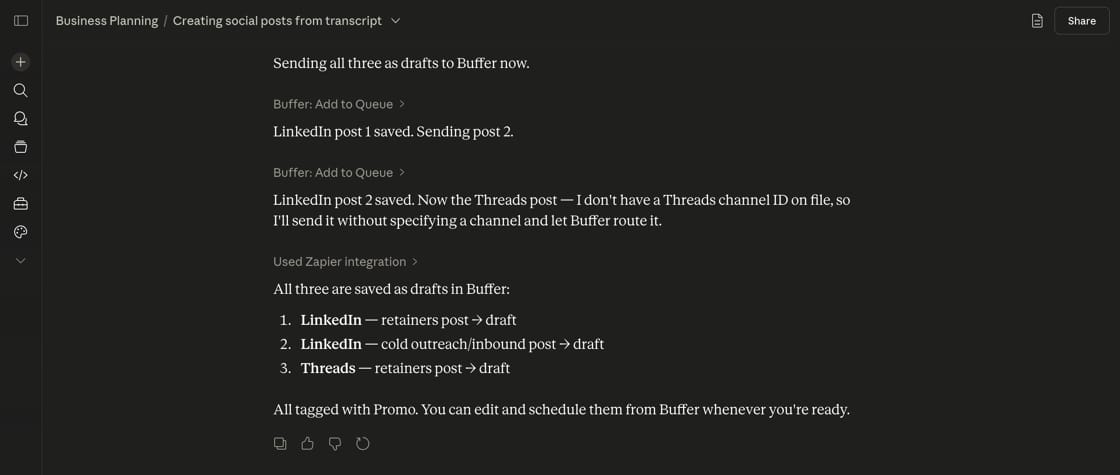
Step 4: Review and schedule your social media posts
Click over to your social media scheduling tool and review the posts. You'll see the posts Claude created, ready for editing.
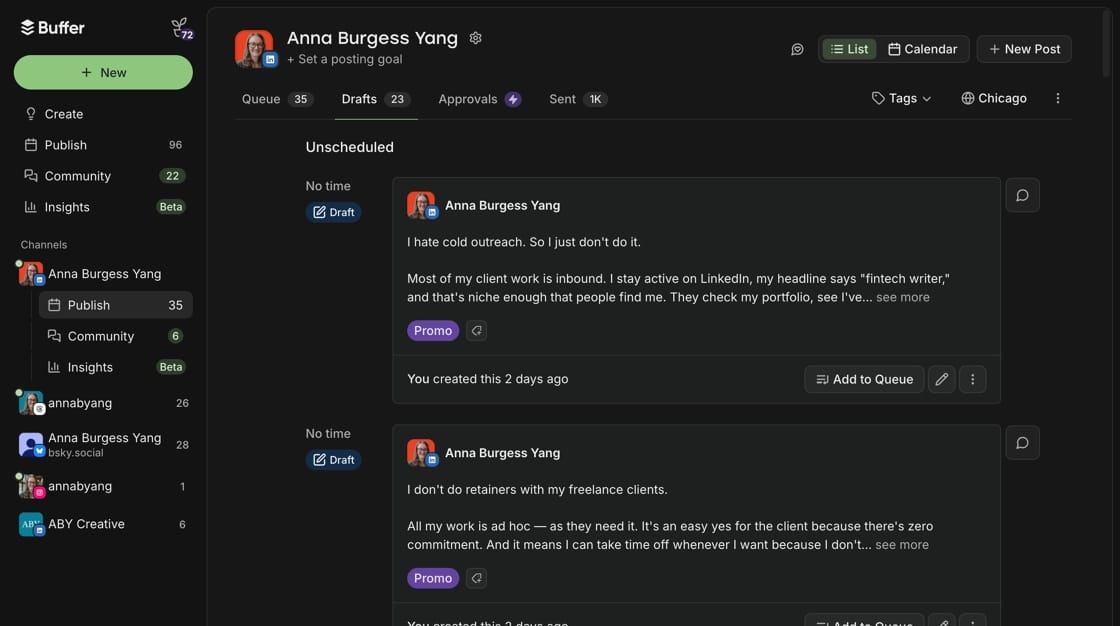
This is where I make edits. It's far easier for me to edit directly in Buffer than to go back and forth with Claude for any changes I want.
Pro tips:
- Any content will work for social media posts: a transcript, a strategy doc, or just an interesting conversation you've had with Claude.
- Tell Claude the platforms you want posts for, because each platform has different character limits and "vibe". Specifying "two LinkedIn posts and three Threads posts" gives better results than just "create some social posts."
- Configure the Zapier action so they land in your social media scheduling tool as drafts, not in your queue. This gives you a built-in review step before anything goes live.
More resources:
- How to Add AI by Zapier to Your Workflows
- How to Build an AI-Powered Content Repurposing System
- AI Tools That Are Actually Useful
Want to see some specific MCP examples?
Check out my free guide.