
Automate Work With Claude Scheduled Tasks
Let repetitive work run in the background.


I wrote previously about building Claude Skills — a series of instructions that Claude can follow to complete the same workflow every time.
Scheduled Tasks let you take skills a step further because they can run in the background, without interaction from you. If you’ve got something that is truly hands-off, set up a Schedule Task, and then you’re reviewing a result rather than babysitting a process.
Before you get started:
- A Claude Pro plan (scheduled tasks require a paid plan)
- At least one skill or workflow you want to automate
Why rely on Claude Skills?
In my example, you’ll see that I rely heavily on Claude Skills for my schedule tasks. You don’t have to do it this way. You can type your instructions directly into a Scheduled Task (or have Claude create a scheduled task for you).
However, I don’t like to do it this way. I prefer them to be separate: the instruction file (the skill) and the scheduled task as simply the mechanism to execute the skill’s instructions at a specific day/time.
It can get tricky to keep everything “in sync” (as I found out) if the instructions are buried in the scheduled task itself. So build the skill file separately, and use Scheduled Tasks to call the skill.
Step 1: Create a scheduled task in Claude Chat
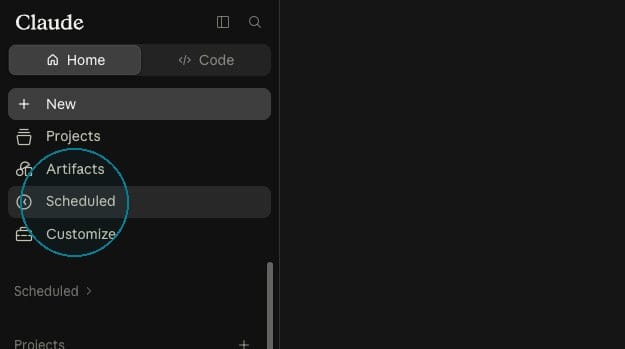
In Claude Chat, click on the “Scheduled” option from the menu.
Then click on “New Task” and “Set up Manually.”
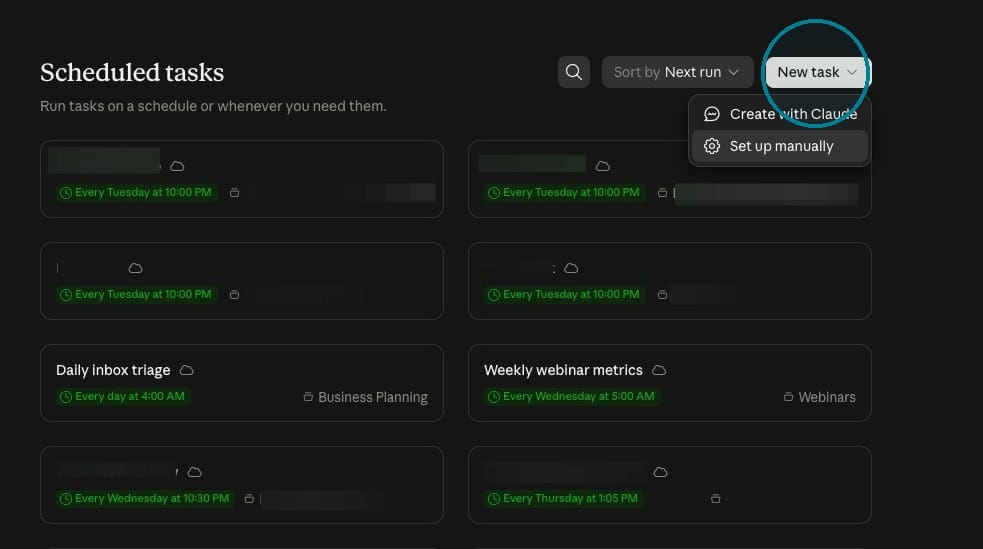
You can opt to "Create with Claude" and it will open a chat conversation. You can describe what you want and Claude will set up the scheduled task for you.
However, this process is so straightforward that it's faster to set it up manually.
Step 2: Set up your scheduled task
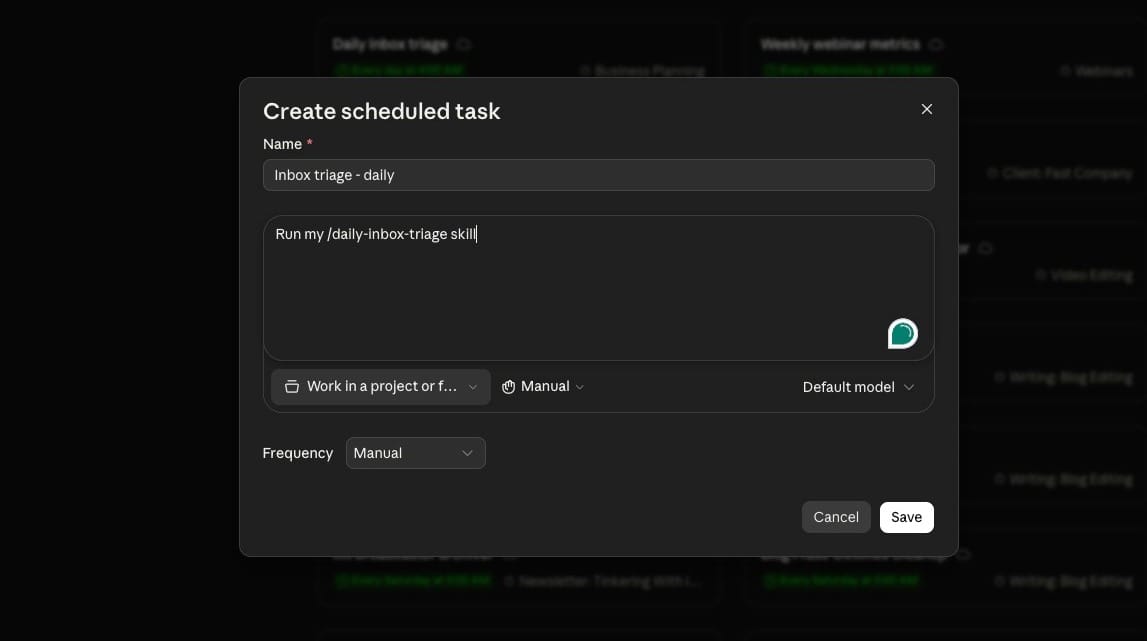
You’ll need to give your Schedule Task a Name.
In the text area, you’ll type in a one-line command, like “Run my /name-of-skill skill
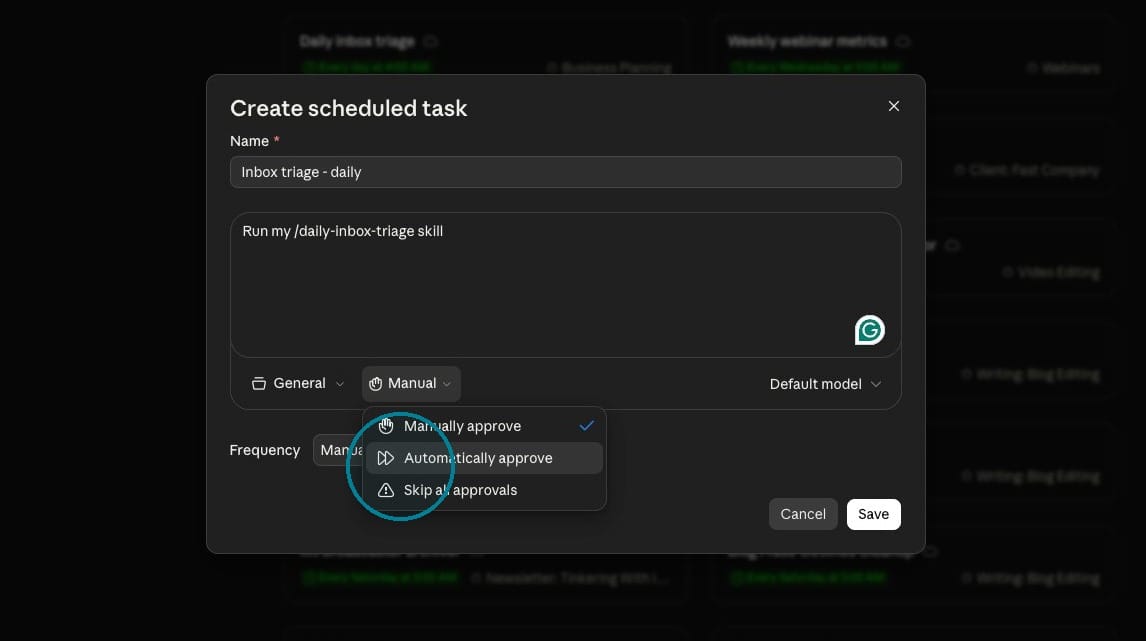
If you want the Scheduled Task to be associated with a project, select the project (though this is not necessary). You’ll also want to select “Automatically Approve.” If you require Manual approval, the Scheduled Task will stop and ask you to approve each step, which defeats the purpose of putting something on a scheduled task.
Then you’ll select a model. You can choose a particular model, or leave it at Default and Claude will auto-select a model for the task.
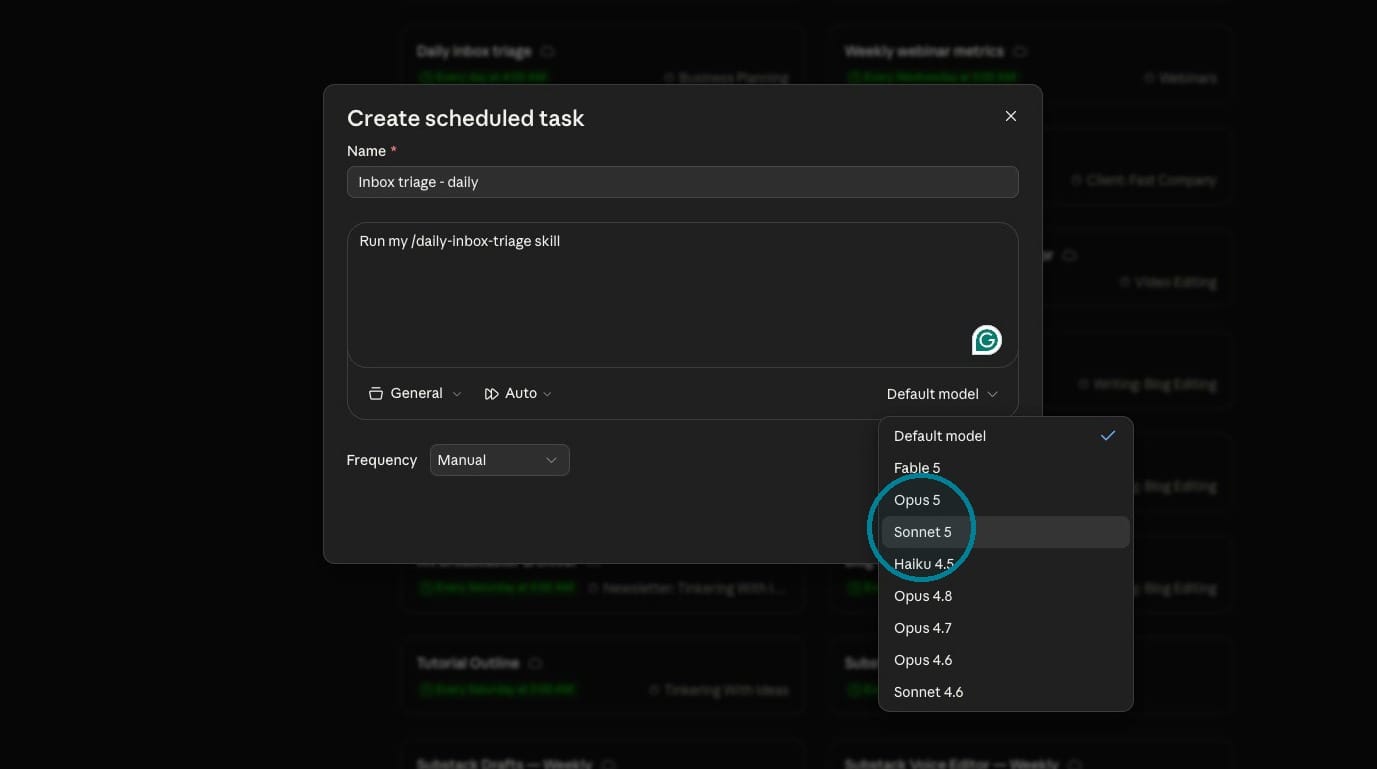
Finally, you’ll put it on a frequency. Select from Daily, Hourly, Weekly, or Weekdays. You’ll also enter a time. I set my scheduled tasks to run early in the morning or late at night.
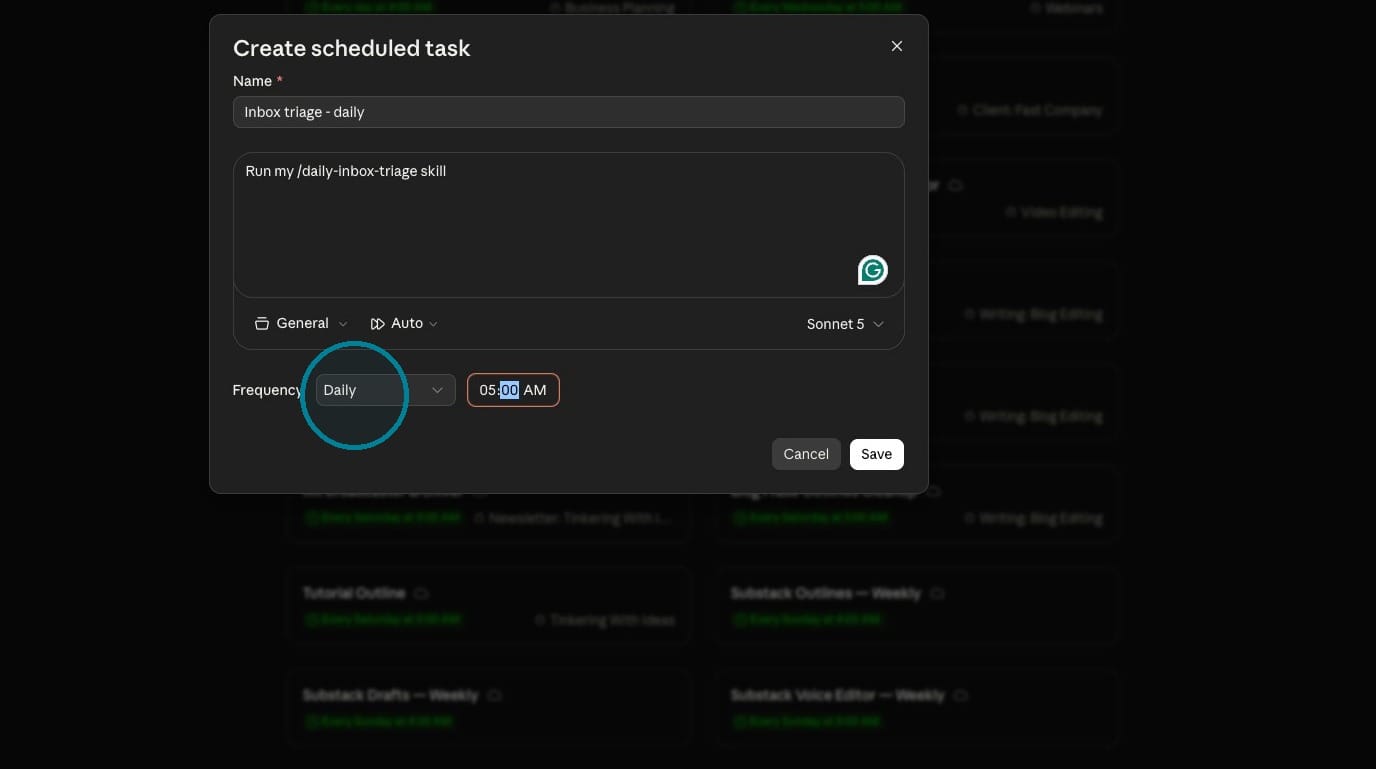
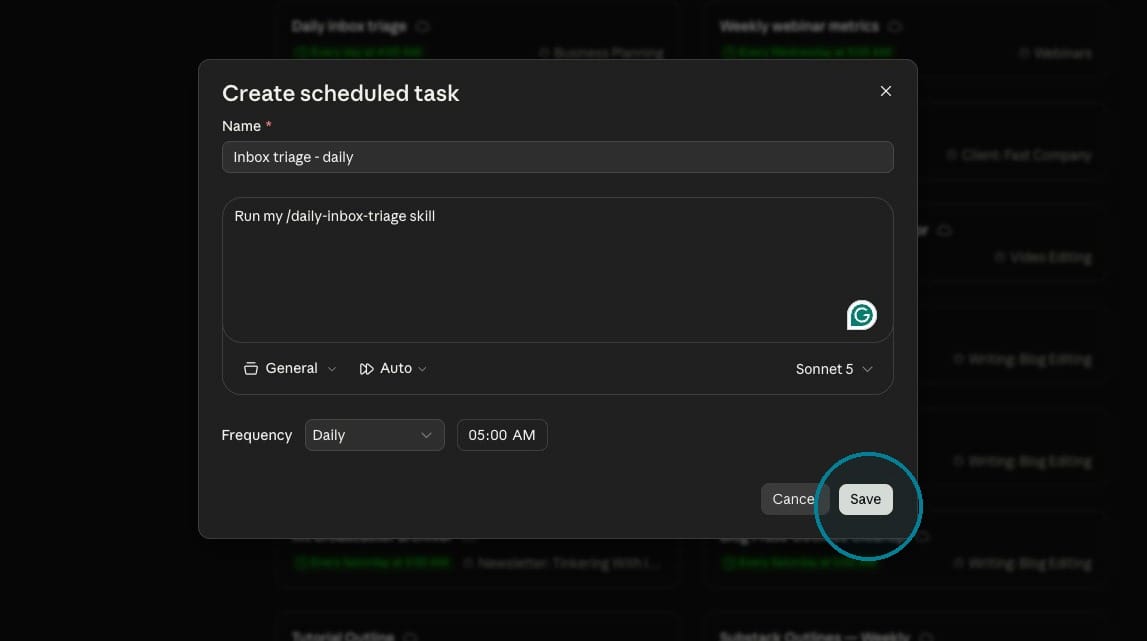
Click “Save” to save your scheduled task.
Note: If you want to set up a scheduled task to run monthly or on a different schedule, you’ll need to select “Create With Claude” instead of “Set Up Manually.” You can’t manually choose an alternative schedule, but Claude can do this for you. Just tell Claude to set up a scheduled task running on XYZ frequency to run /name-of-skill.
Alternative: Create a scheduled task in Claude Cowork
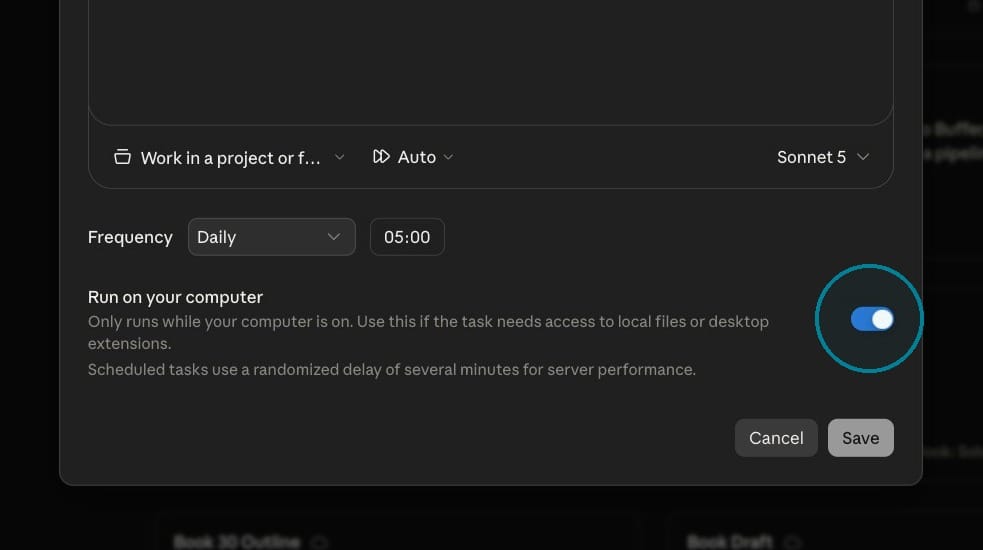
In Cowork, the process is nearly identical with one important distinction: CoWork can do a few things Claude Chat can’t. You’ll need to use CoWork for scheduled tasks if:
- You need the scheduled task to access files that are stored locally
- You need to use Claude in Chrome to access the web
- You need to use a connector (external app) that’s only available in CoWork, not Chat
When you set up a CoWork scheduled task, you’ll see the option to “Run manually on this computer.”
Important: Run your task manually and grant permissions
After creating any new scheduled task, run it manually by selecting "Run Now."
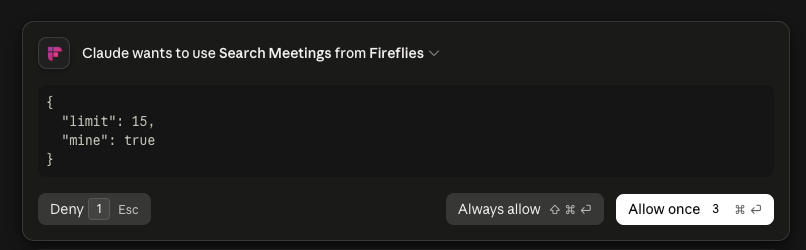
This is an important step because if your task requires permissions (like accessing an external app you’ve connected), you can select "Allow for all scheduled runs" or "Always allow." Otherwise, the task might get stuck in the background because you haven’t granted permission yet.
Note: You can pause a scheduled task without deleting it. This is handy if you’re on vacation and don’t want it to run or need to make a change to your workflow.