The MCPs That Run My Solo Business
Connecting apps to Claude.


I have more than a dozen external tools connected to Claude. Model context protocols — or MCPs — let AI tools like Claude or ChatGPT access data from these tools in a standardized way. And many of the tools I already use have been adding MCP connectors, making it easier to use my data in Claude.
Some of my MCPs serve a very specific function, while others show up over and over in my daily/weekly processes. Here are a few I rely on the most and how I use them within Claude.
What you need before you get started:
- Claude, ChatGPT, or another AI tool (MCP connectors may require a paid plan)
- Accounts for whichever tools you connect
Why connect MCPs
An MCP lets me interact with my own data within Claude. I don’t have to flip back-and-forth between tools or copy-paste data.
Most MCP connectors let you control what the AI can do. Do you want it to update data, or just read it? Do you want it to ask for your approval before taking any actions?
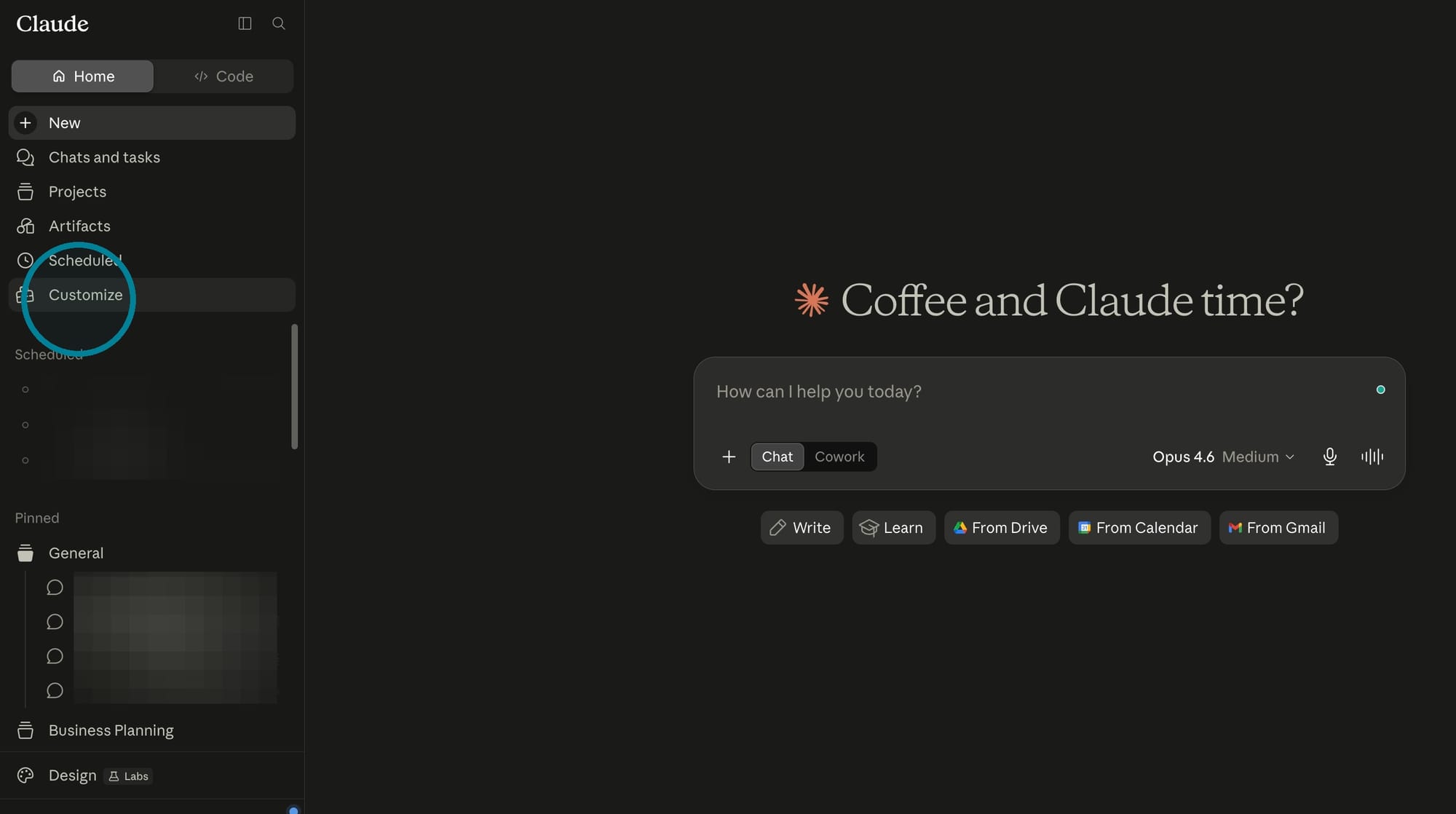
To add an MCP connection in Claude, click on “Customize.
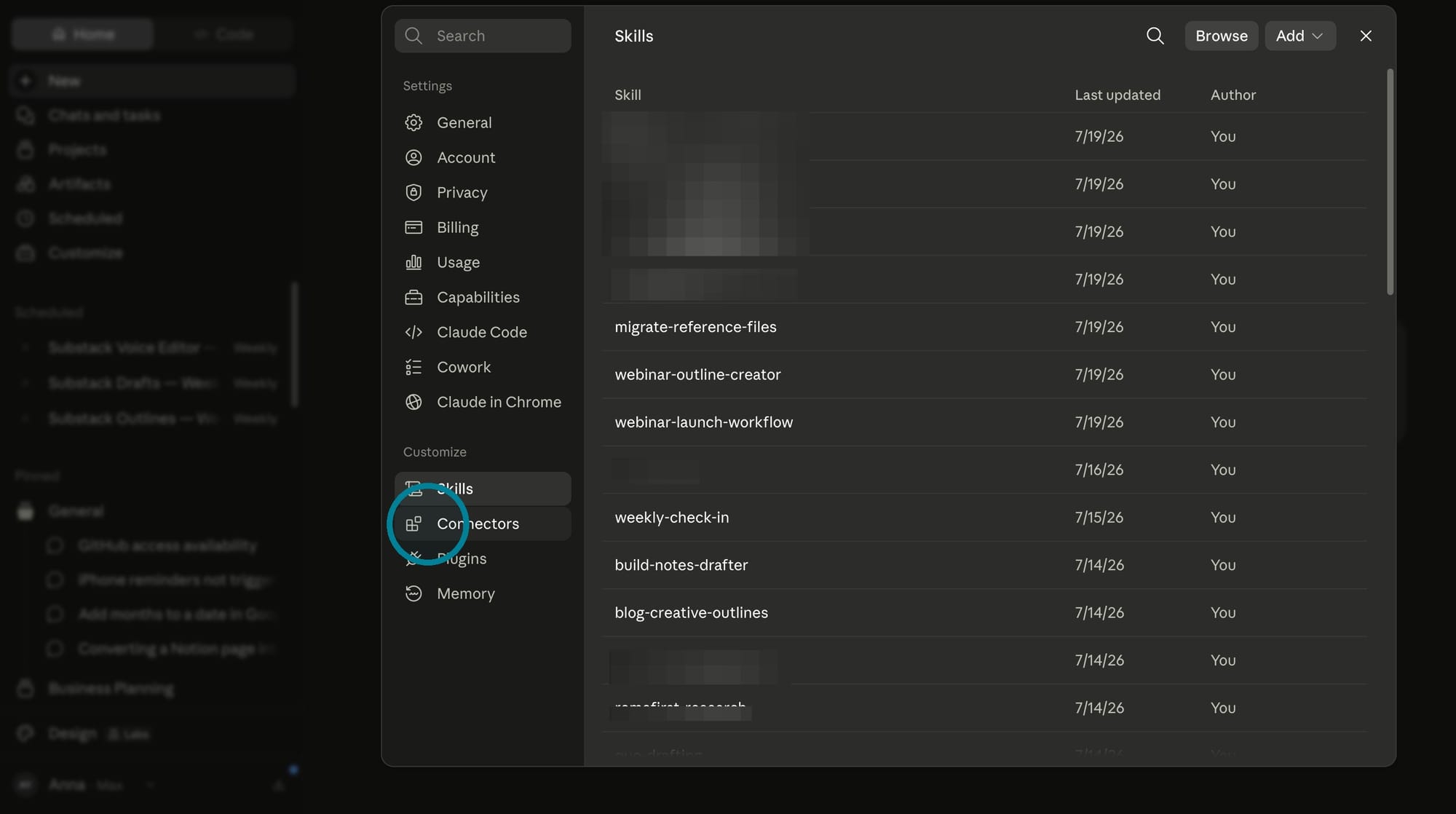
Then click on "Connectors."
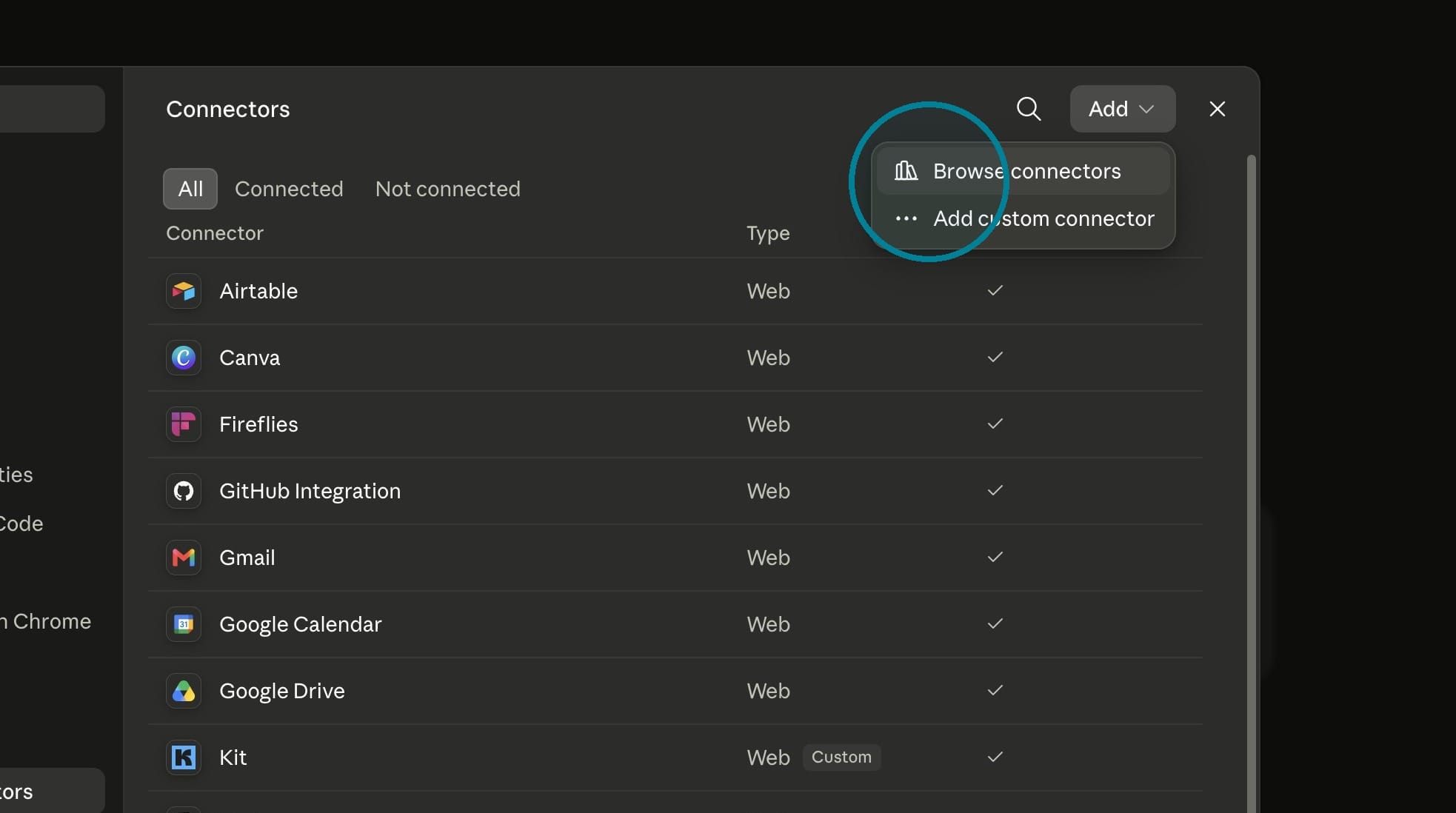
Then click on "Browse Connectors" to find apps to connect.
Airtable: My source of truth
I’m a longtime Airtable user. It’s where I store data related to client work, articles I’ve published online, webinars I’ve hosted, and a lot of information related to my business.
For example, if I’m working on a new webinar, Claude looks at Airtable to find the topic, the date, and a link to a Google Drive folder where I store all of the assets related to the webinar.
Because my Airtable data is so central to my business, I don’t let Claude modify the underlying records. Claude can only read information and pull it into a chat conversation.
Google Drive: Permanent storage for documents
Everything I write is stored in Google Drive: client work, landing pages, email sequences. I also have contracts, financial statements, and other business information.
Google Drive is where I store finished documents. Every project has its own folder. Claude can write new documents to Google Drive, but not update them (which is a limitation of the Google Drive connector).
Claude might write a draft of a landing page for me, based on information in Airtable or a project brief. The landing page is saved to the correct folder in my Google Drive. Then I polish the draft to its final version.
Notion: Anything that needs to be updated
Because Claude can’t update Google Docs, I use Notion for any documents that need regular updating. The Notion MCP connector with Claude is amazing, and Claude can make targeted updates to Notion docs.
In Notion, I store:
- Standard operating procedures, which Claude maintains when I make a change
- Claude reference files, such as my voice and tone guide
- Business strategy docs, including my current priorities and roadmap
I keep the distinction between Google Drive and Notion very clear: GDrive is for finished documents. Notion is for anything that needs regular updating.
Buffer: Scheduling social media posts
I have an entire process set up to turn my long-form content into social posts. I’ve been doing this for a long time. A blog post becomes 2-3 LinkedIn posts, for example.
Claude sends posts directly to Buffer, saved as drafts. From there, I review, edit, and polish before adding them to my queue.
Canva: Updating templates
I worked with a brand designer a few years ago, and he built me a ton of templates in Canva. I’m eternally grateful for that, since I have no innate design sensibilities.
However, updating these templates is mostly mechanical. Take the template I use for webinars, for example. It follows the same format every time. I have an outline in my Google Drive, and I’m basically copying/pasting text into Canva.
Through the Canva MCP, Claude can do this for me. Presentation templates, social media graphics, and other formats get populated with data I’ve stored elsewhere.
Kit: Performance metrics
Kit is my email marketing platform and has a ton of data, based on various automations I’ve set up. I tag my subscribers by source, for example. Getting that data into my various systems, though — like a dashboard I’ve created in Notion, for example — was always a manual process of finding the data in Kit and entering it into my dashboard.
Now, the MCP does the data collection for me, things like:
- Subscriber growth over a date range
- Landing page conversion numbers
- Open rates and CTR on various campaigns
These are all set up on scheduled tasks, so I don’t even have to think about it. The data shows up in Notion, and Claude also emails me a recap.
Zapier: Everything else
If a tool doesn't have its own MCP but connects to Zapier, Zapier has its own MCP. That's how I connect to Trello, for example, or update rows within Google Sheets.
 Anna Burgess Yang
Pro tips
- Connect one at a time and figure out your workflow/process before adding more
- Check whether an MCP works in Chat, CoWork, or both — they're not identical
- A native MCP for a tool is your best option, but Zapier is a solid backup
- A single process in Claude can call multiple MCPs
Want to see some specific MCP examples?
Check out my free guide.