Update a Canva Presentation from a Google Doc
Automatically update a Canva file using Claude.


I regularly host webinars for fellow solopreneurs. And while the content is always unique, my Canva presentation follows the same format. I hired a brand designer a few years ago who created a template for me, and so it’s basically filling in the template with my talking points.
I also create a presentation outline in my Google Drive. I always filled in my template with my talking points — an often tedious process. The dream is that my template could be populated with the information from the outline.
I was able to get Claude to do this using the Canva Connector (MCP). Claude fills in the placeholders on my presentation with the information from my outline. My presentation-creation process now only takes a few minutes once I have an outline ready.
What this automation does
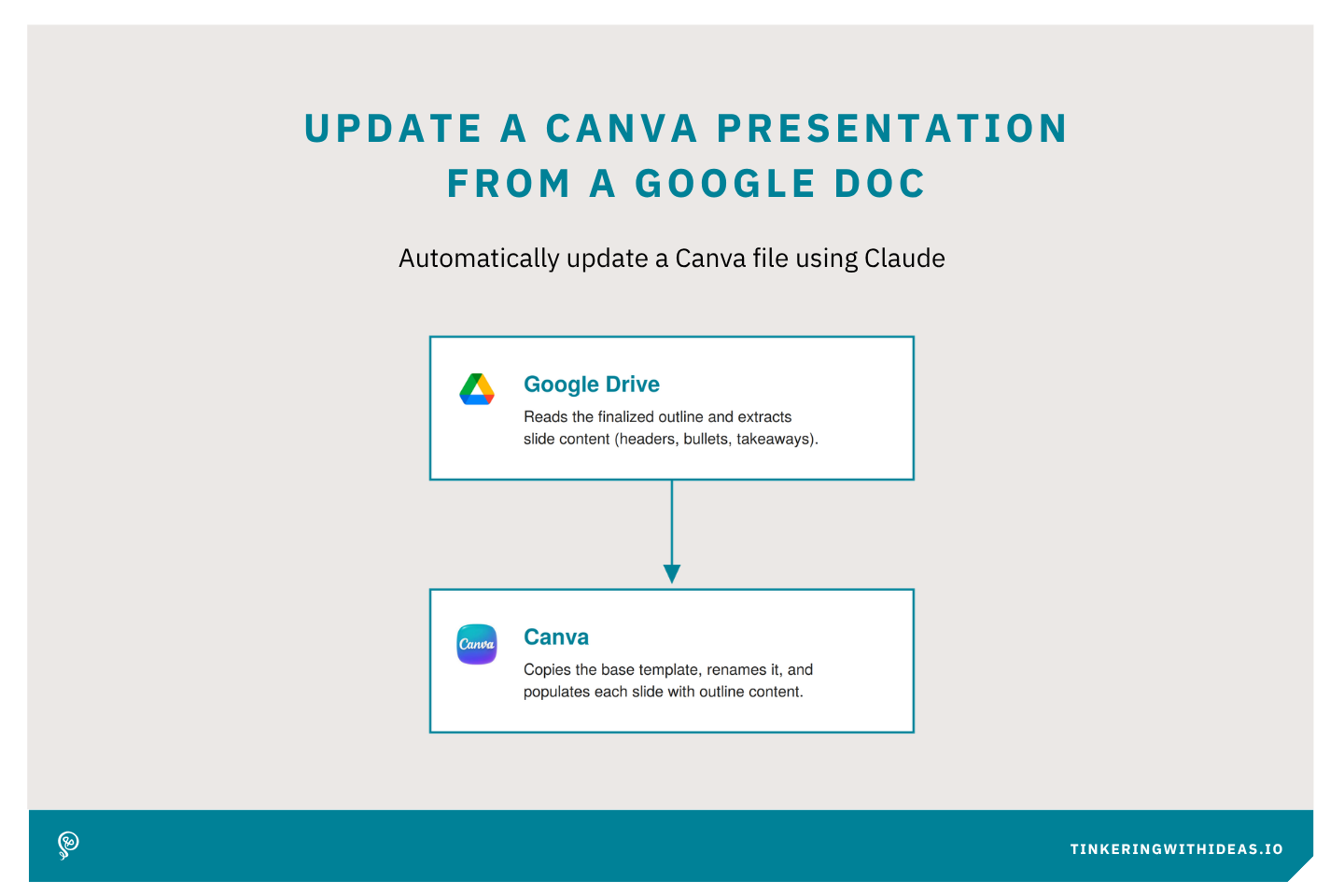
This Claude skill reads a finalized outline and pushes the content directly into the Canva presentation template. It copies the base template into a new presentation, renames it, and puts it in the correct folder. Then it maps each outline section to the correct slide elements and replaces all placeholder text.
Tools
- Google Drive
- Canva
Step 1: Read and parse the finalized outline
Read the Google Doc outline and extract the topic order and slide content (headers, bullets, takeaways).
Step 2: Copy and set up the presentation template
Duplicate the base template in Canva, rename the copy to match the actual event webinar name, and move it into the correct folder.
Step 3: Check topic count against the template
Compare the number of topics in the outline to the available slots in the template. If the outline exceeds the template's capacity, add extra slides before proceeding.
Step 4: Replace all placeholder text
Map each outline section to its corresponding slide elements: title slide, topic headers, content bullets, takeaways, and resources. Mark unused slots for manual deletion.