How Claude CoWork Helps Me Prep YouTube Videos
Streamlining the YouTube process.

For years, I've known that I should be posting videos on YouTube. I create written tutorials, but I know that some people need to "see" the steps.
My hangup has always been how many steps are involved in YouTube. Recording a video. Editing a video. Putting the file on my Google Drive. Creating a cover image in Canva. Writing a description for YouTube. My files felt like they were everywhere because I'd rush and skip steps — like uploading the final edited video directly to YouTube and never putting it on my GDrive.
But lately I've been hosting more live sessions (30 minutes), so I end up with great content for tutorials and YouTube. And I built a way for automation and AI to take some of the manual steps off my plate.
The tools I'm using:
- Zapier
- Dropbox
- Google Drive
- Airtable
- Assembly AI
- Claude CoWork
What this automation does
There are still a lot of parts of YouTube that I have to do manually. I need to edit the video. I have to upload the video to YouTube. I have to create the thumbnail image in Canva (I could automate this, but I usually don't know the video title at the time I kick off this process).
This automation handles two of the big things that were always annoying for me: getting files in the right place and writing YouTube descriptions.
Zapier kicks the whole thing off, but before CoWork, I could only get about halfway to my goal, which was to reduce the number of manual steps. Now, CoWork finishes up the process with a scheduled task.
Step 1: Add an edited video to a Dropbox folder
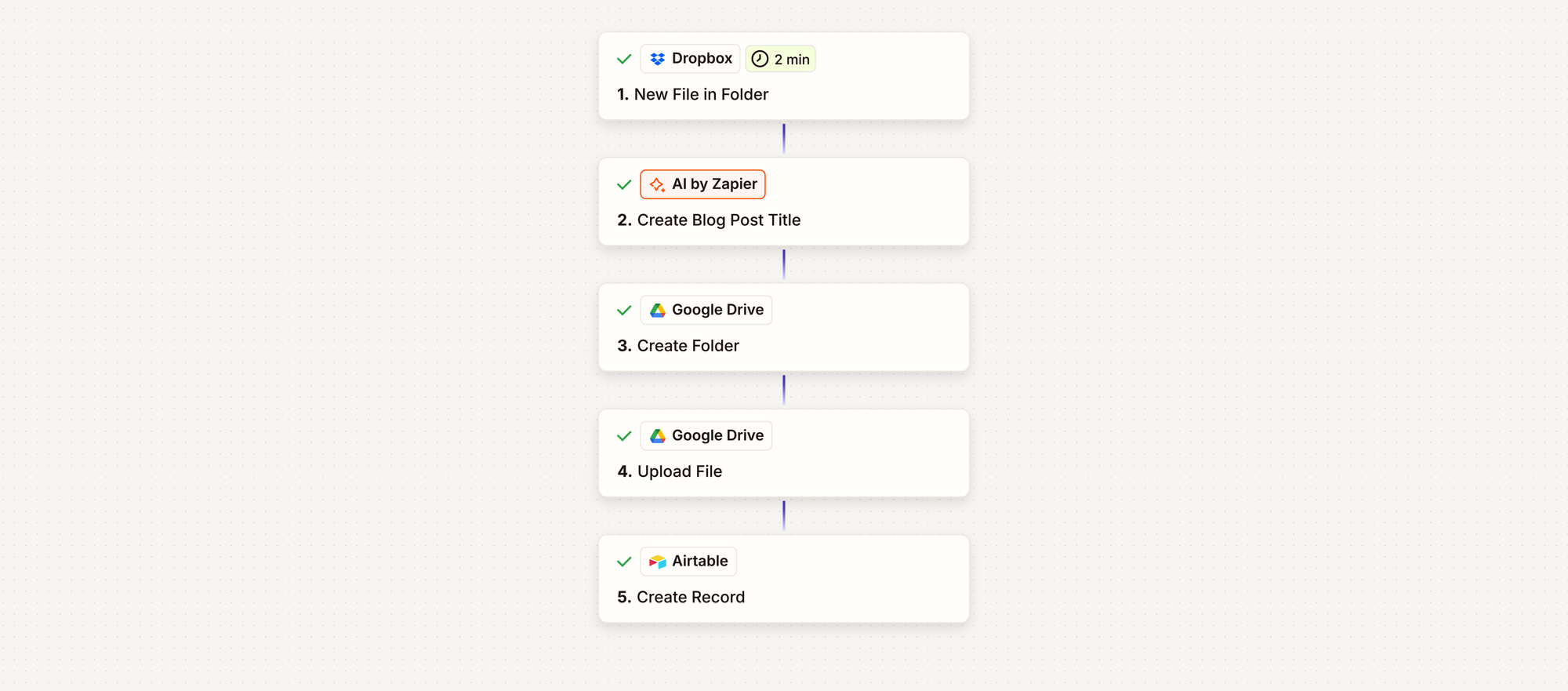
This entire thing starts when I add a completed video to Dropbox.
I can't add it directly to my Google Drive (even though that's where it ultimately ends up), because later in the process, CoWork has to generate a transcript from the video. It can't do that with Google Drive. But it can do that with Dropbox. Dropbox isn't one of my primary tools, but I use it for "pass-through" steps like this. It was worth it to me to upload the file once at the start of this process, and then not have to think about it again.
The trigger for Zapier is New File in Folder in Dropbox (specifically, watching a folder called YouTube).
Step 2: Generate a title with AI
When I upload video files to Dropbox, they have a name like annabyang-title-of-video-wide-final.mp4. In the next step, I'm creating a folder in my Google Drive for all of the YouTube assets, and I don't want that to be the title. So I use AI to write something better for my Google Drive.
Using AI by Zapier, I have some simple instructions about converting my file name into a title.
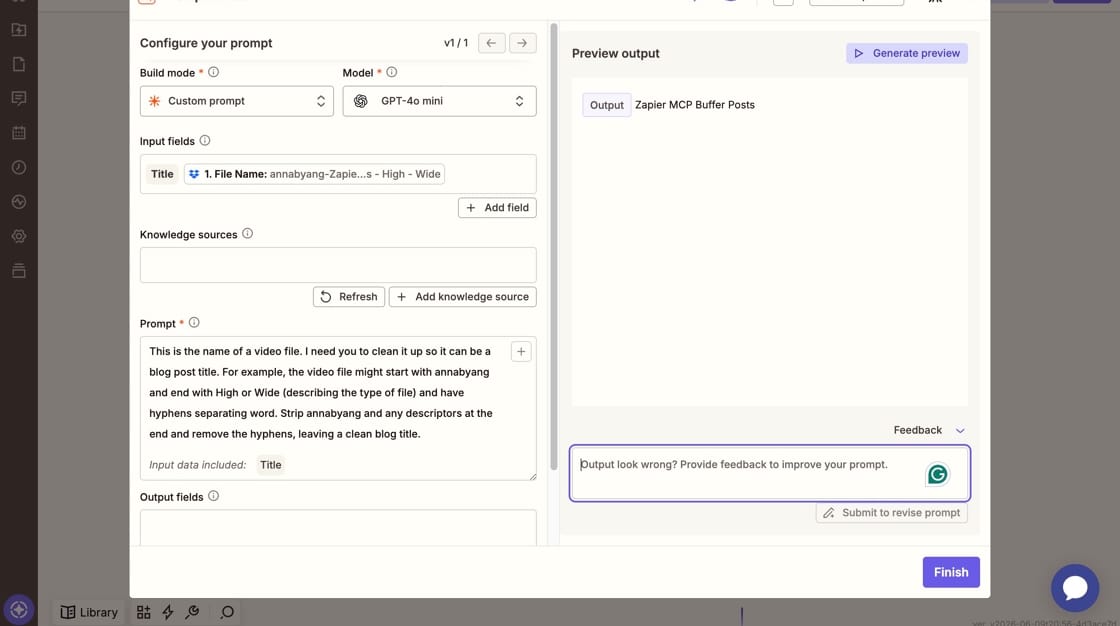
The instructions say that this will become a blog post title. That's not quite true: it will become a blog post, but the title is still TBD. However, that was the easiest way for AI to write something "Anna-friendly" for my Google Drive.
Step 3: Save the video to my Google Drive
Next, I need to get the file from Dropbox to my Google Drive, since that's my storage for everything related to my business.
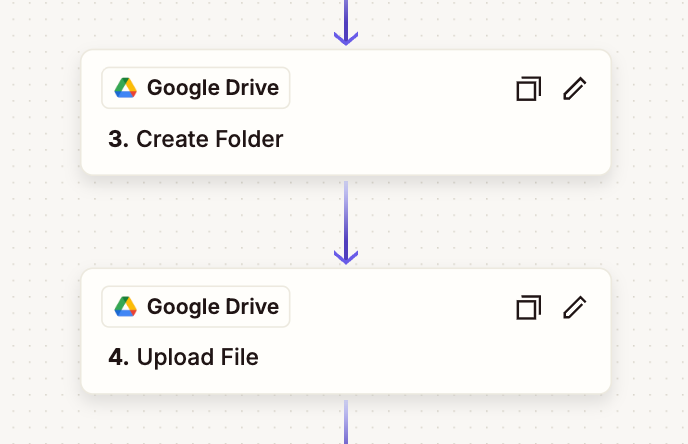
First, in Zapier I Create a Folder and give it the name from my AI by Zapier step (in this case, the folder is named "Zapier MCP Buffer Posts"). That way, each YouTube tutorial has its own subfolder of assets.
In the step after that, I upload the file from Dropbox to my newly created folder.
Step 5: Create a record in Airtable
This last step is just for CoWork.
CoWork's role is to take the .mp4, generate a transcript, and write the YouTube description. That can't happen in the background unless CoWork knows that a new video file is ready.
CoWork could scan my Google Drive, looking for new files within my YouTube folder. That's ok when I have a handful of files and folders. But someday when I get to hundreds? Inefficient.
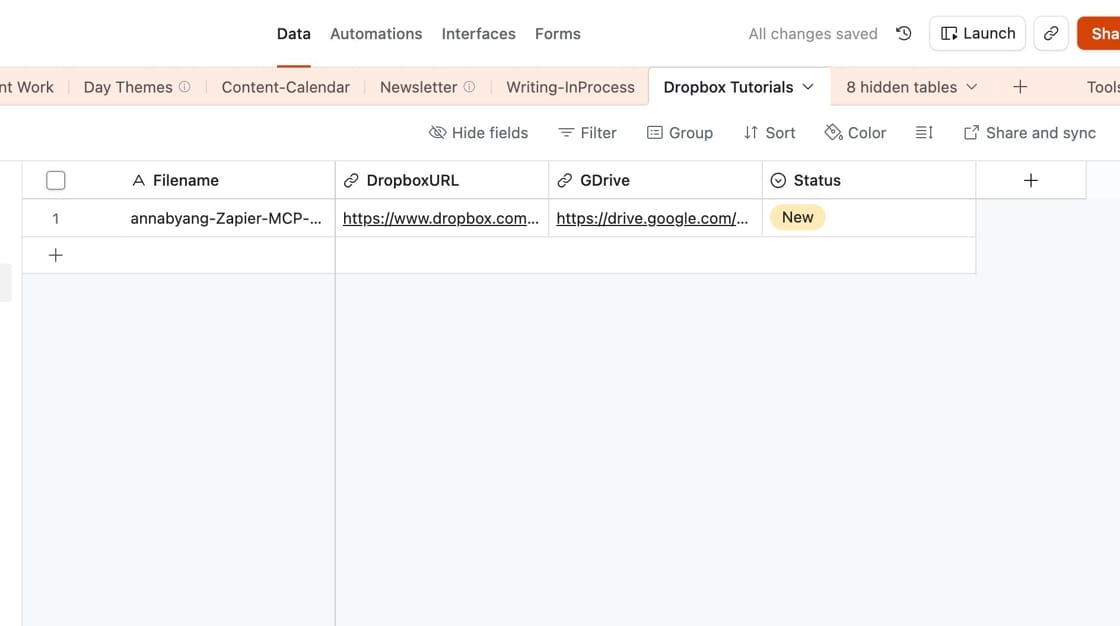
So in this last step, I write a record to Airtable. I have a specific base for CoWork, where CoWork can read/write records using the Airtable MCP.
It's very simple. Just the filename, the Dropbox URL (where the .mp4 lives), the Google Drive URL (where the transcript and YouTube description will be placed), and a Status of "New."
Step 6: Set up the CoWork scheduled task
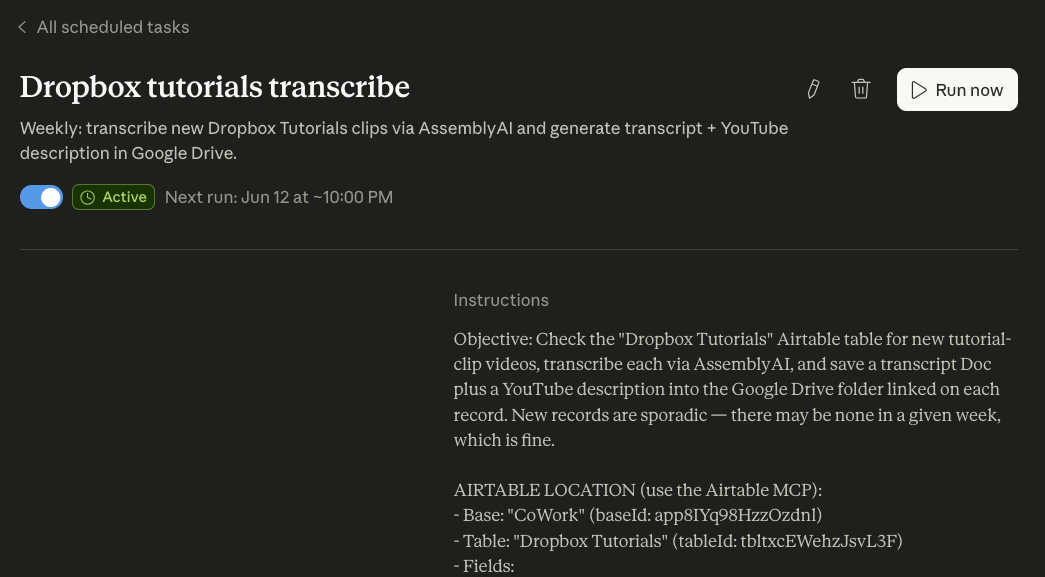
My Scheduled Task in CoWork runs once a week and does a few things:
- Checks the Airtable table for records with Status = New.
- If there are New records, grabs the .mp4 file from the Dropbox URL
- Sends the .mp4 file to Assembly AI to transcribe
- Saves the transcript to my Google Drive
- Uses the transcript to write a YouTube description and saves the YouTube description to my Google Drive
- Mark the Airtable record as "Done."
Assembly AI is free for the first 300 hours of transcription. At the rate I'm going (a few minutes per video), it will be a long time before I've hit the limit. And even then, transcription is pennies per hour to use the API – so I won't be incurring a substantial cost for my use. (Bonus: CoWork suggested Assembly AI as I was trying to figure out how to make this all work.)
I have some specific instructions for writing the YouTube description, along with some examples of descriptions I've written previously.
The end result
It took some time to work out this exact process, but in the end, I have what I want: fewer steps to prepare a YouTube video.
I upload the Dropbox file and everything else runs in the background. When I'm ready to add the video to YouTube, I open up my Google Drive and see these files:
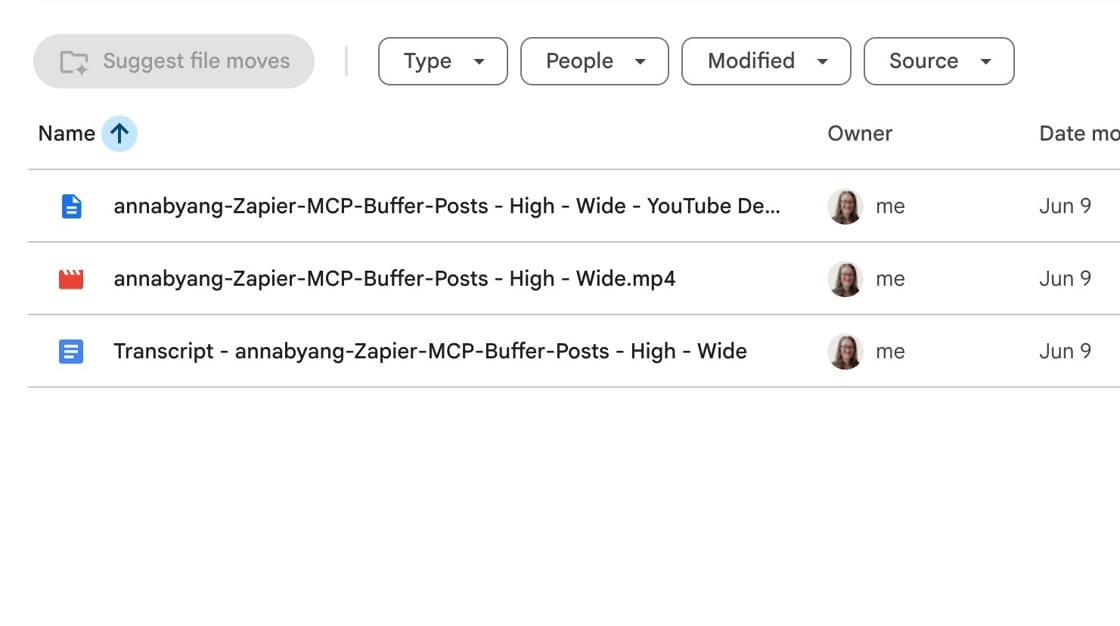
The YouTube description was added by CoWork.
The .mp4 file was moved here from Dropbox by Zapier.
And the Transcript was generated via the Assembly AI MCP in CoWork.
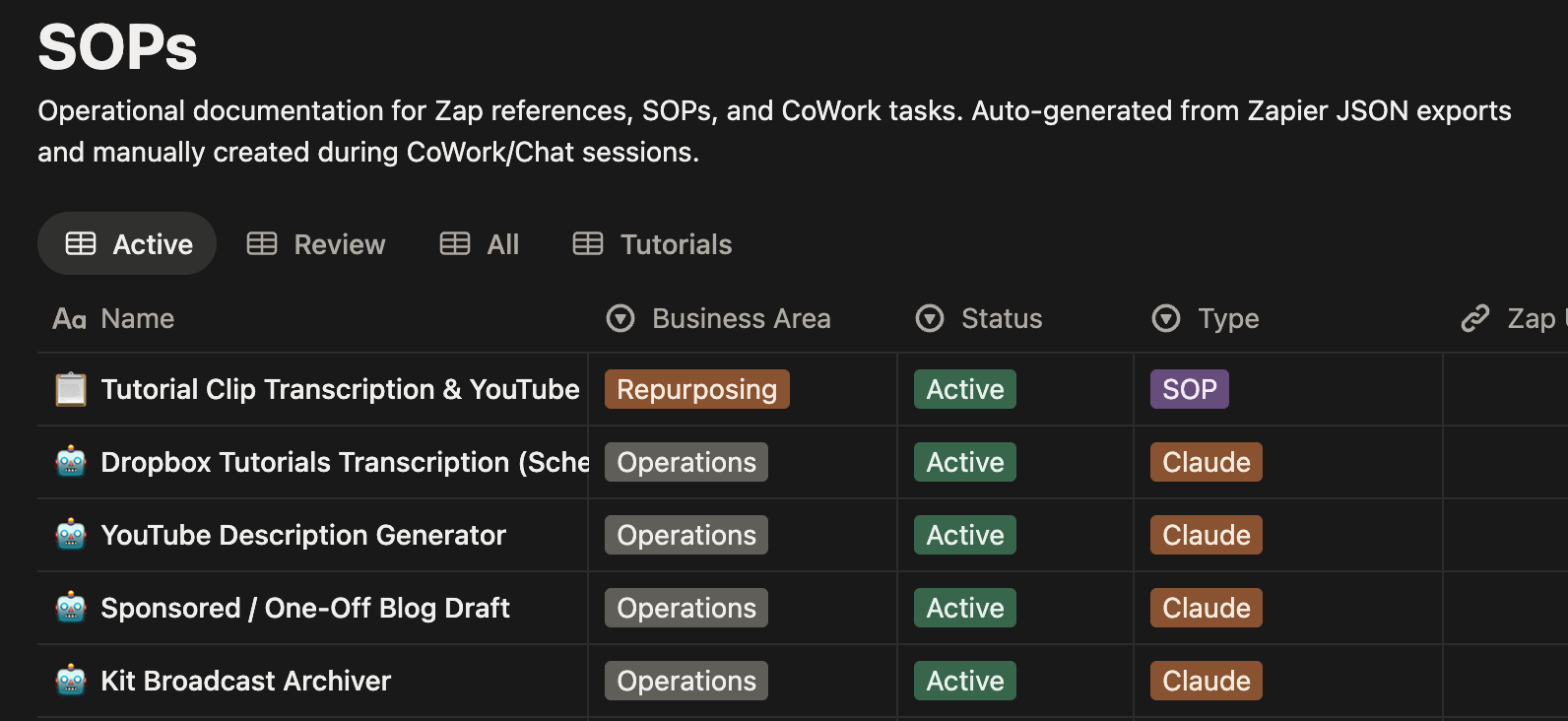
Bonus: Save the SOP to Notion
I like to document all of my processes. I need the information (when I go back later and wonder "How the heck did I set that up?") But it's also important for Claude. Claude references my standard operating procedures (SOPs) across different things I have running in the background.
Any time Claude creates a new Scheduled Task or Skill, Claude automatically creates a new SOP in Notion (affiliate link*) for me. Notion is great, because Claude can easily create/update pages with the Notion MCP. Plus, I can store different properties for the SOP, like the area of my business that it pertains to.
Next Steps
Ideally, at some point, I could send the video directly to YouTube. YouTube has this capability, but I'd need to get a few things hammered out first, like creation of the thumbnail, deciding on a title, and editing the Claude-generated Description.
For now, this setup has streamlined my process a lot. Now I just need to post enough YouTube videos to offset the amount of time it took me to figure out and set up!
Want to see some specific MCP examples?
Check out my free guide.
More resources
- How to use the Zapier MCP
- How to build an AI-powered content repurposing system that actually works
- AI tools that are actually useful