How to Use the Airtable MCP With Claude
Access your Airtable data without leaving Claude.

If Airtable is the backbone of your business (as it is mine), you're constantly looking up client details, checking your pipeline of things to work on, and finding records to update.
The Airtable MCP lets you pull that data directly into a Claude conversation. But connecting your entire primary base means Claude can read (and potentially write to) everything, including sensitive data. Since AI can make mistakes, as we all know, I wasn’t willing to grant access to my entire Airtable base.
Synced views solve this by letting you share only the data Claude needs.
Before you get started:
- An Airtable account (paid plan, so you can use synced views)
- A Claude account (or any AI that works with the Airtable MCP)
Step 1: Create a separate Airtable base for Claude
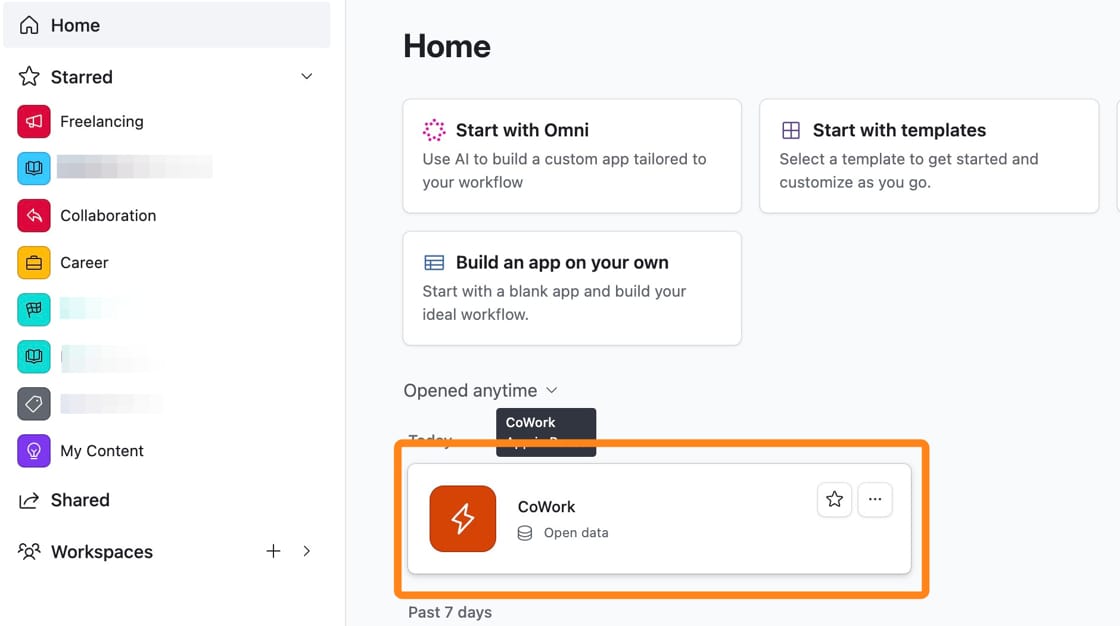
Create a brand-new Airtable base (I call mine "Cowork") that will be Claude's access point.
This base will contain synced copies of specific views from your primary base, plus any Claude-specific tables that aren't sensitive. Views synced from your primary base are read-only. Claude can read the data but can't make changes to it.
Step 2: Set up synced tables from your primary base
In your primary Airtable base, select a view on the table you want to share. I name the view SYNC - CoWork so that it's really obvious that it's shared.
Display only the fields Claude needs and apply any filters.
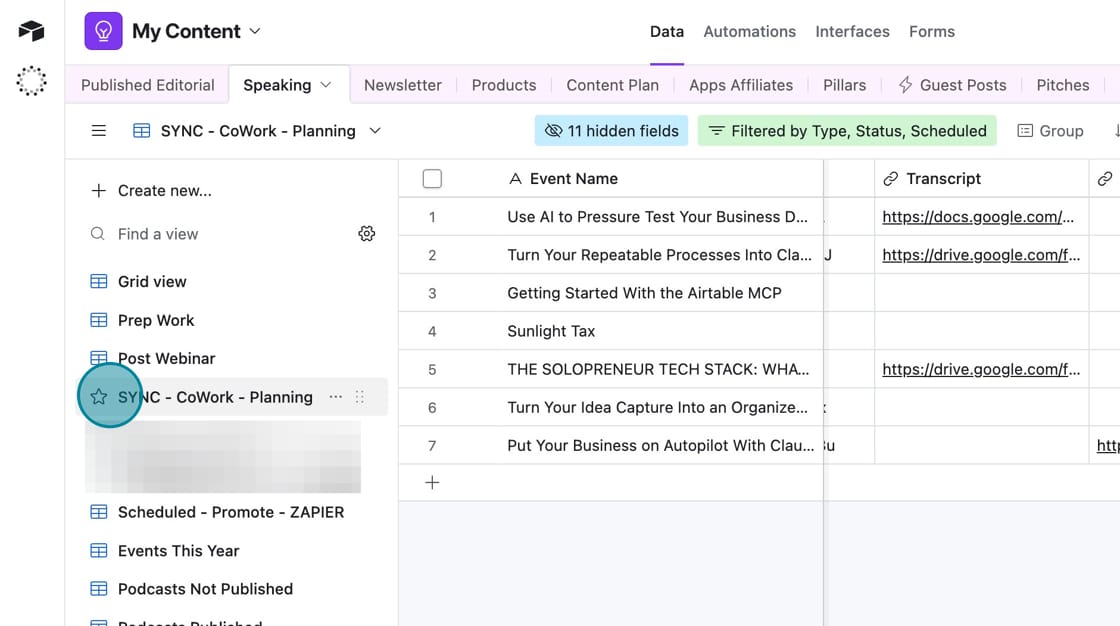
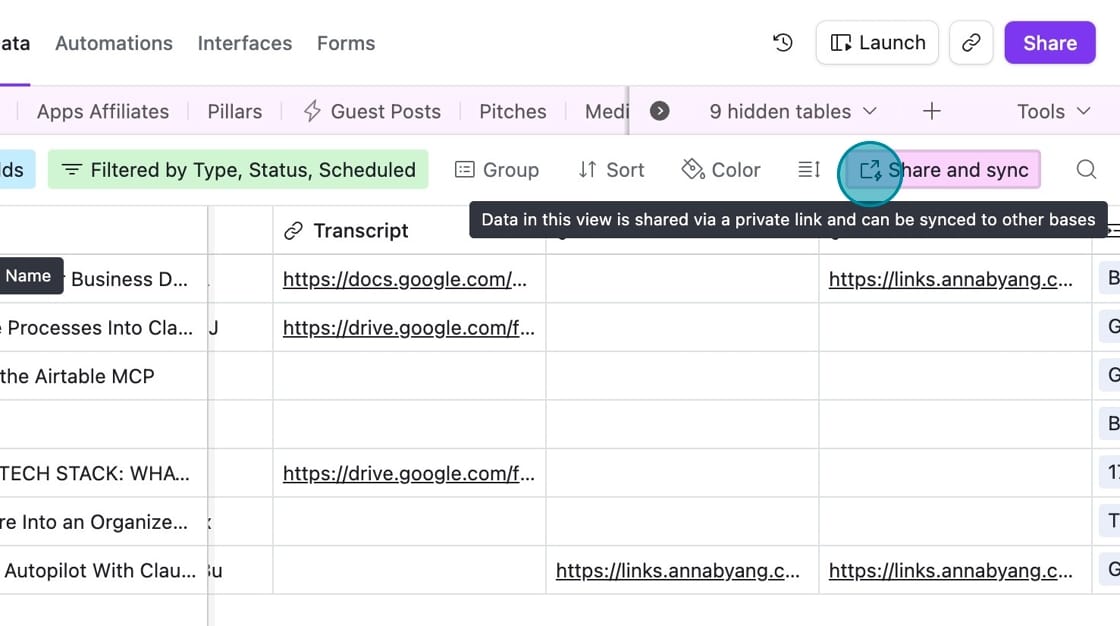
Then click "Share and Sync."
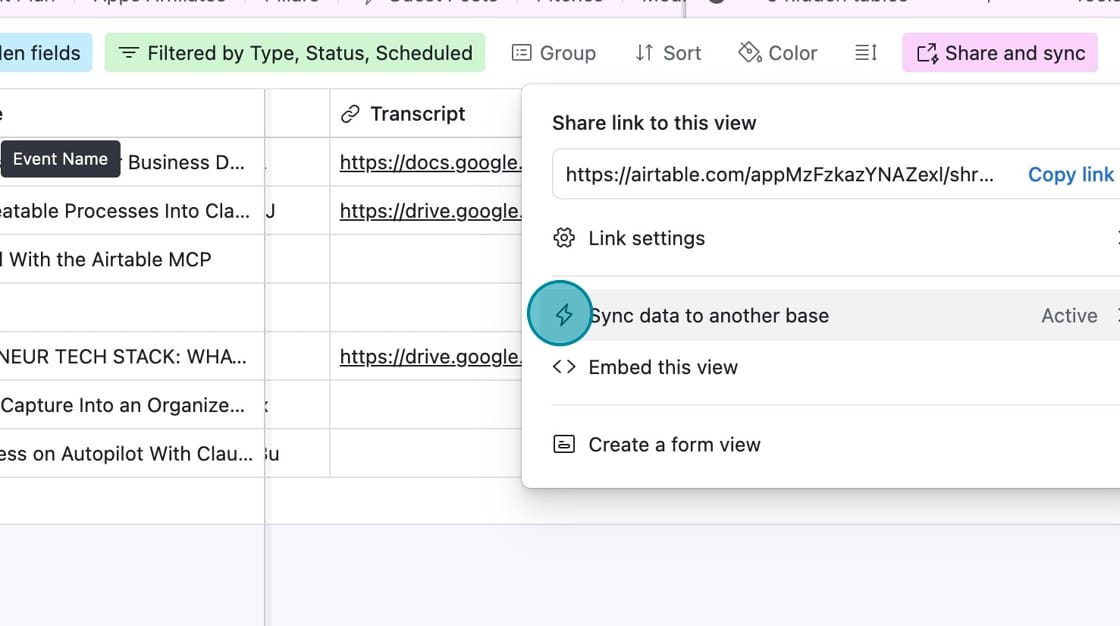
Select "Sync data to another base."
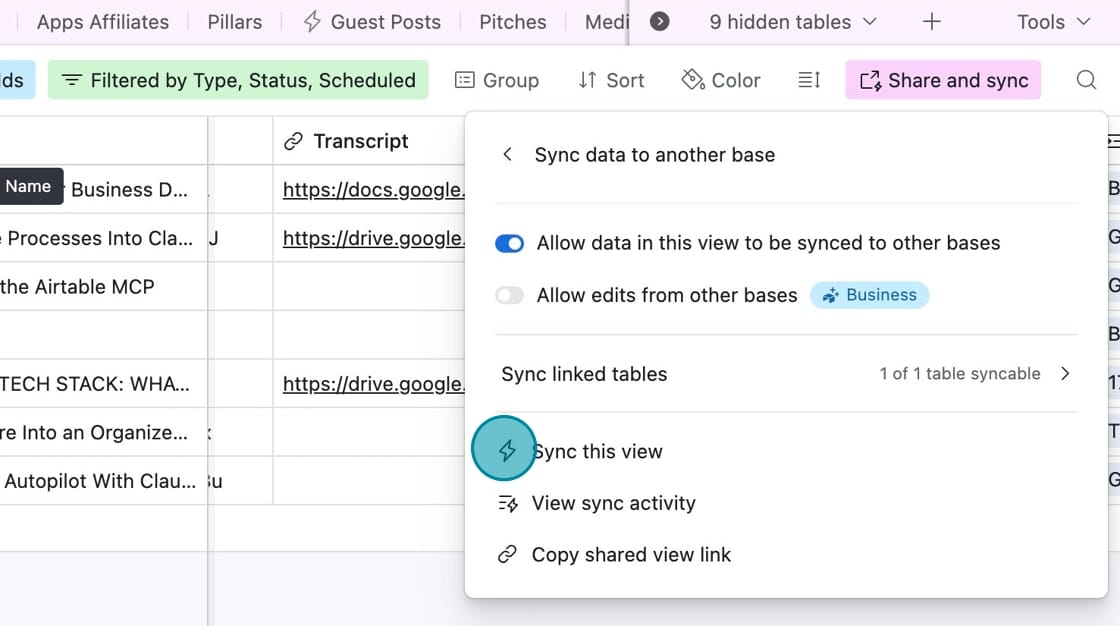
You need to check "Allow data in this view to be synced to other bases" and then "Sync this view."
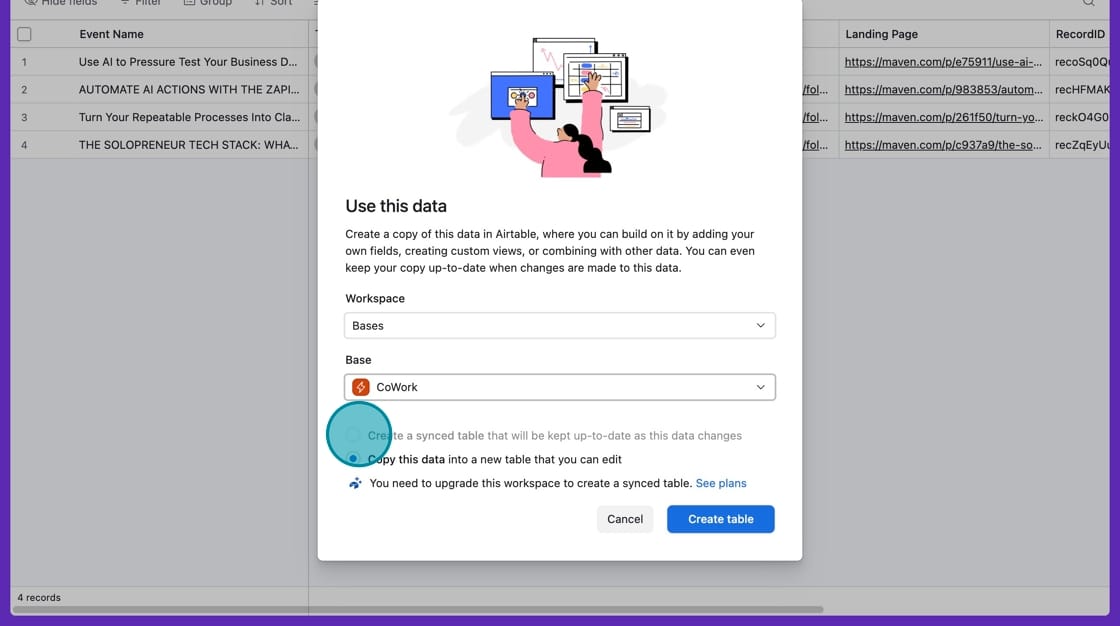
Next, you'll be prompted to select the base you want to sync to. Select your CoWor base.
You'll select "Create a synced table that will be kept up-to-date as this data changes." (mine is grayed out because I've hit the maximum amount of synced tables allowed on my plan).
Then select "Create table."
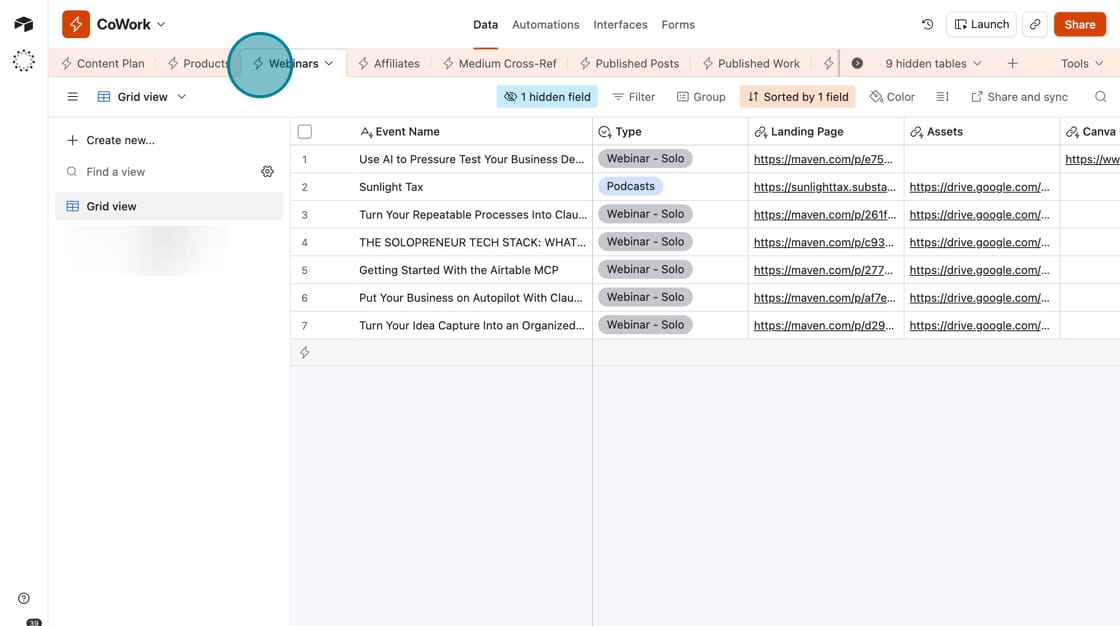
The synced table will appear in your CoWork base as a read-only copy. A lightning bolt next to the table name tells you that it's synced from another base.
Step 3: Connect Airtable in Claude
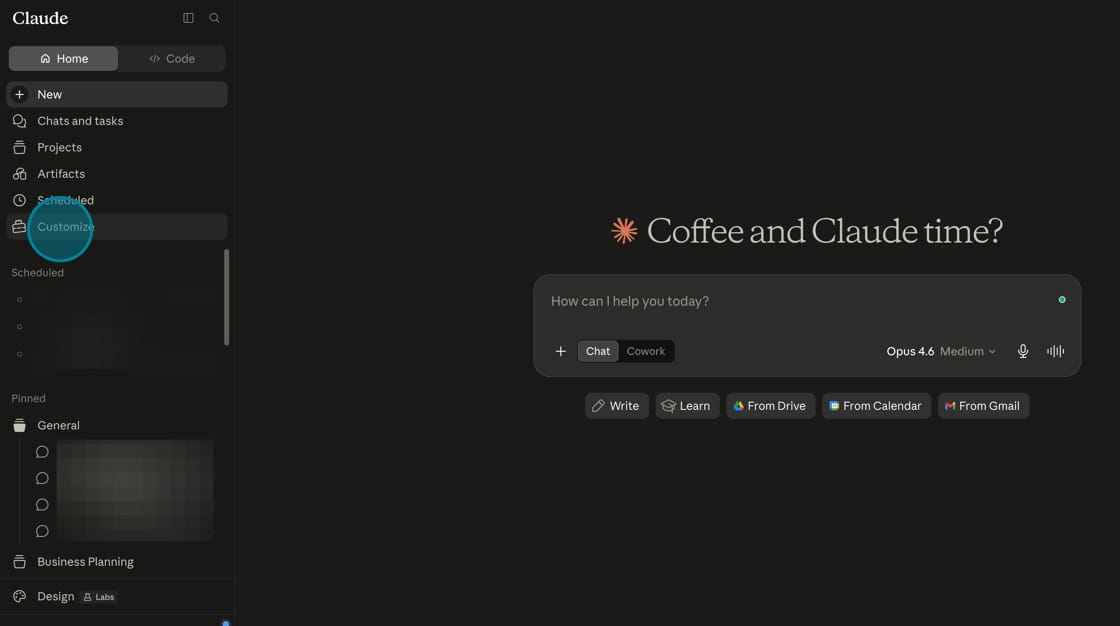
In Claude, go to Customize (which is the suitcase icon).
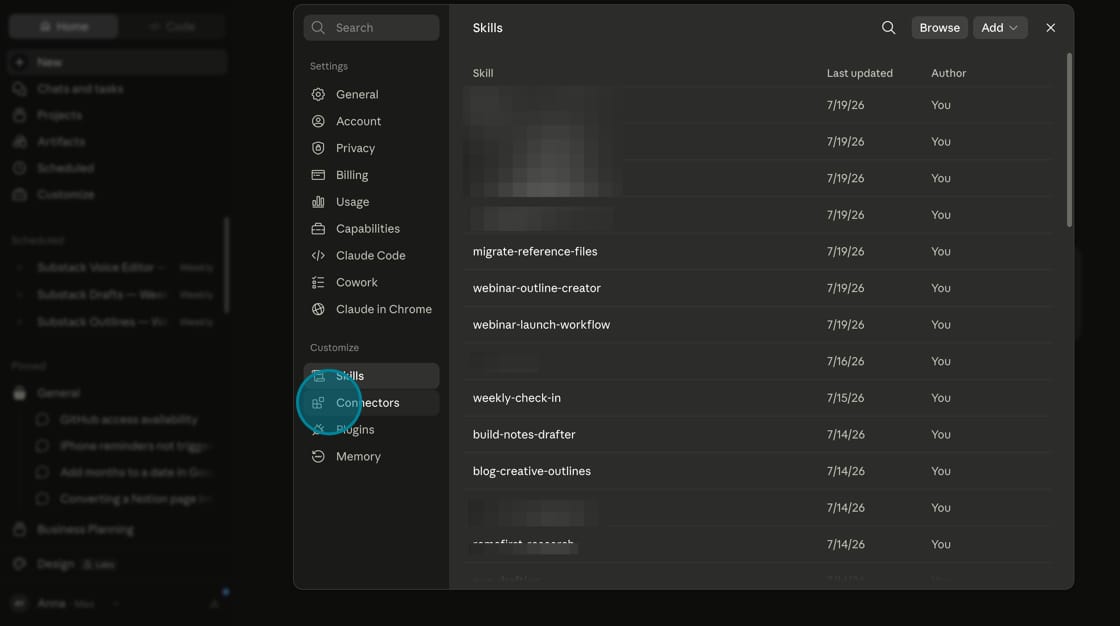
Then click "Connectors."
Then select "Add" and "Browse connectors."
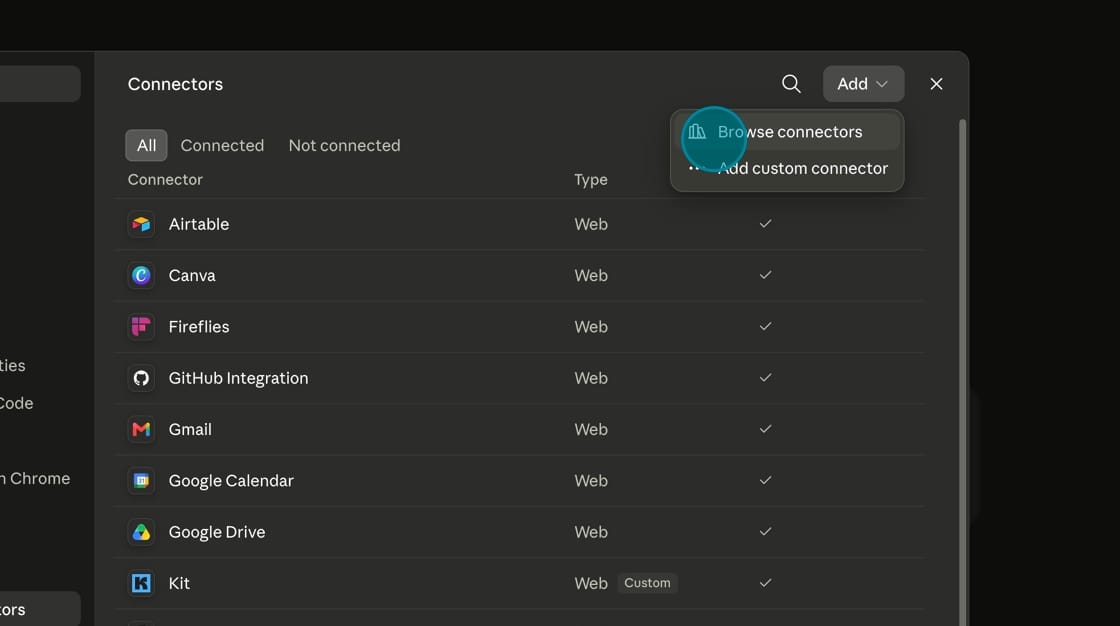
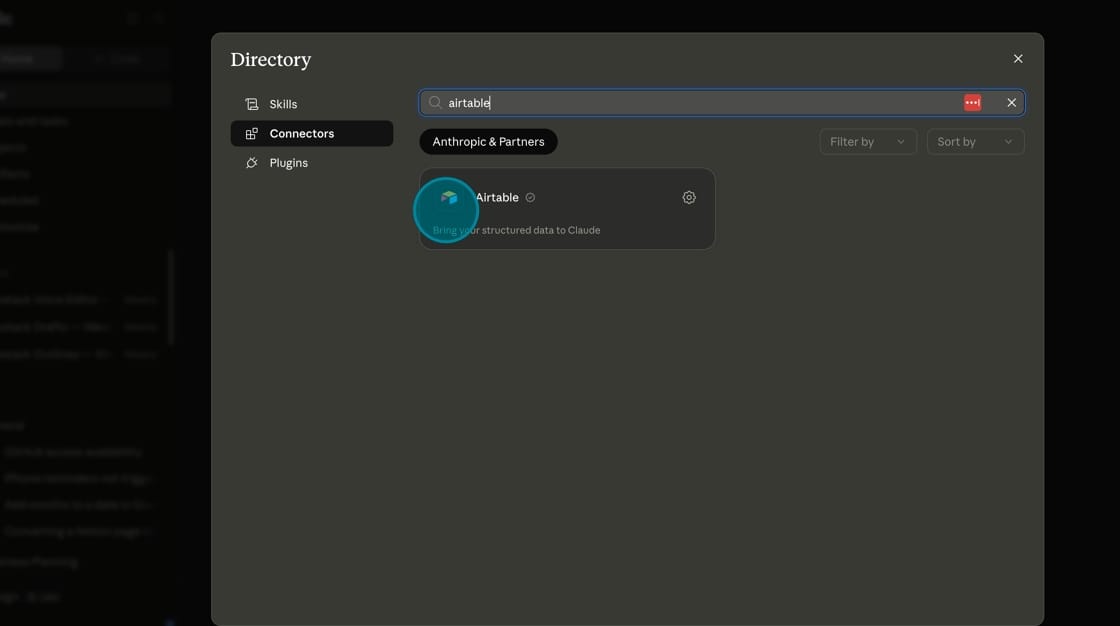
Search for and select Airtable.
Step 4: Grant Claude access to your base in Airtable
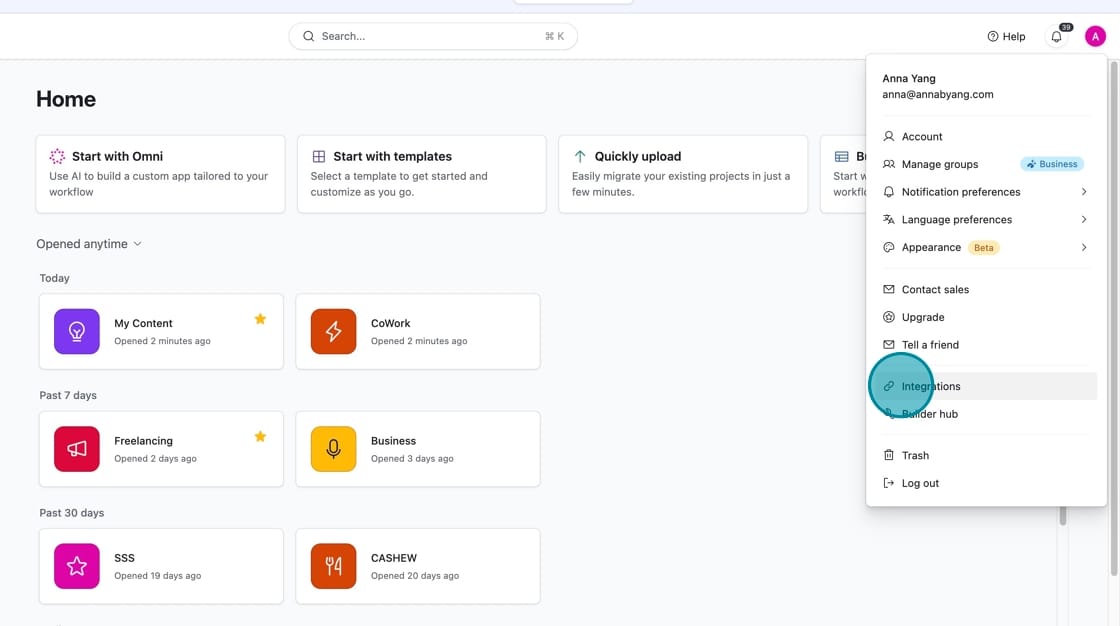
Go to your Airtable account settings and select "Integrations."
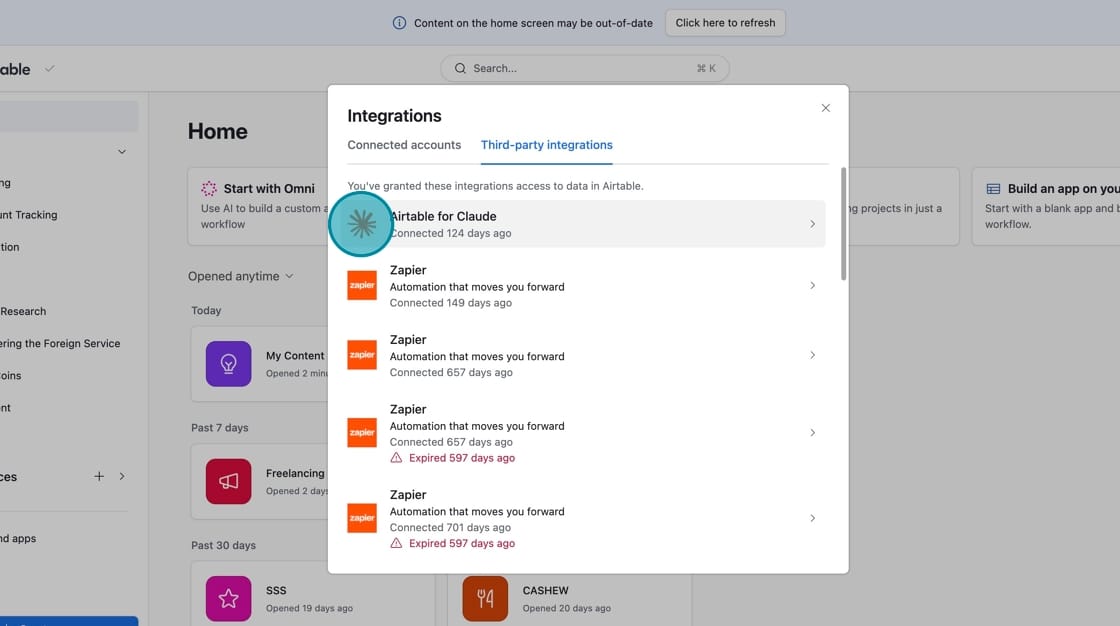
Under Integrations, select Third-party integrations, then click on "Airtable for Claude."
When you click on Airtable for Claude, you'll see which bases Claude currently has access to. Click "Add base" and select the secondary base you just set up. Only grant access to this base — not your primary one.
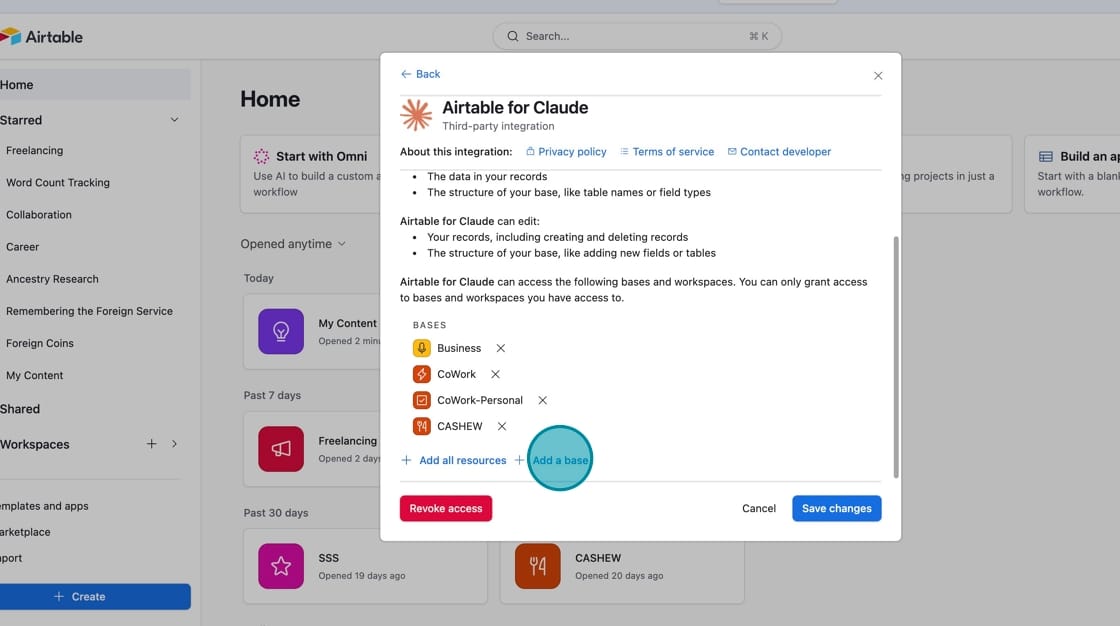
You won't need to come back to this again, unless you need to grant Claude access to additional bases in the future.
Step 5: Query your Airtable data inside Claude
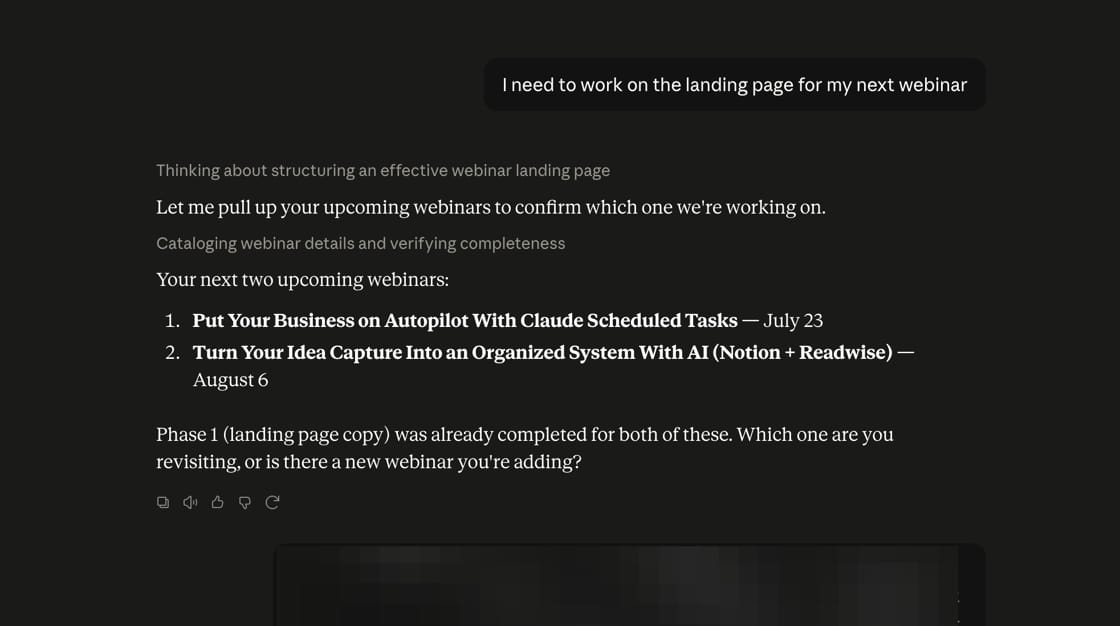
Now that you've connected Airtable, you can search your Airtable data within a Claude conversation.
Tell Claude what data you want to search for. If it's your first time, you may need to specify which base or table to look at. Once Claude learns your setup (through skills, instructions, or repeated use), you can be less specific.
Claude fetches the data and presents the results directly in the conversation.
Examples of using Airtable with Claude
Airtable has its own AI, which is great for setting fields in Airtable (like categorizing or populating fields you’d otherwise have to populate manually).
Use Claude when you’re using Airtable with more than one tool, or need context within a Claude conversation.
For example:
- When I write, Claude pulls URLs of other relevant articles I’ve written to include as inline links.
- I use the Kit MCP to pull data about my email marketing performance, and then write the data to Airtable (in my CoWork base).
- When I’m doing work for a client, Claude searches Airtable and adds a link to the client brief, information about the client’s audience, and the due date and adds it to my Google Doc.
These are all things I was doing manually before. Doing them within Claude saves me time, plus I don’t need to switch apps while I’m in a Claude conversation.
Want to see some specific MCP examples?
Check out my free guide.
More resources
- How I keep my workspace safe using Claude CoWork
- How to Choose AI Tools That Actually Save You Time
- A lifetime of automation