Zapier MCP + Google Docs: How to Fill Out a Template in Claude
No more manual copying/pasting from Claude to Google Docs

You've been working through a decision or planning something in Claude — a webinar brief, a project plan, or some type of business decision. Now you want to document it in a structured format, using a template you've already set up in Google Docs.
I used to do a lot of copying and pasting from Claude to my various Google Doc template. Now, I use the Zapier MCP to populate a GDoc template directly with information from Claude.
What you need to get started:
- Claude account
- Zapier account with the MCP server connected to Claude (here's how to set it up)
- A Google Doc template with placeholder fields (e.g., {{Project Name}}, {{Summary}})
Step 1: Add the Google Docs tool to the Zapier MCP
Head to your Zapier MCP server at mcp.zapier.com.
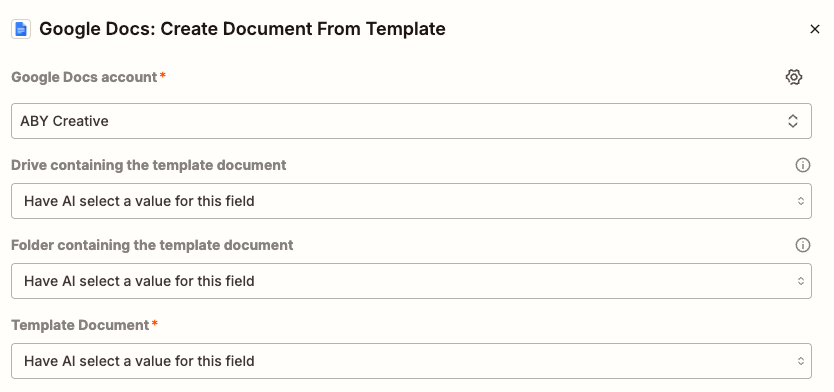
Click "Add Tool" and search for Google Docs. Select the "Create Document from Template" action.

Click the three dots to configure this action. Confirm your Google account and decide whether to lock down a specific template or let AI select from your available templates during the conversation.
Step 2: Set up your Google Doc template
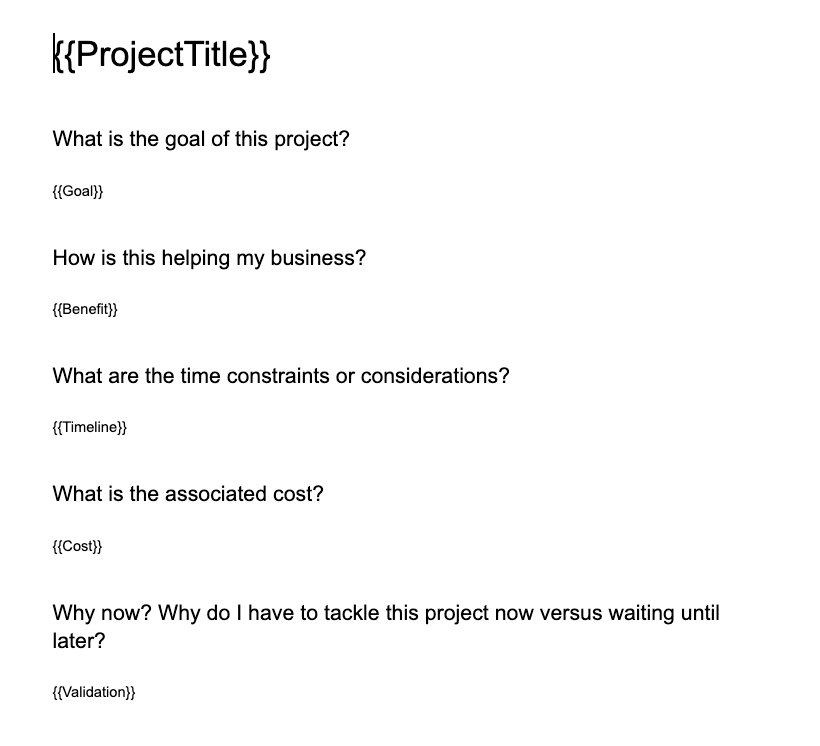
In Google Docs, create a template with placeholder fields. Each placeholder should be wrapped in double curly braces — like {{ProjectName}} or {{TargetAudience}}. Do not put spaces in the placeholders!
These are the fields that Zapier will fill in when the document is created. Save the template in a folder that your Zapier-connected Google account can access.
Step 3: Work through the content with Claude
I start by having a conversation with Claude about whatever I'm planning or documenting. For me, this comes first. Then Claude can populate the template based on the conversation.
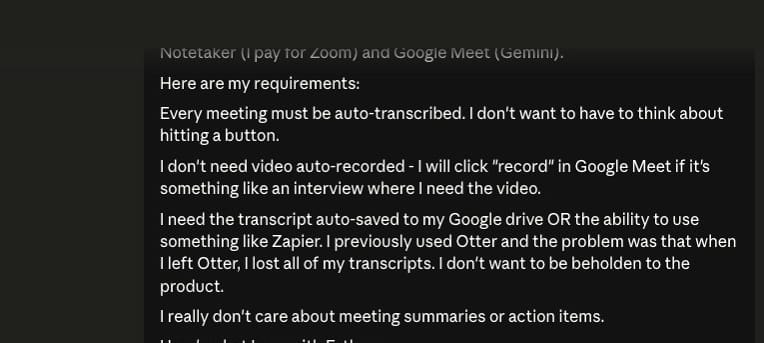
Here's a conversation I had about switching AI Notetakers. It started with a back-and-forth with Claude about why I was unhappy with my current tool and what I wanted from a replacement. I had Claude do some research for me.
Step 4: Let Claude know you want to fill out a template
When I was ready to document my conversation, I let Claude know that I wanted to fill out my template.
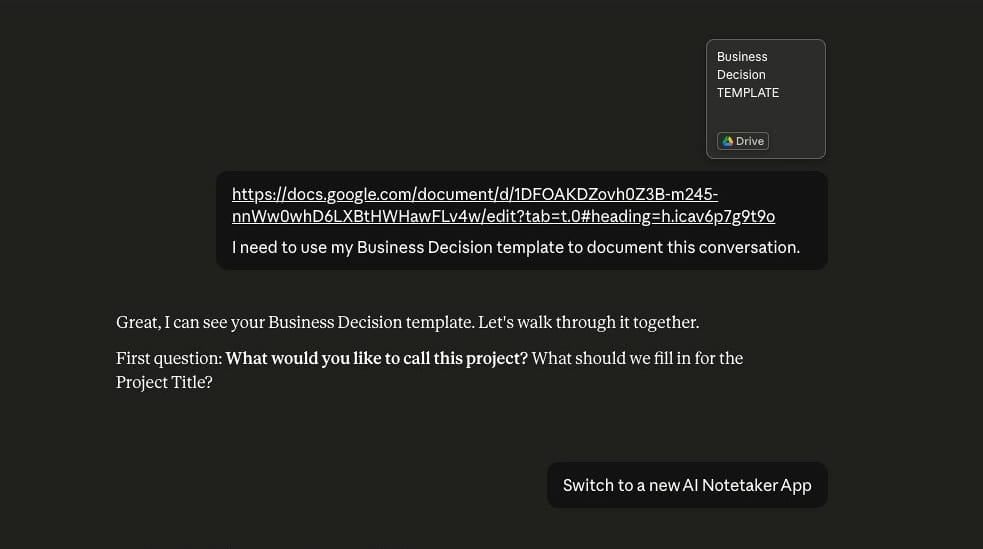
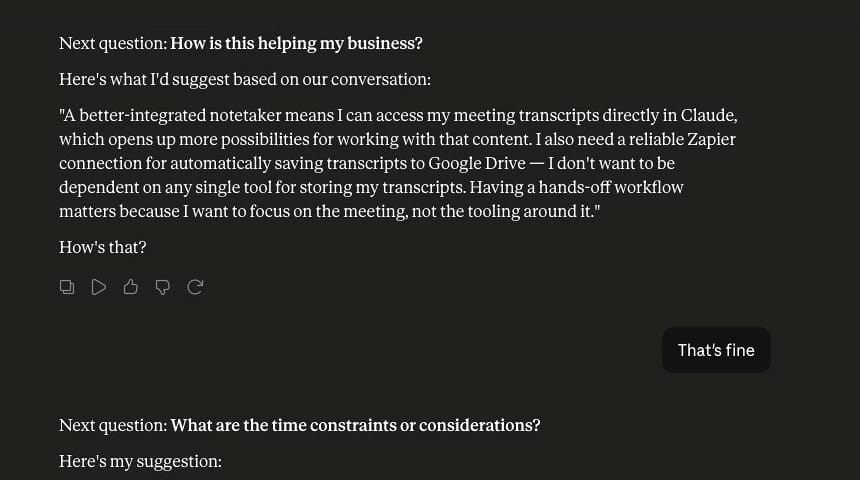
Claude walked through every {{Placeholder}} field on the template. In most cases, this was a summary of the conversation, and Claude proposed what should be included in that field. In other cases, I provide additional context for Claude to add.
Step 4: Confirm and create the document
Once Claude has completed all of the placeholders, it will confirm that its ready to create the Google Doc.
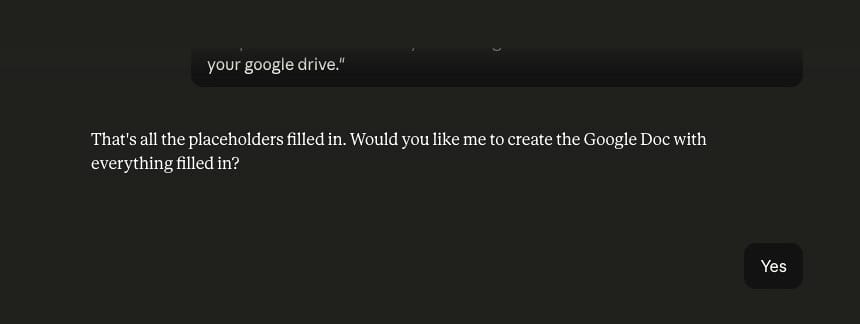
Claude calls the Zapier MCP, creates the document from your template, and saves it to the correct folder in your Google Drive (you can specify the folder in the MCP configuration, or let Claude know the folder on the fly). Claude will let you know when it's done.
Step 5: Verify the completed document in Google Drive
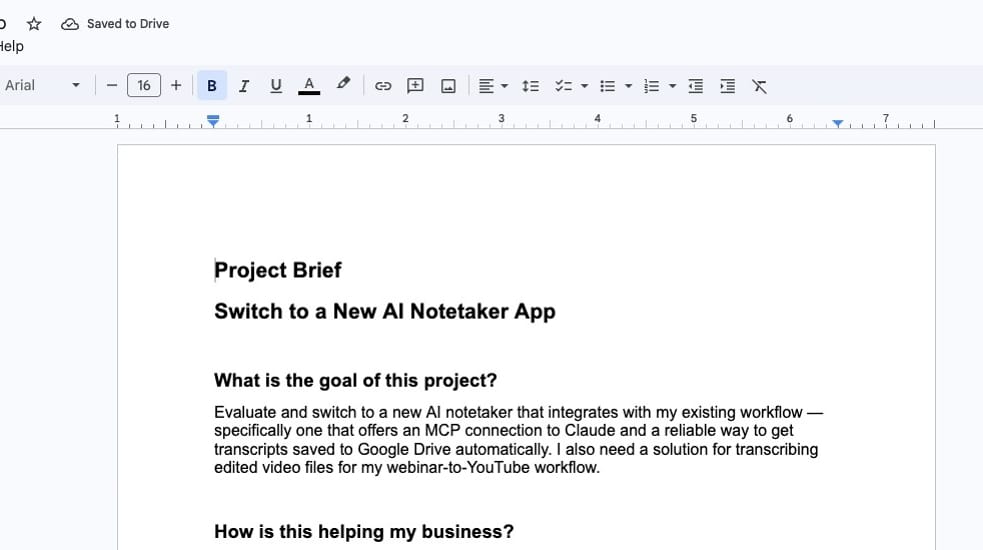
Click over to Google Drive and open the document. You'll see the fully completed Google Doc based on your template, with all the placeholders filled in from your conversation with Claude.
Pro tips
- You can set up instructions in a Claude project or Claude skill that tell Claude which template to use and where to save the document. That way, you don't have to specify it every time.
- If you have other automations — like a Zapier workflow that triggers when a file is added to a specific folder — the document creation can kick off additional steps automatically. For example, when a new Business Decision document is added to my Google Drive folder, a card is created in Trello.
Want to see some specific MCP examples?
Check out my free guide.