
Create a Todoist Task From Claude
Capture to-do items without leaving your AI conversation.


I use Todoist for all of my standalone tasks and recurring to-dos. I check the app every single morning so I know what I need to get done that day.
The problem is that I don't always think of tasks when I'm looking at Todoist. I think of them while I’m working on something else, like brainstorming in Claude or planning a project.
Instead of switching apps to add the item Todoist, I use the Todoist connector in Claude. I capture tasks without ever leaving the conversation. Claude even reminds me when something sounds like it should go on my to-do list.
Here's how to set it up.
Before you get started:
- Claude account
- Todoist [affiliate link]* account, connected to Claude
Why capturing tasks in real time matters
If you don’t capture a to-do item the moment you think of it, you might forget. And when you context switch — even for a few seconds, to get something added to another app — it takes time to get back into the groove of what you were doing. Research suggests it can take over 20 minutes to fully refocus after a distraction.
The Todoist connector (also called an MCP, or Model Context Protocol) lets you fire off a task from within an AI tool like Claude or ChatGPT. You can even give it a due date and any links or notes you have.
Even though I use Todoist, this process would work with any app that has an AI connector via MCP.
 Anna Burgess Yang

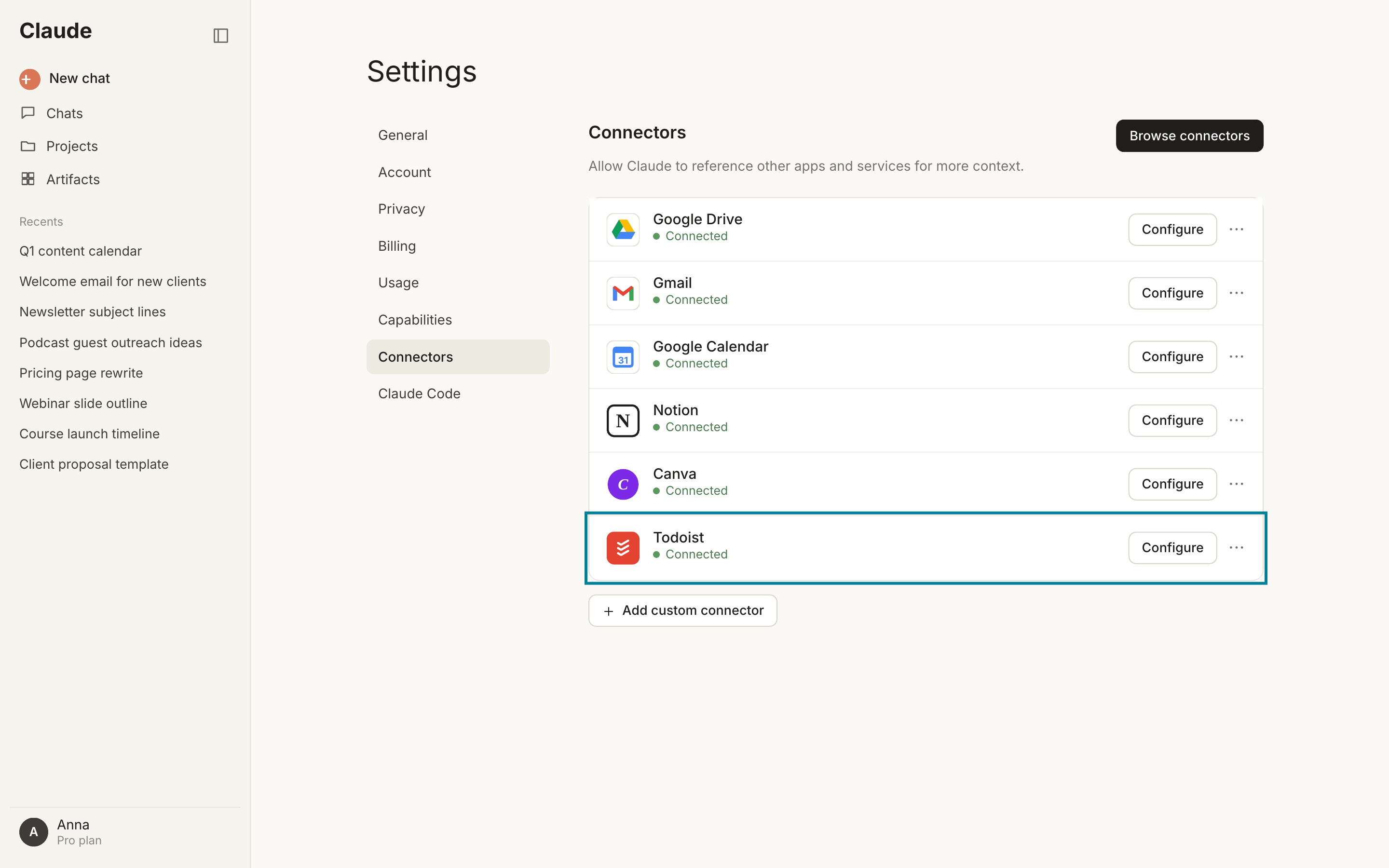
Step 1: Connect Todoist to Claude
To get started, you need to add Todoist as a connector in Claude. This is a one-time process, the same as adding any integration between tools.
You simply search for Todoist from the available connectors, then use your Todoist credentials to connect.
Step 2: Configure nudging behavior in Claude settings
This is a very useful part of my process. Instead of remembering to say "Hey Claude, add that to my to-do list," you can set up nudging behavior so Claude catches it for you.
In Claude, click on your profile icon in the lower left corner and select "Settings." You'll see a "Personal Preferences" text box where you can type instructions that apply across all of your conversations.
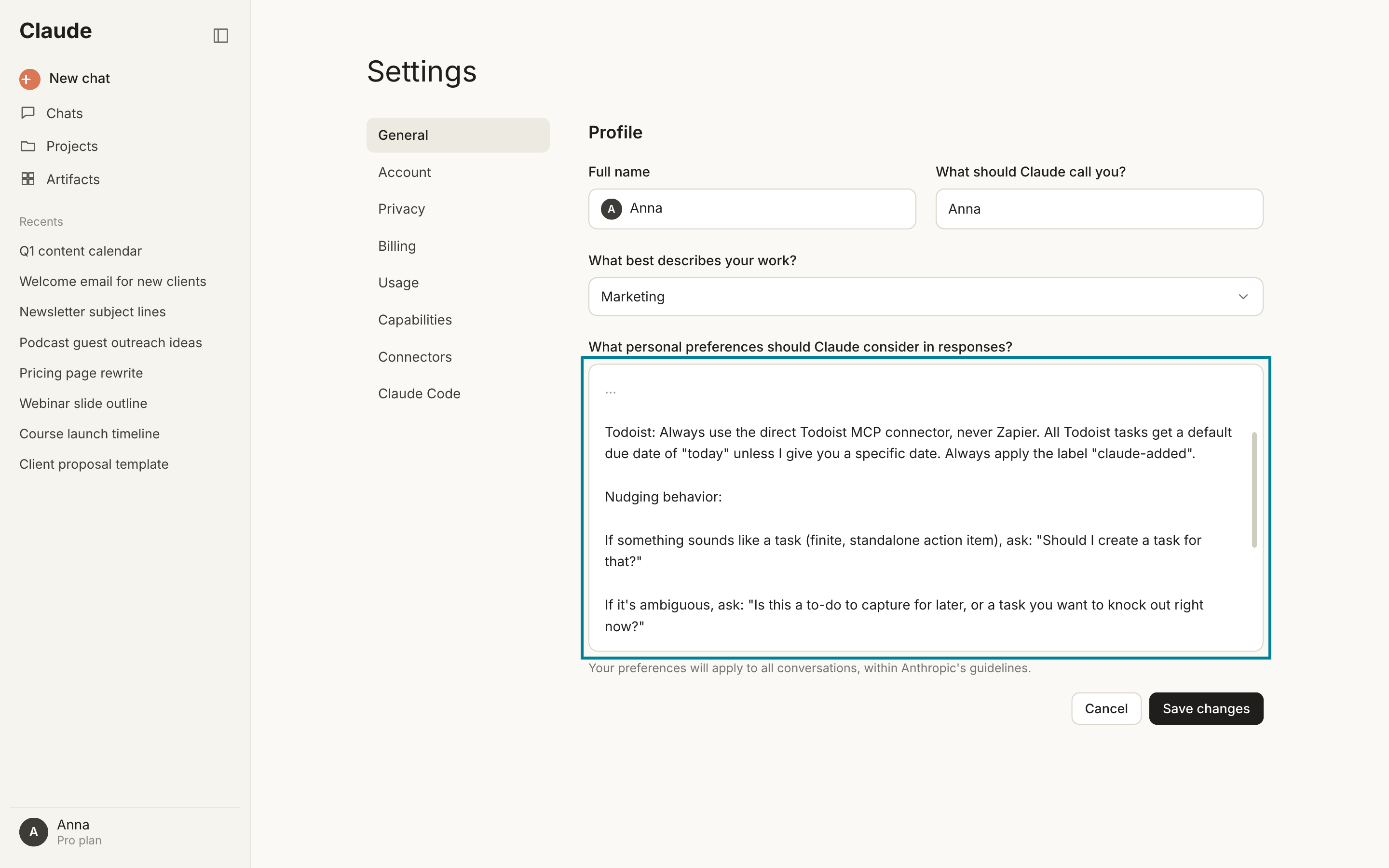
I have a section specifically for how Claude should handle tasks. You describe what a "task" looks like to you, and Claude watches for it. My instructions say:
If something sounds like a follow-up item or a finite action, ask me if you should create a task in Todoist.
By doing this, Claude is proactively nudging me to add items.
I use a separate tool for project management, so my instructions have to clarify that I use Trello for bigger projects that involve multiple steps. That way, Claude suggests the right tool. The more detail you give about how you use different tools, the better Claude gets at recognizing which one to suggest.
Step 3: Confirm the task creation in Claude
You're in a conversation with Claude. You mention something that needs to get done later, and Claude picks up on it.
Claude will ask something like: "Should I add that as a task in Todoist?"
You reply yes. That's it.
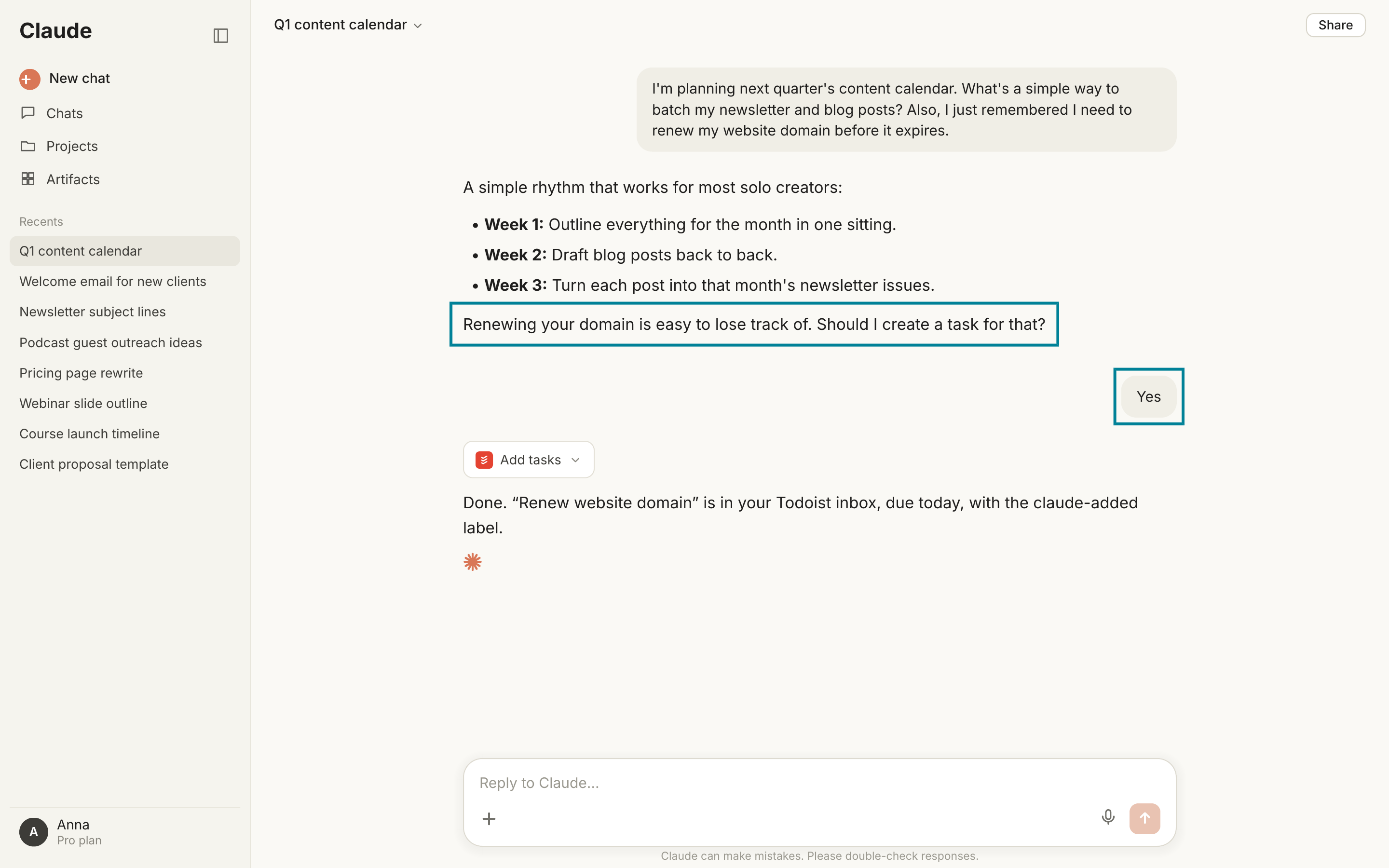
Claude calls the Todoist MCP in the background, creates the task, and lets you know when it's done. The whole thing takes a few seconds.
You can also use natural language to add details. Reply "yes, and make it due Friday" or "add it to my Projects list and make it due tomorrow and link this Google doc I was working on.” Claude passes that information along when it creates the task.
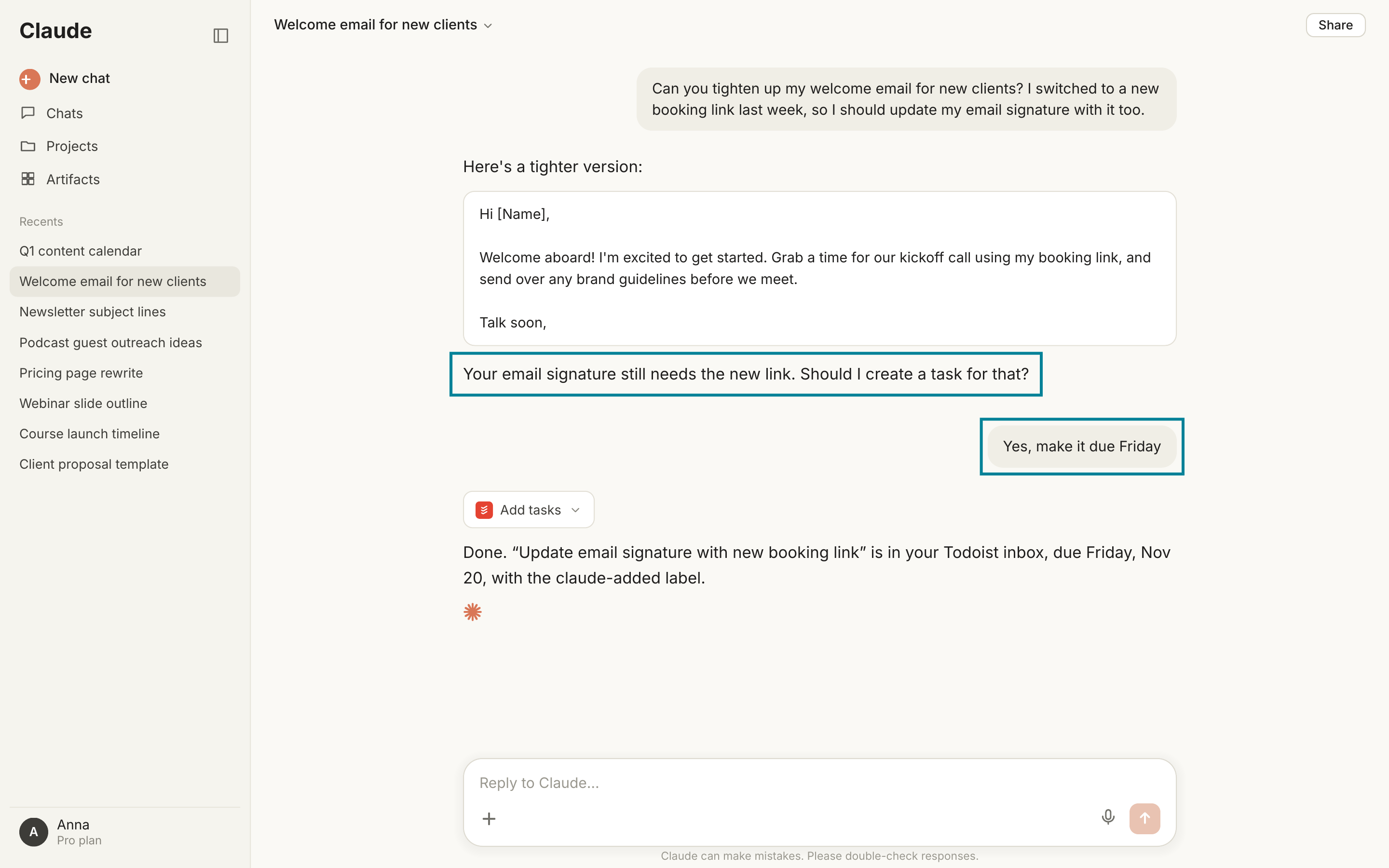
Claude is almost always correct in identifying items, but sometimes, I don’t want the item on my to-do list. In those cases, I just reply “no.”
Step 4: Verify the task in Todoist
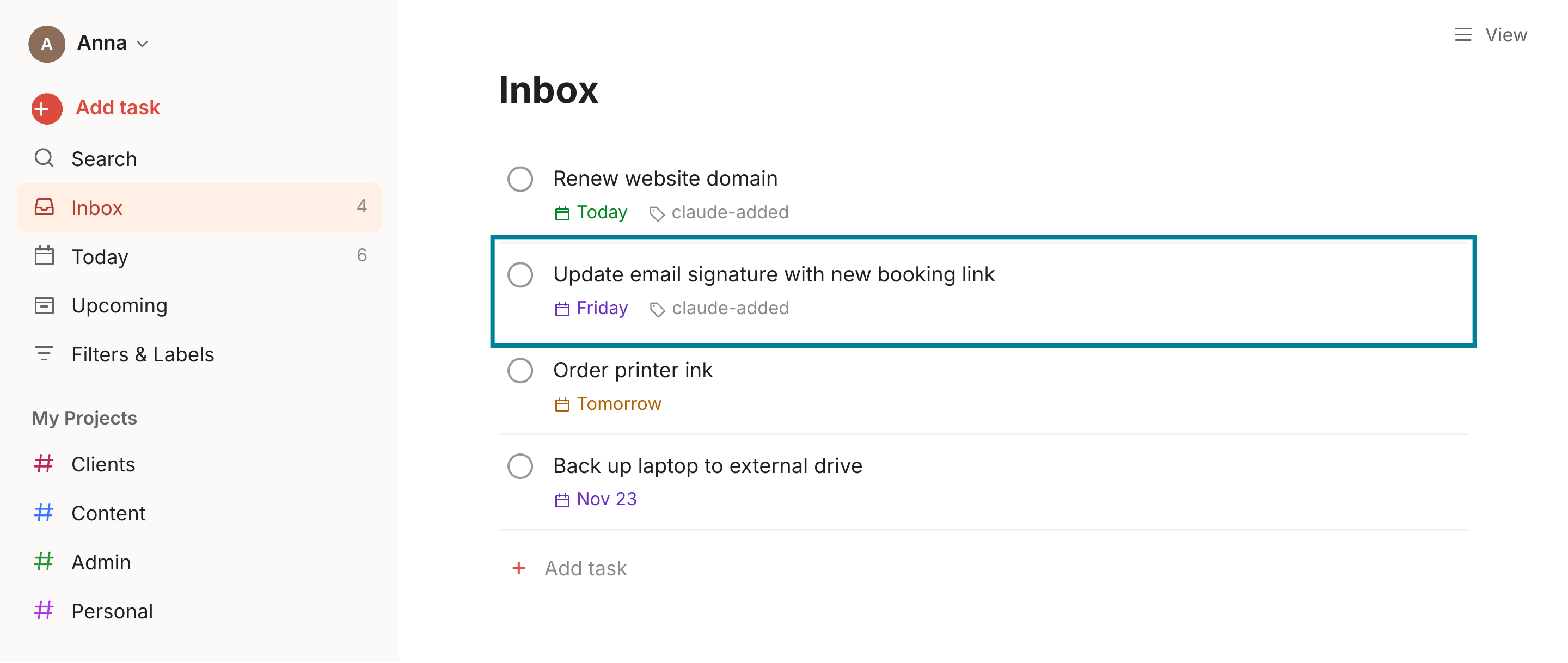
Click over to Todoist, and the task is sitting in your inbox (or whichever list you specified). The title, due date, and any other details you mentioned in the conversation are all there.
Pro tips:
- You don't have to wait for a nudge. You can also create tasks on the fly by just telling Claude what you need: "Add a task to Todoist to review the Q3 proposal, due Monday." Claude will call the Todoist MCP.
- Nudging works across conversations. Because the nudging behavior lives in your global settings, Claude will watch for tasks no matter which conversation or project you're working in. It will also work in Claude Code.
- Claude can update task due dates. You can do a daily rundown with Claude, looking at what’s on your list, and telling Claude to move items to future dates.
- Labels. I have Claude apply a “claude-added” label to each task it creates, so I know it came from Claude.