Capturing To-Do Items With the Pebble Index 01 Ring
Recording to-do items on the go.


I use voice apps a lot. I use them to capture everything from random ideas to my grocery list.
But there's a sticking point: I need to be either near my phone or an Alexa device in my house. What if I'm not near either?
I heard about the Pebble Index 01 smart ring on a podcast. It seemed like a perfect solution. Push a button, record a quick voice note, and route it to my to-do app.
I've had the ring for about a week, and I'm obsessed. It solves the exact problem I had. I use it probably 10-15 times per day. Like moving laundry from the washer to the dryer, something comes to mind, I record it with the Pebble Index 01.
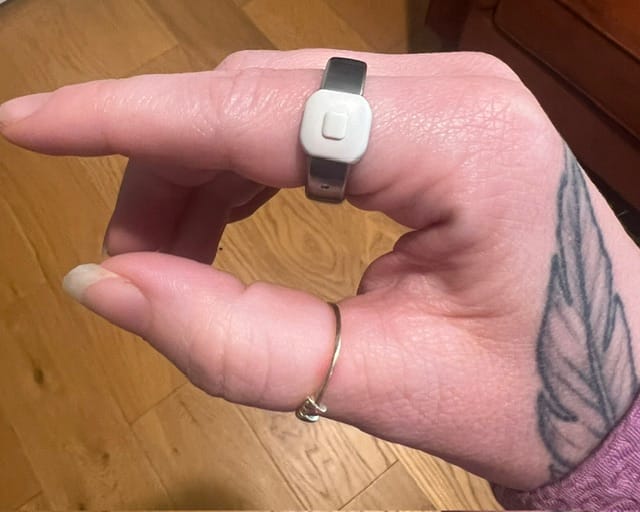
How a smart ring works
The Pebble Index 01 ring, specifically, captures your voice, transcribes it, and stores it in the Pebble app. You can tie your voice notes to the built-in iPhone reminders (or Android equivalent), or route them to an external app of your choosing.
I looked at several smart rings. The Pebble Index 01 doesn't need to be charged. Its internal battery dies after about 2 years, and you buy a new one ($99). Frankly, that's a reasonable tradeoff for not needing to charge the device and no monthly subscription.
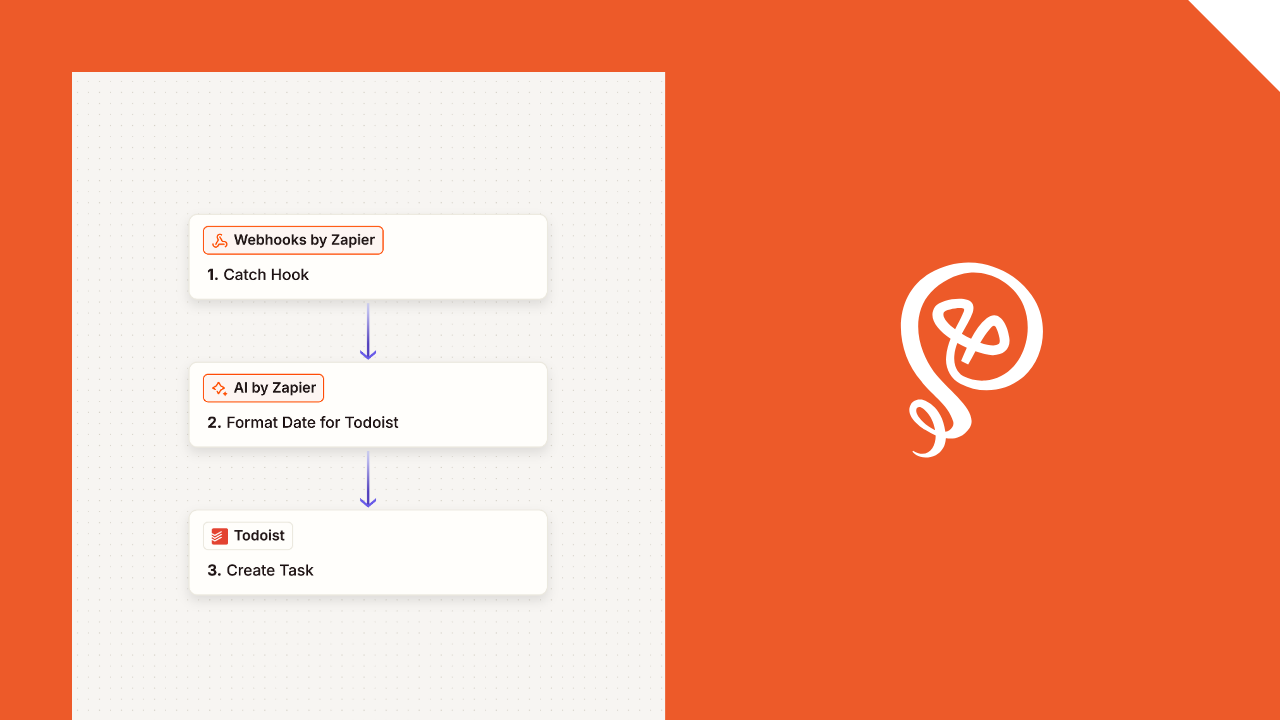
My setup uses a Zapier webhook and routes my Pebble Index 01 notes to Todoist, which is my to-do app. But webhook-to-app routing would work with any app that works with Zapier or accepts webhooks.
Step 1: Set up a webhook
In Zapier, I used the "Webhooks by Zapier" feature. The trigger event is "Catch Hook."
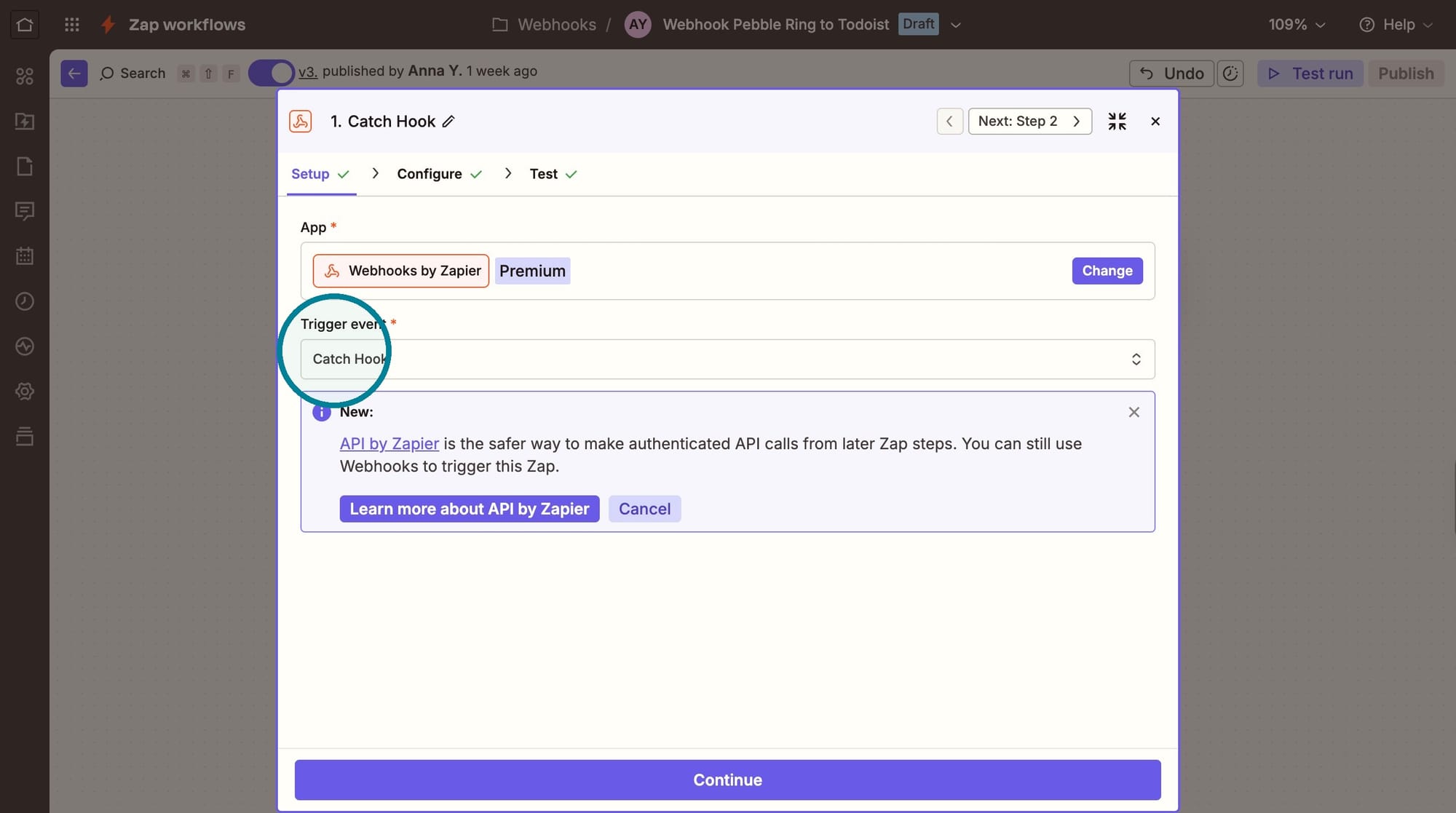
Once you select this, Zapier will generate a webhook for you. Select "Copy" to copy the URL.
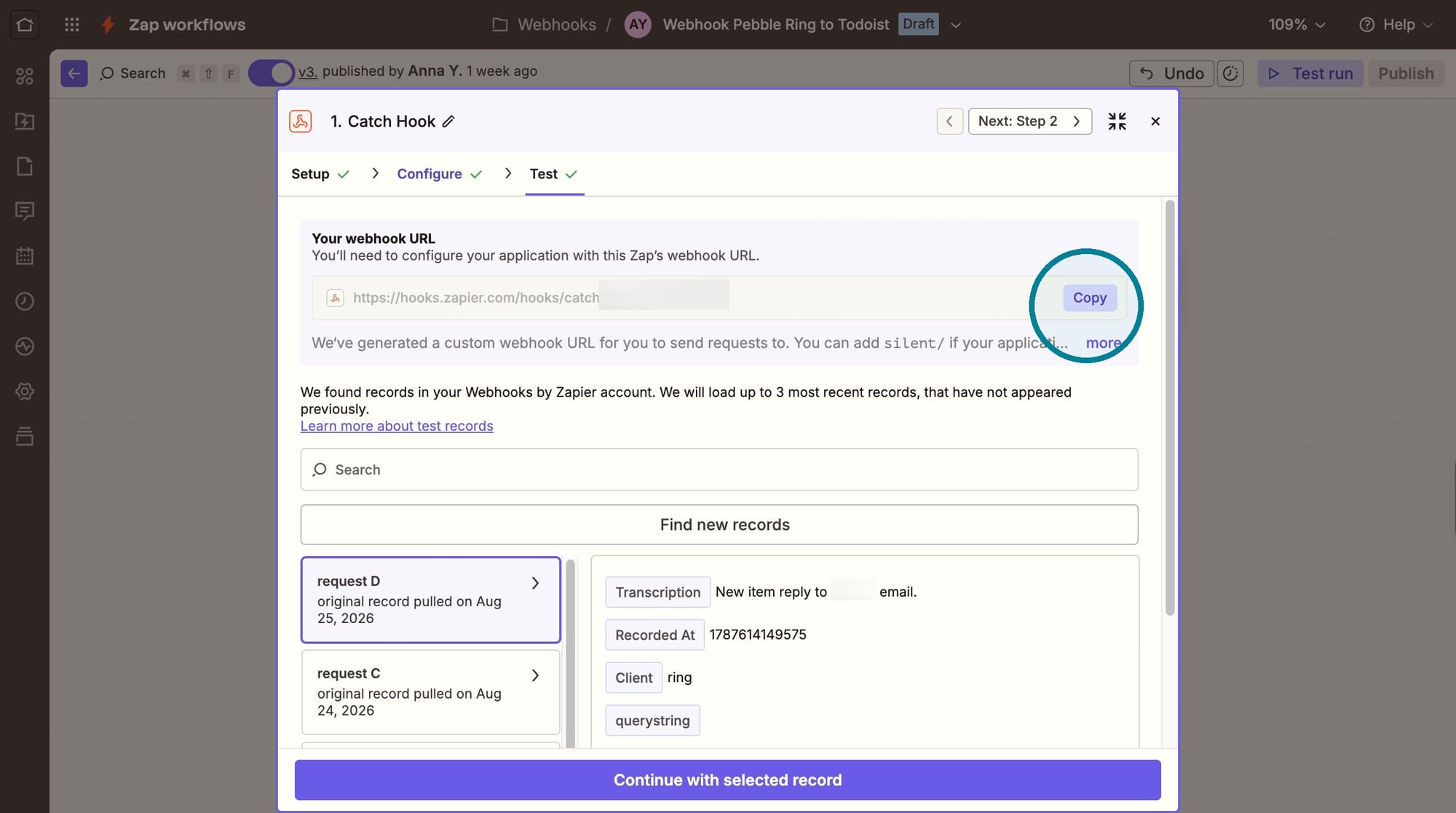
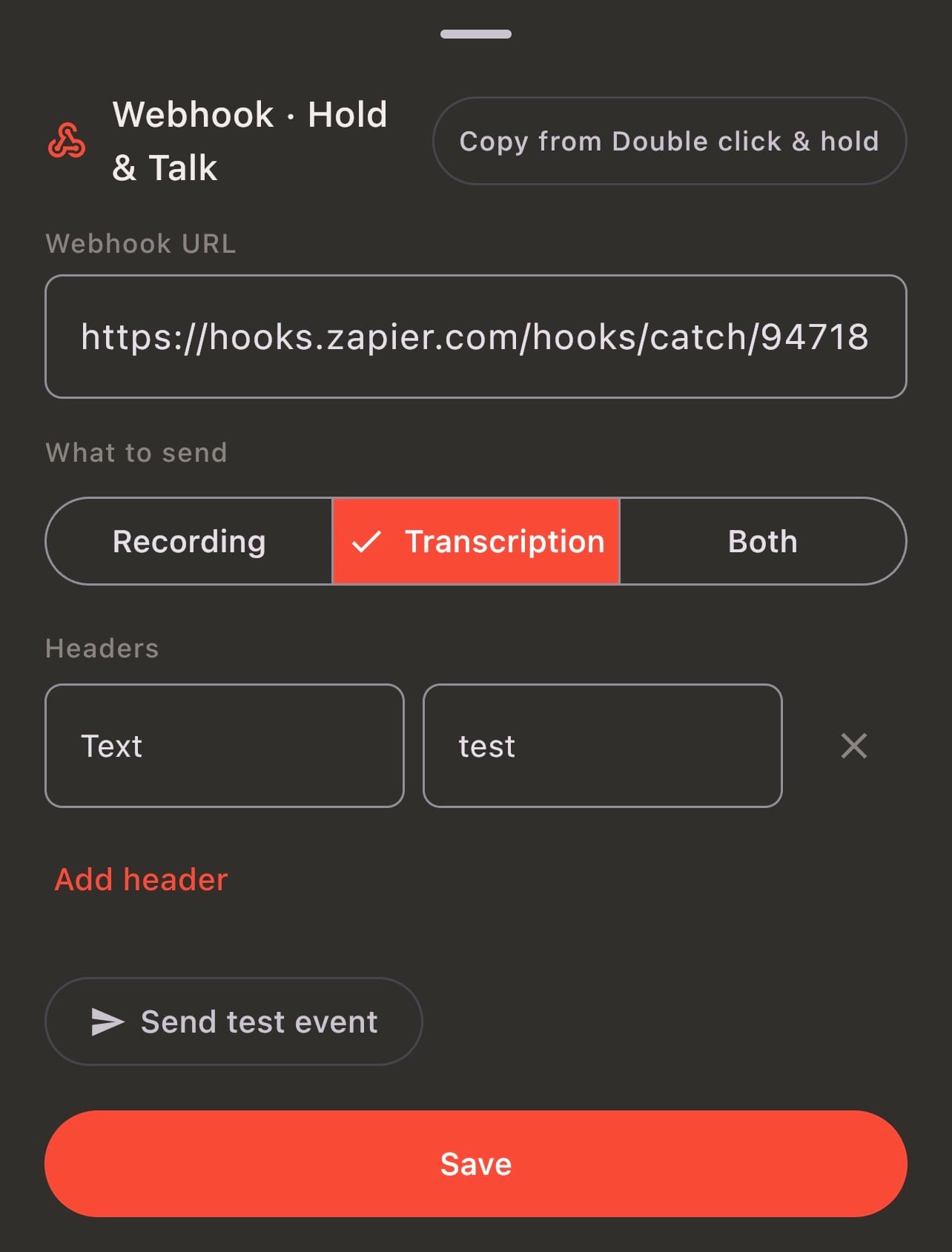
Then go into the Pebble app and paste the webhook. Give it a try: either record an actual voice note or select "Send Test Event." Then go back to Zapier to run the test and make sure it picks up the webhook.
Step 2: Format the date
Todoist used "human-formatted" dates, like "next Tuesday" or "tomorrow."
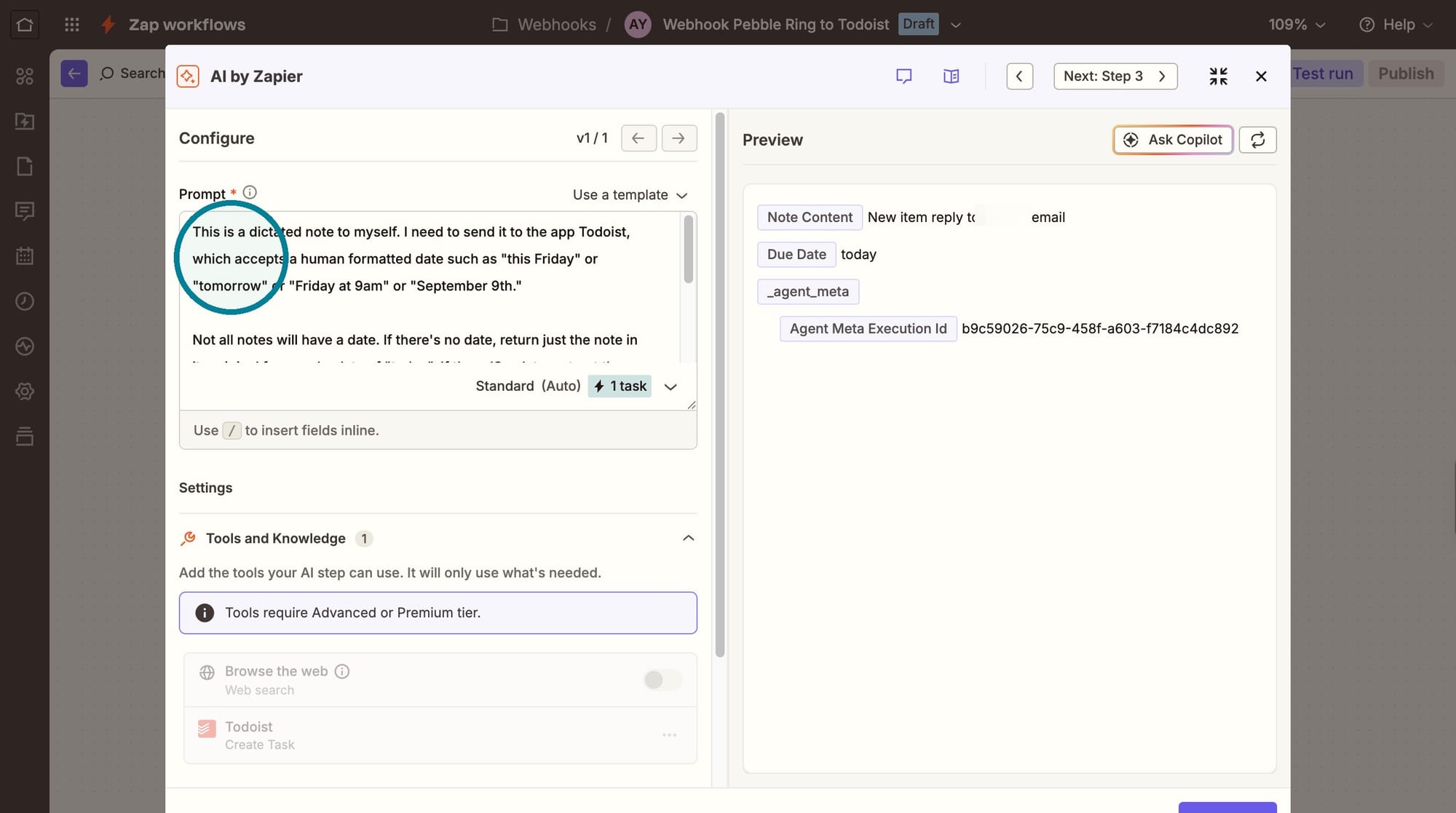
In the text from the webhook, my voice note comes through as a single line of text, like "Send an email to this person tomorrow." For Todoist, I need this split into two pieces: the to-do item and the human-formatted date.
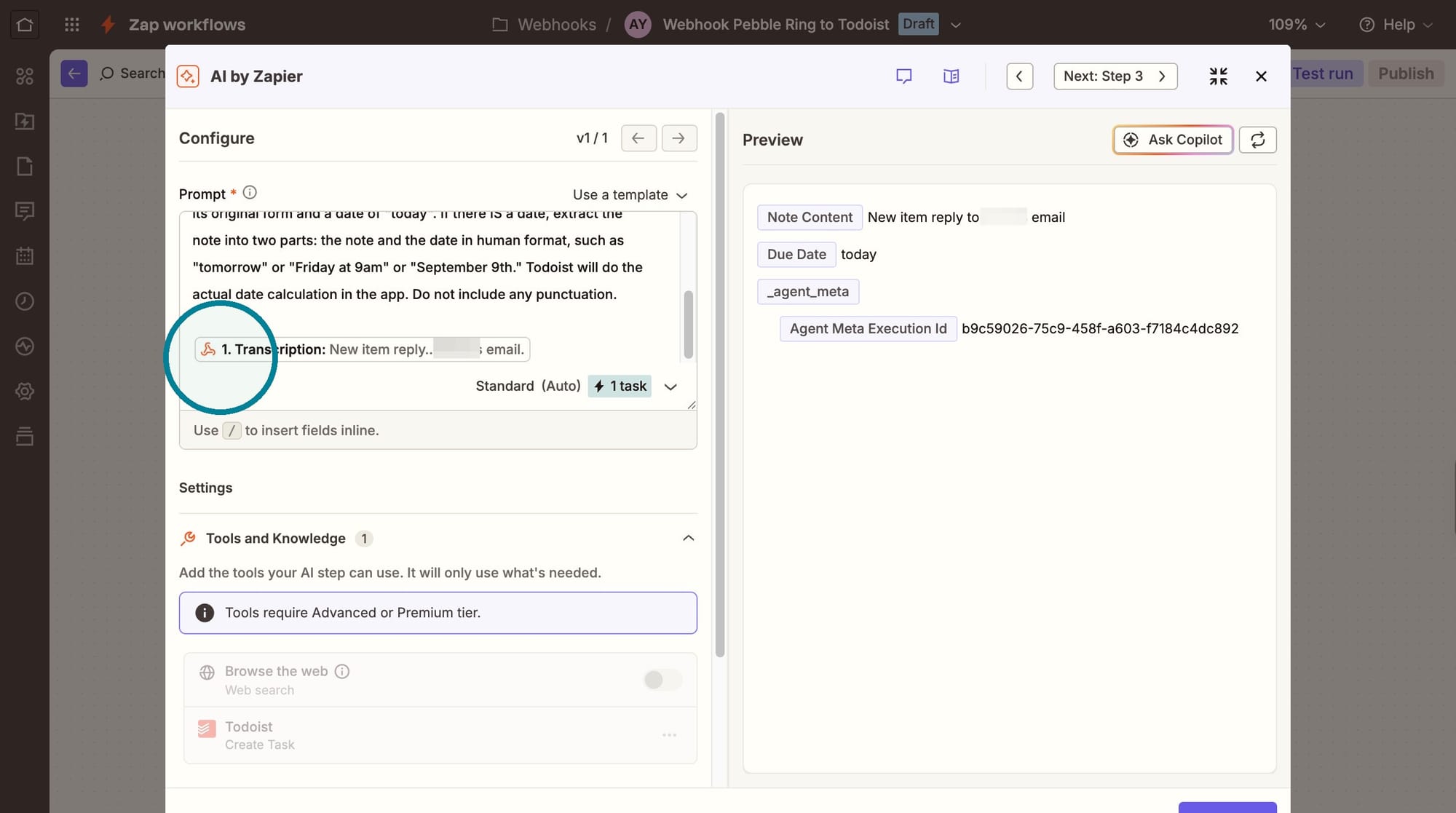
I use AI by Zapier to split this. My instructions are to read the transcript and return the two separate pieces. If there's no date, my instructions are to return a date of "today." That way, it shows up on my to-do list immediately, and I can edit the date later.
At the bottom of my instructions, I have the transcript from my prior step.
Step 3: Send the item to your to-do list
My final step in Zapier is to "Create Task" in Todoist.
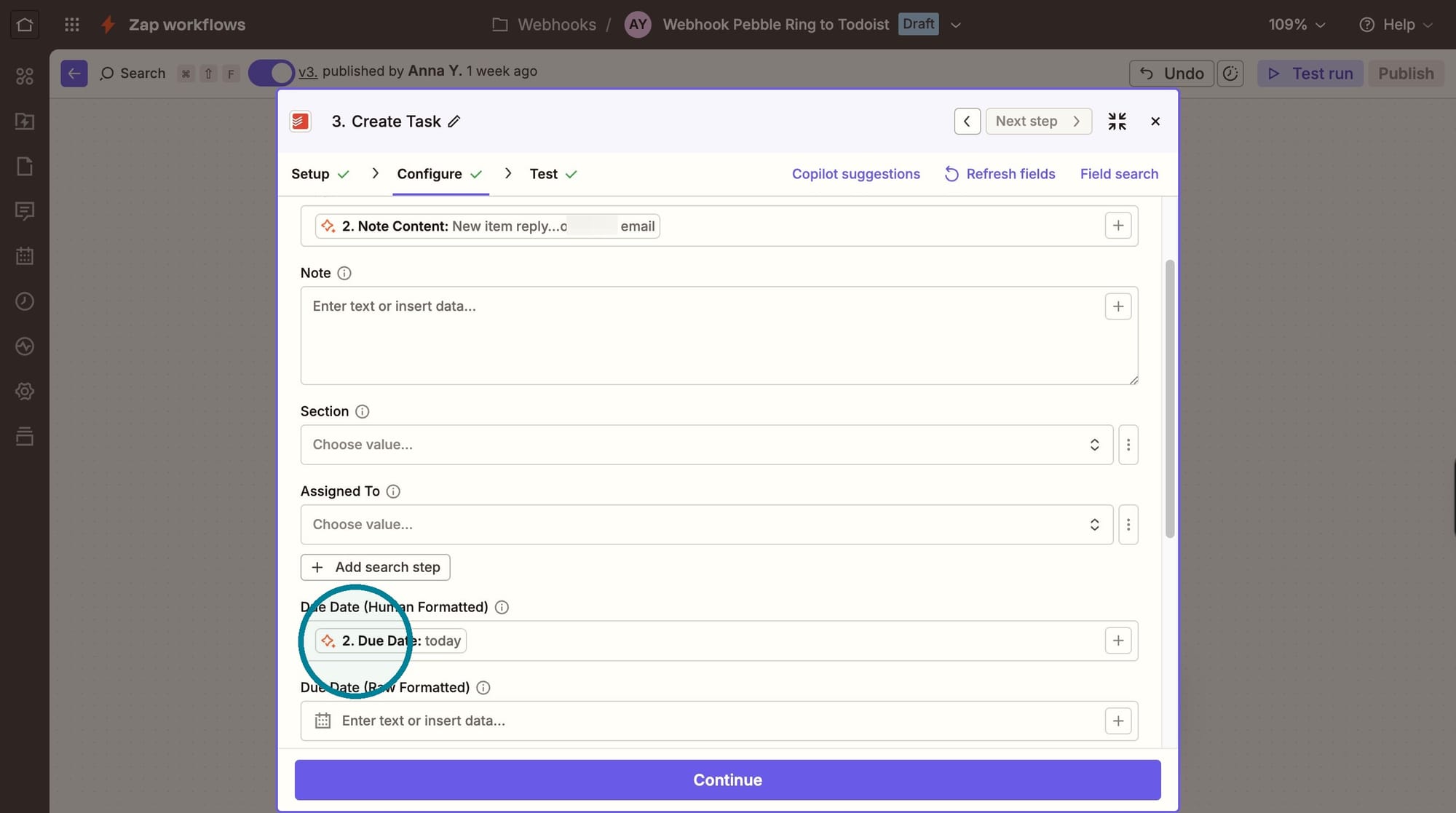
I send it to my Inbox in Zapier, rather than a specific project, but you could certainly configure this differently. The title of the task is the first part of my split from Step 2: the thing I need to do.
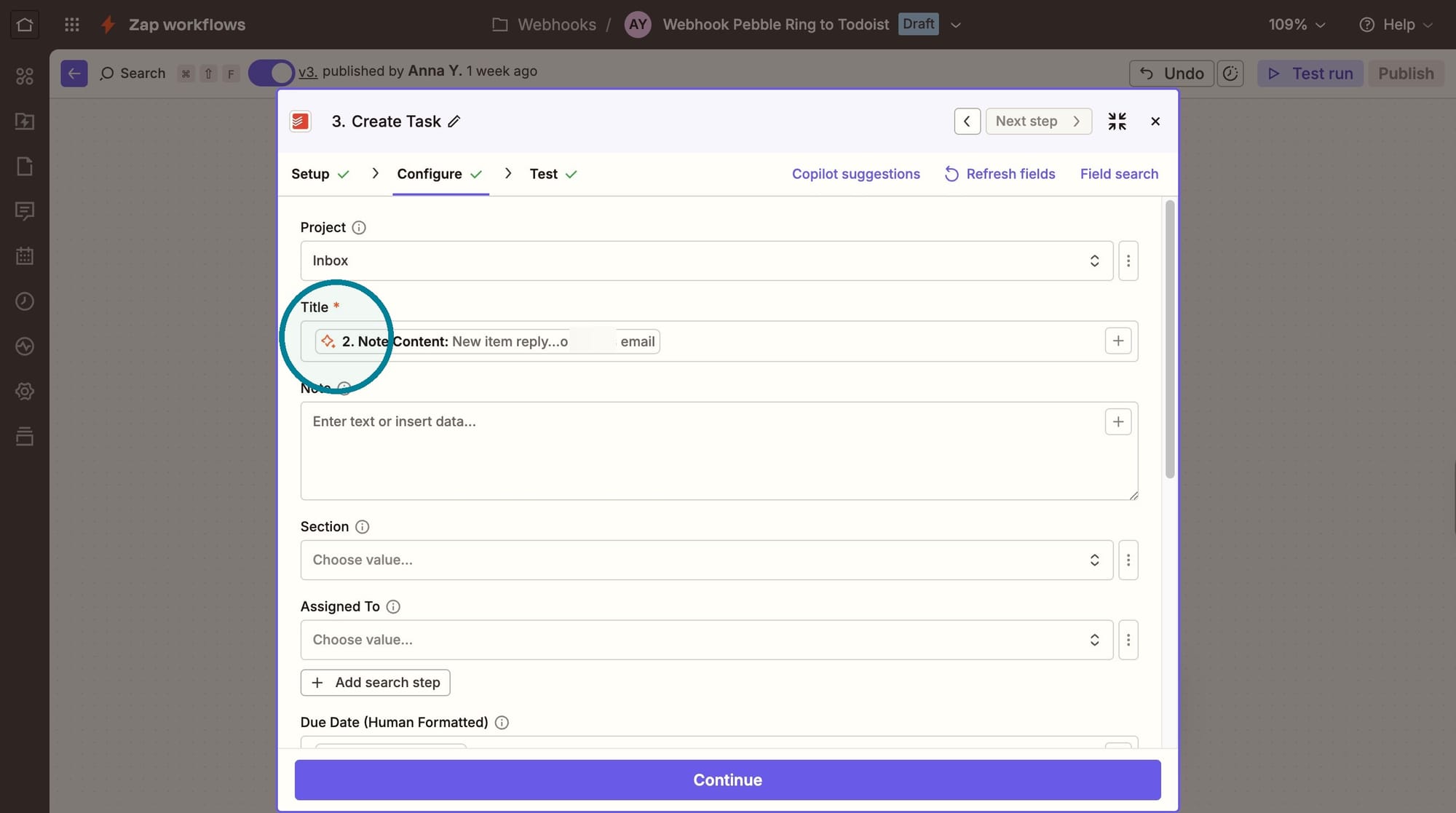
Then the Due Date in Todoist is the human-formatted date generated by Step 2: either a specific date or "today."
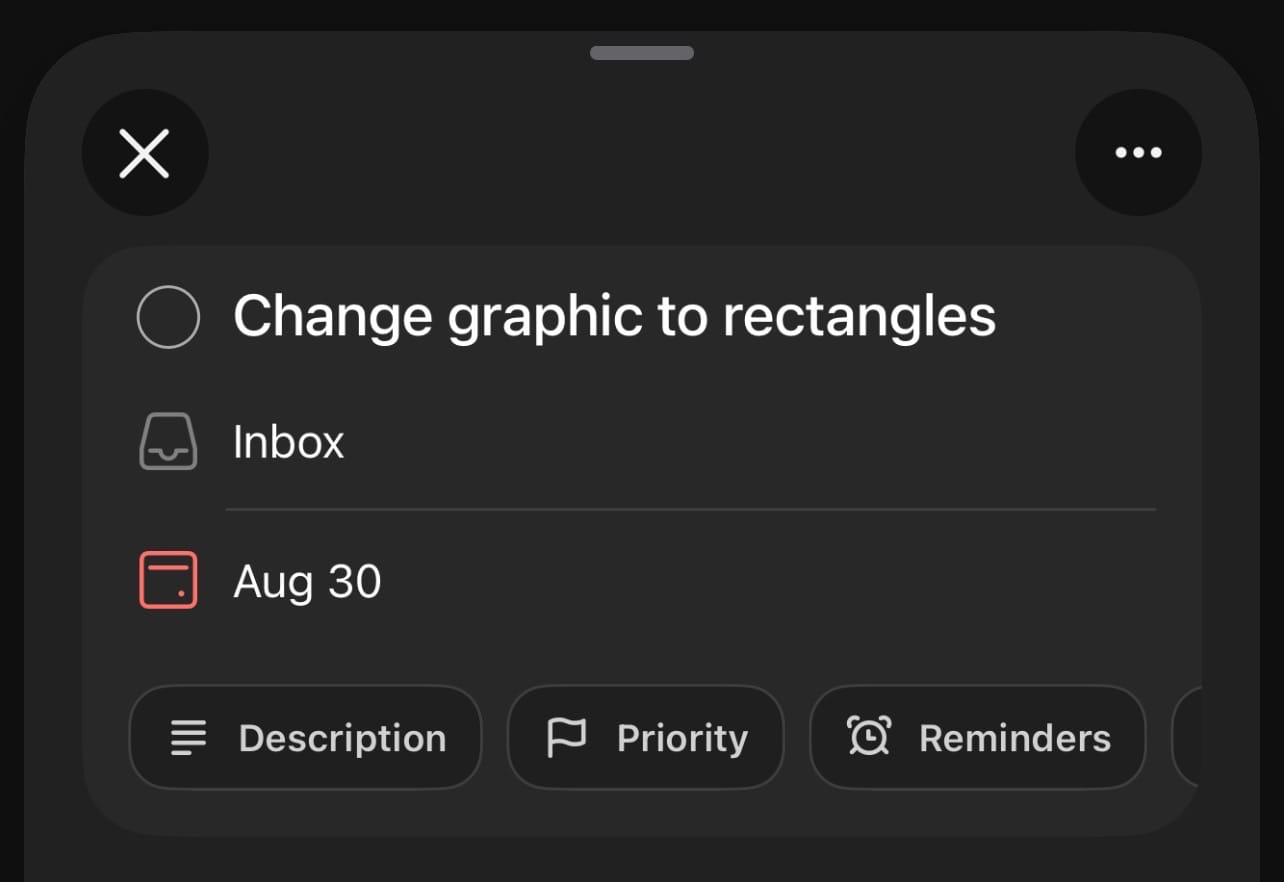
Here's a recent example. I needed to edit something in Canva (yes, this "change graphics to rectangles" meant something to me!).
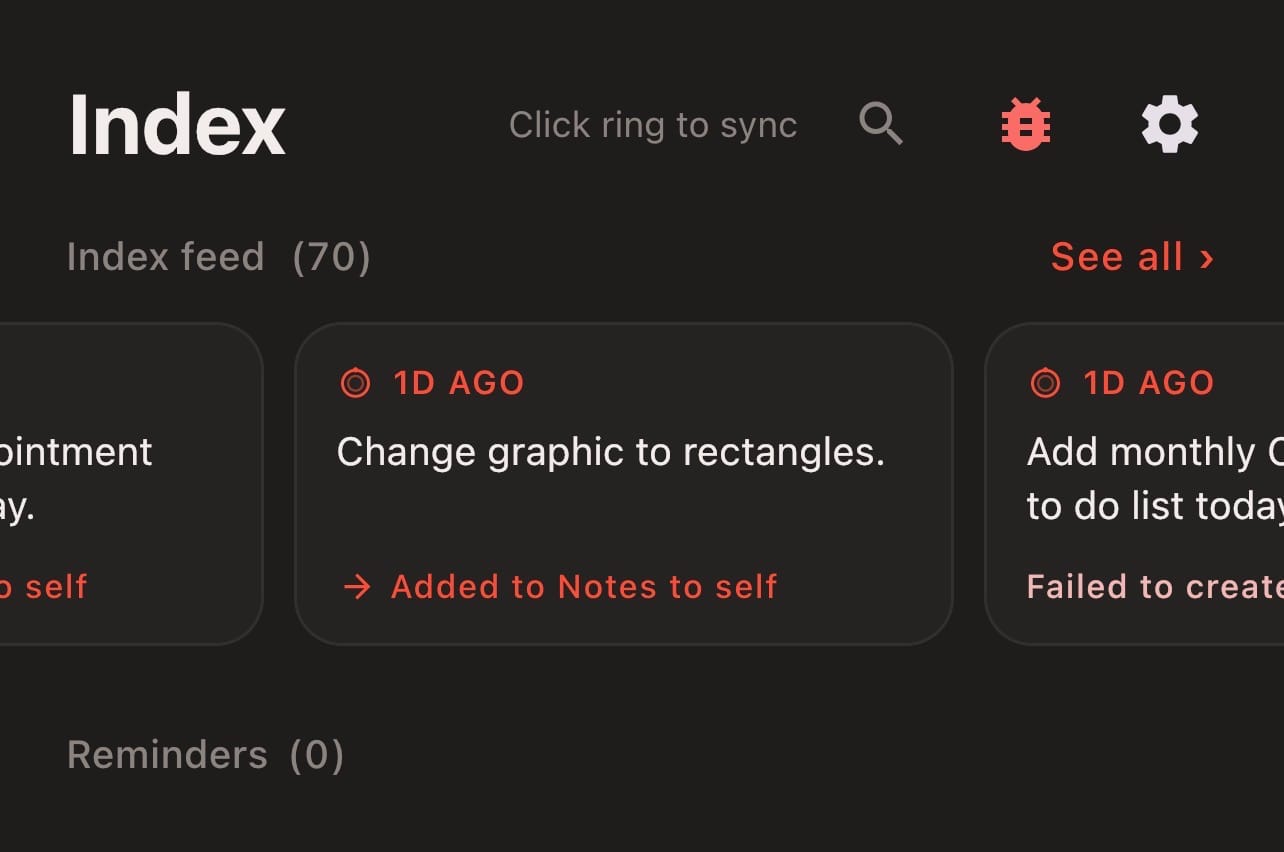
Within seconds of recording this note, this showed up in Todoist.