How (and when!) to Create Claude Skills
Create Claude Skills for repeatable processes.

I use Claude daily and sometimes I do the same thing over and over. For example, every time I needed to do my weekly check-in, I'd open a new chat and re-explain the entire process. Go look at Notion. Pull up my calendar. Ask me about last week. Write a new page when we're done. Same steps, same tools, same output — just a different date.
Claude had no memory of the process either. Every conversation started from scratch. I could write Project Instructions, but that can get really long and convoluted if you're doing a lot within a single project.
Skills solve this problem. Instead of re-explaining, I use a skill — and Claude follows the same steps automatically. It pulls data from the right places, confirms with me along the way, and produces the output I need.
Here's how to turn your own repeatable processes into Claude skills.
Before you get started, you need:
- A Claude account
- Any connectors you want the skill to use (like I use Airtable, Google Drive, Notion, and others) already set up in Claude's Customize area
Why turn your processes into Claude skills
If you use Claude Projects, you already know the value of giving Claude context (like instructions, files, background information). But while a Project gives Claude context, a Skill gives Claude context plus a process.
With a Skill, you're not just providing files and hoping Claude figures out what to do. You're saying: here are the steps, here's what to pull, here's where to put the result. Claude follows that sequence every time you use that Skill.
I have dozens of Skills set up, for everything from something with two steps to complex processes. If I need to repeat the steps more than once, I create a Skill.
Here's how to set up your own.
Step 1: Identify a repeatable process
To start, look for these signs that something should be a Skill:
- You're explaining the same steps to Claude repeatedly
- You're copying and pasting context into new chats to do the same thing again
- The process follows the same sequence each time (even if it has different paths — like "if this happens, do this; if that happens, do that")
- Claude needs to pull specific files or data from connected tools every time
If any of those apply, it's a good candidate for a Skill. The key question you should ask yourself is: am I doing the same thing over and over, and can I describe the steps?
Step 2: Connect your tools first
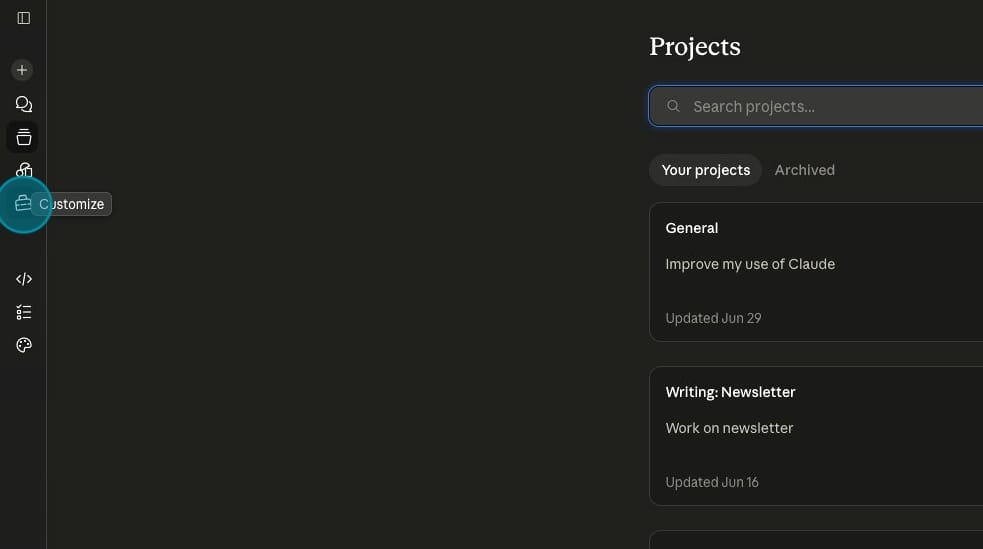
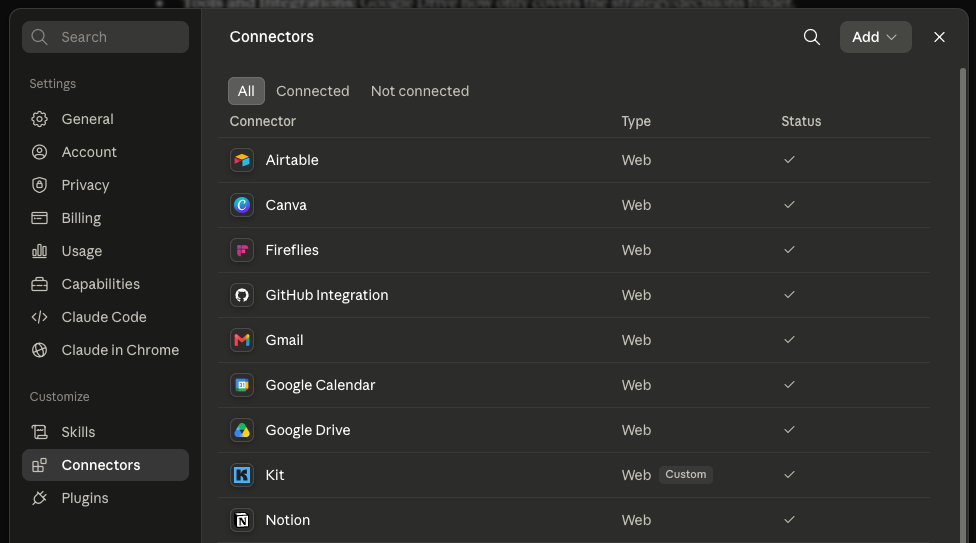
Before building the skill, make sure all the connectors you'll need are set up. In Claude, click the "Customize" icon on the left side of the screen and go to Connectors.
Click Add to browse and connect tools like Google Drive, Airtable, Notion, your calendar, or anything else the skill will need to access.
You can control what each connector has permission to see and whether Claude asks you before accessing data. I don't give Claude unfettered access to everything — I connect only what I need and limit the scope. For example, Claude only has access to certain things in my Airtable and certain calendars, not everything.
That's your own comfort level. But the connectors need to be in place before you start building the Skill, because Claude needs to pull from them.
Step 3: Work through the process live in a chat
Don't start by writing a Skill. Start by doing the thing.
Open a chat and walk through the entire process with Claude. Tell Claude which tools to check, which files to pull, what filters to apply (like a specific status or folder), and what the final output should be.
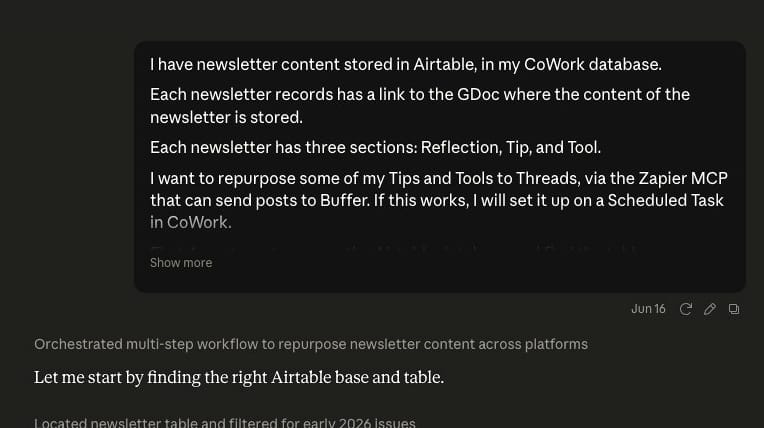
Fix things as you go. If the output format is wrong, say so. If Claude pulls the wrong data, correct it. Keep going until the process and output are exactly right.
Claude captures specifics along the way — file IDs, database IDs, folder paths — so that when it comes time to build the Skill, it knows exactly what to grab each time.
Step 4: Tell Claude to write the Skill
You don't need to write the Skill file yourself. Once the process is working the way you want, tell Claude to turn it into a Skill.
At this point, add anything the live run through didn't cover, such as:
- "Do not" rules: Claude likes to guess. If something is missing in the Skill instructions, Claude might just make it up. So you might say: "Don't move forward if I don't give you this information. You must get it from me first."
- Edge cases: Anything you can think of that might come up. The first version won't cover everything, but the more you think through now, the fewer updates you'll need later.
Claude will write up the entire thing and present you with a Skill file. Click "Save Skill."
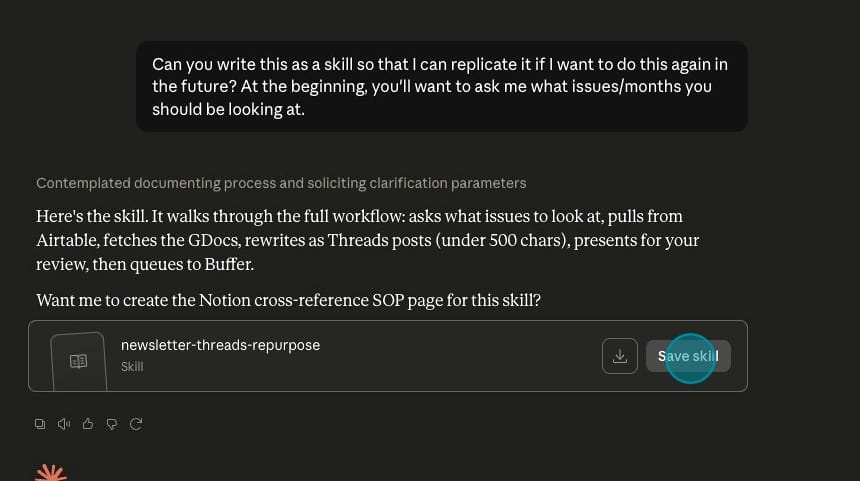
Once you do that, it will appear in your Customize area alongside your other Skills.
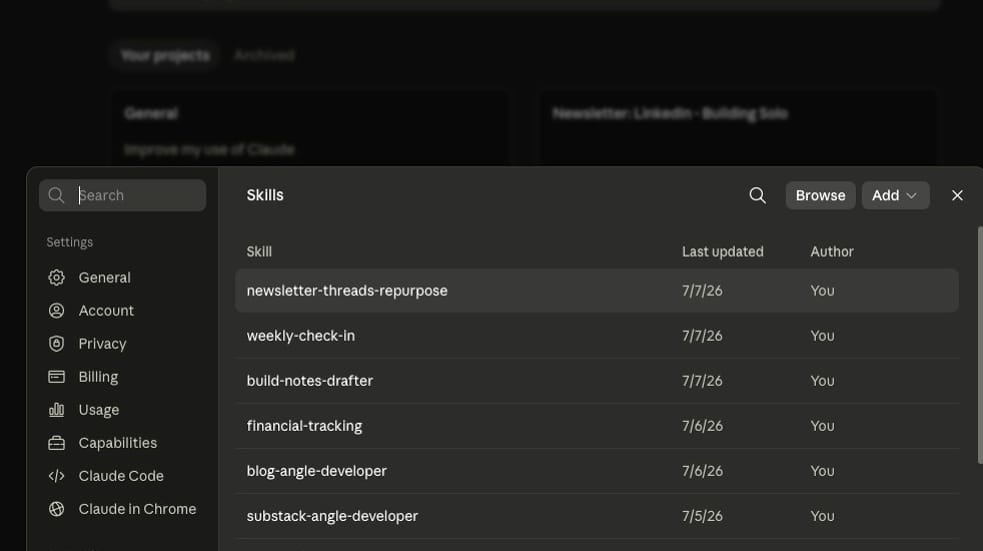
Step 5: Test the Skill
Immediately open a new chat and call the skill.
You can either use a slash command or just say something like "I need to create a webinar outline" in natural language.
Here's how to use the slash command. Just type in /skill-name.

And here's what it likes to use natural language. Claude knew that I wanted to run my weekly check-in Skill without me explicitly saying /weekly-check-in.
Claude's prompt of the date is the first step in my Skill.
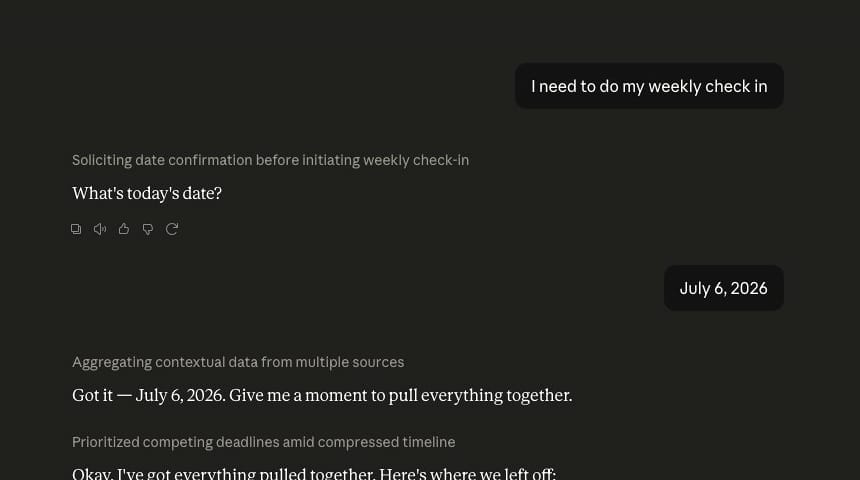
Walk through the entire skill to make sure Claude captured all the steps correctly and that the output matches what you expect.
Step 6: Update skills over time
Skills aren't set-and-forget — especially the complex ones. Your process changes, or you didn't think about a specific scenario when you first set up the Skill.
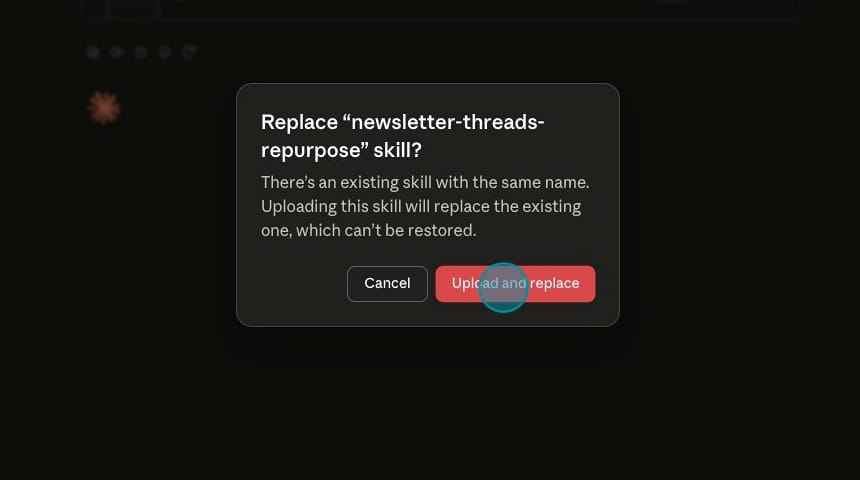
When that happens, tell Claude what needs to change and ask it to update the skill. Claude will produce an updated file. After you click Save Skill, you'll click "Upload and Replace" to swap in the new version.
Pro tips
- Add confirmation steps so Claude pauses and checks with you before moving to the next step, rather than running through everything and presenting a wrong result at the end.
- Save your skill's content to an external tool like Notion as documentation. If you ever switch AI tools, you'll have the process documented outside of Claude. I build this into all of my Skills. The last step is for Claude to write the documentation and save it to Notion for me.
- Skills work across Claude Chat, CoWork, and Code. Create it once in Chat and use it in any of them. However, it's important to note that CoWork saves its Skills locally on your computer, so they're not accessible to Chat.
- Control what Claude can access through your connector settings. You don't have to give it access to everything. Connect only what each skill needs.
Want to see some specific MCP examples?
Check out my free guide.