How I Created a Digest of School Emails with Claude CoWork
Solving the problem of "too many school emails."


School emails have been the bane of my existence for years. It didn't start that way. When my oldest was in kindergarten, I got a weekly summary from the principal about overall school events, plus an occasional email from the teacher. The district would send out updates as well (which I mostly ignore).
But over time, things have gotten much worse. I have three kids, and this year, they happen to be in three different schools. Additionally, the middle school and elementary school use an external newsletter app. The principals of these schools include only a link to the app in their weekly emails and nothing else. This makes searching impossible. It also increases the likelihood that I'll miss something – especially since the newsletters summarize every event at these (rather large) schools.
This all came to a head last week, when I missed the registration deadline for the school science fair by one day. I emailed the PTA president and got a snarky response that "multiple emails" had been sent home. True, but the deadline was buried in link of the external newsletter.
I decided to solve the problem once and for all with Claude CoWork.
Step 1: Set up a filter for school newsletters in your Gmail
The easiest way to make sure Claude knows what school emails to look at is to use a filter in your Gmail to apply a Label to school emails.
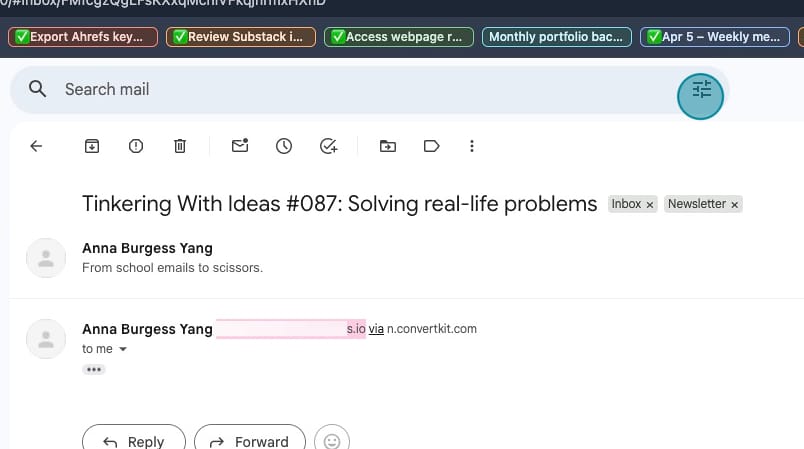
To set up a filter, click on the Filter icon in your Gmail search.
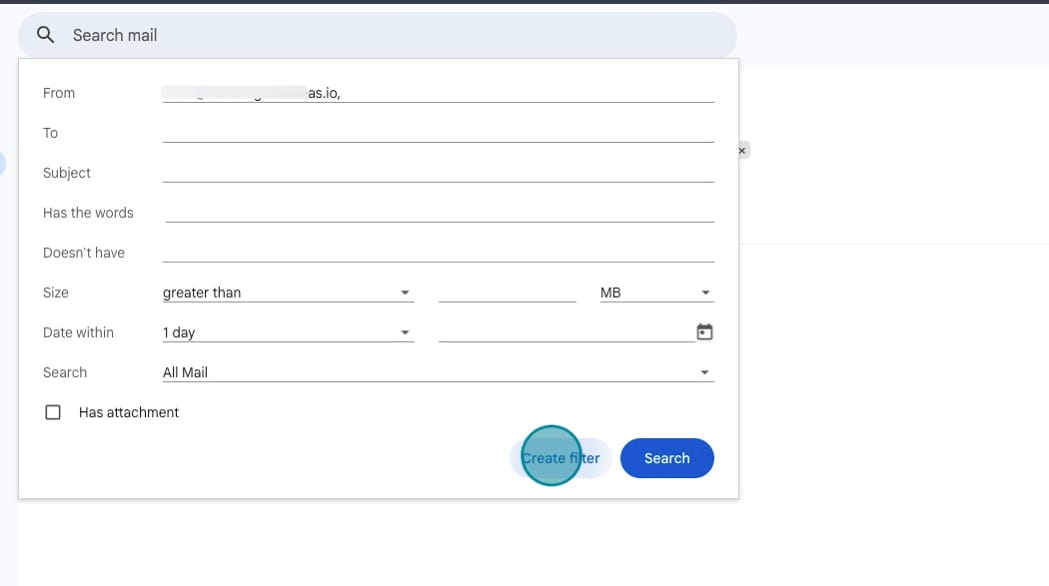
On the Filter screen, filter by the "From" field and enter the school's sending email address. (redacted here, but you can see that there's an email address in the "From" field).
Click on the "Create Filter" button.
On the next screen, check the box for "Apply the Label" and select "Newsletter." You can even select "Skip the Inbox (Archive It)" once you've tested this a few times and know that Claude is picking up everything it should.
Click "Create Filter."
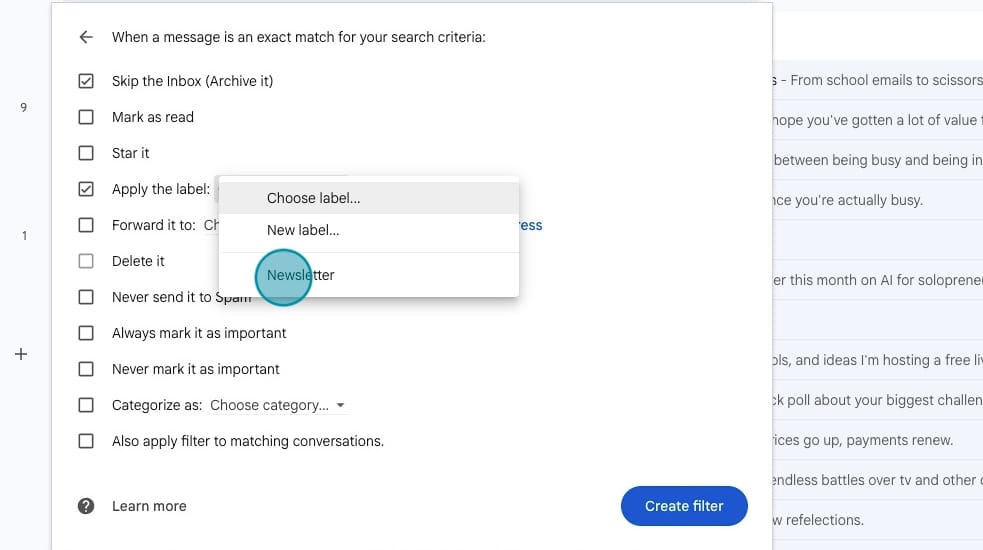
If you have more than one email sender (like more than one school), you'll need to add multiple email addresses to the "From" field, separated by commas.
Step 2: Connect your Gmail to Claude
Next, in your Claude account, you need to connect Gmail.
In Claude, go to Settings and then click on Connectors. Click on the "Browse Connectors" button.
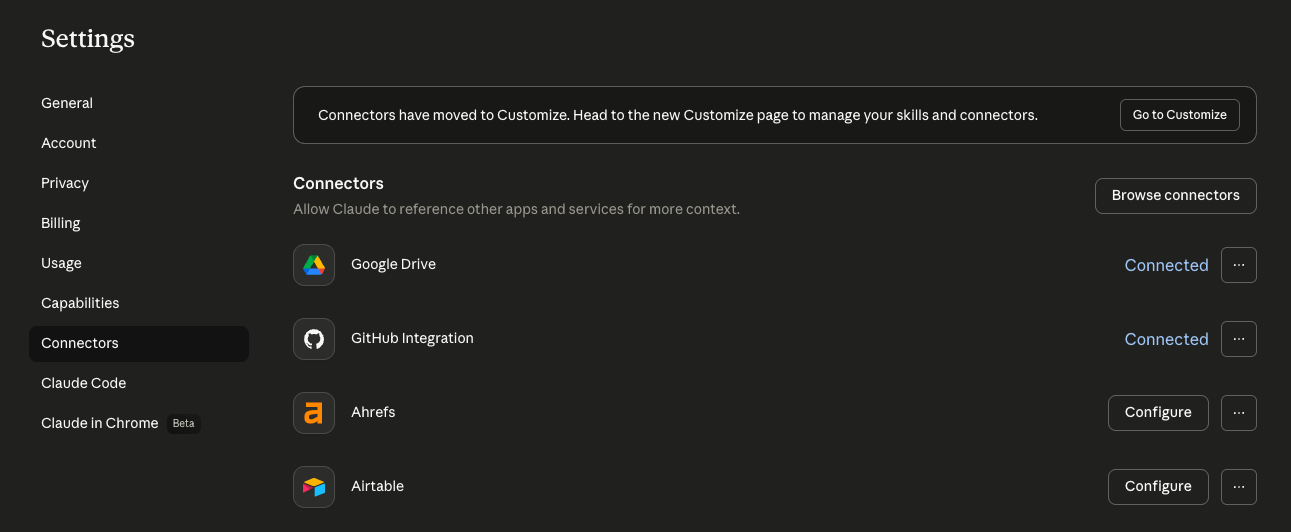
Search for the Gmail connector and then click the "Connect" button. You'll have to authenticate your Gmail account.
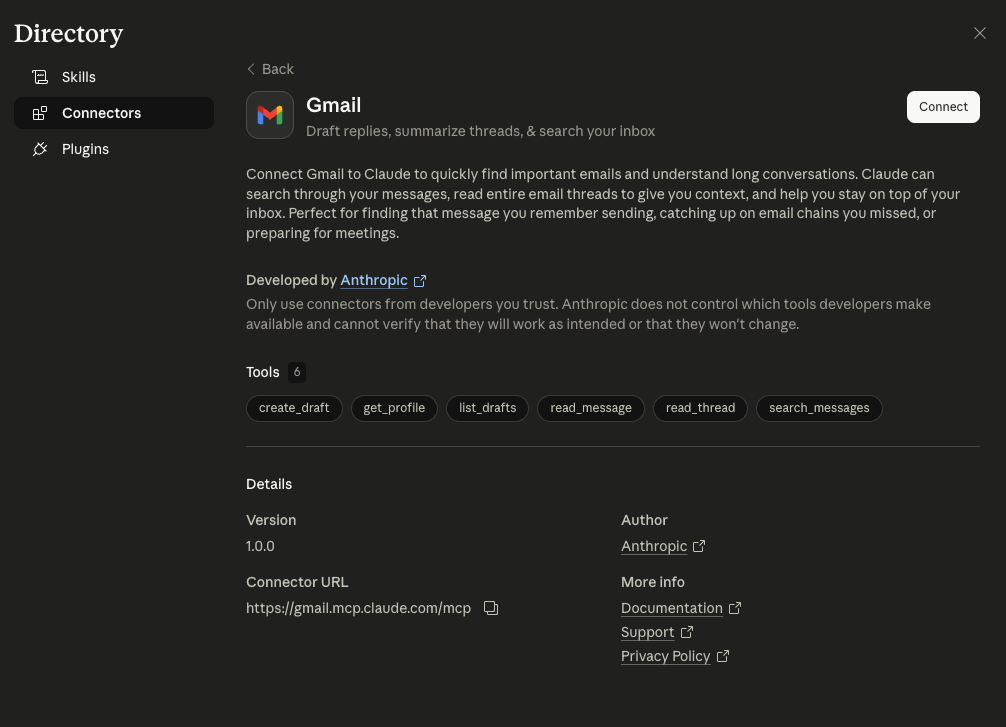
If you use something other than Gmail and there's no connector, you can use the Claude in Chrome extension in the next step as an alternative.
Step 3: Install the Claude in Chrome extension
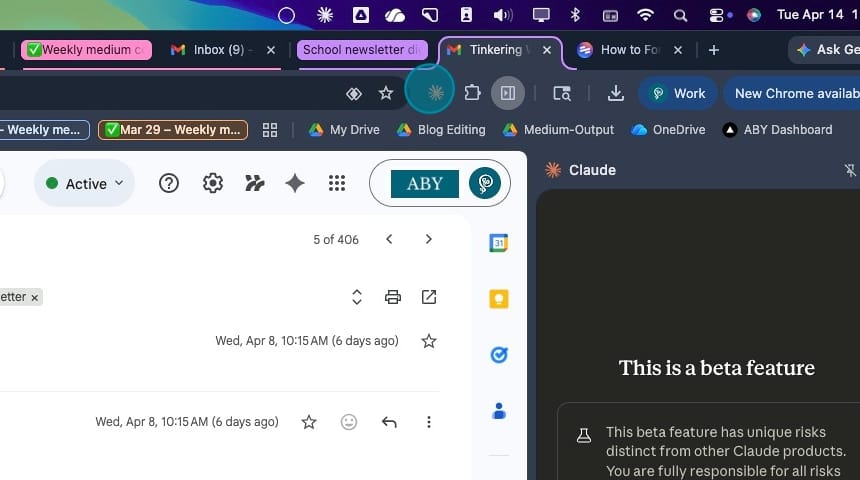
In order for Claude to open any external links in your emails, you need the Claude in Chrome extension.
Go to chrome://extensions/ and search for Claude. Install the extension and login with your Claude account. Once you've done this, you'll see Claude in Chrome in your installed extensions.
You must have this installed if you're using an email provider that doesn't have a Connector.
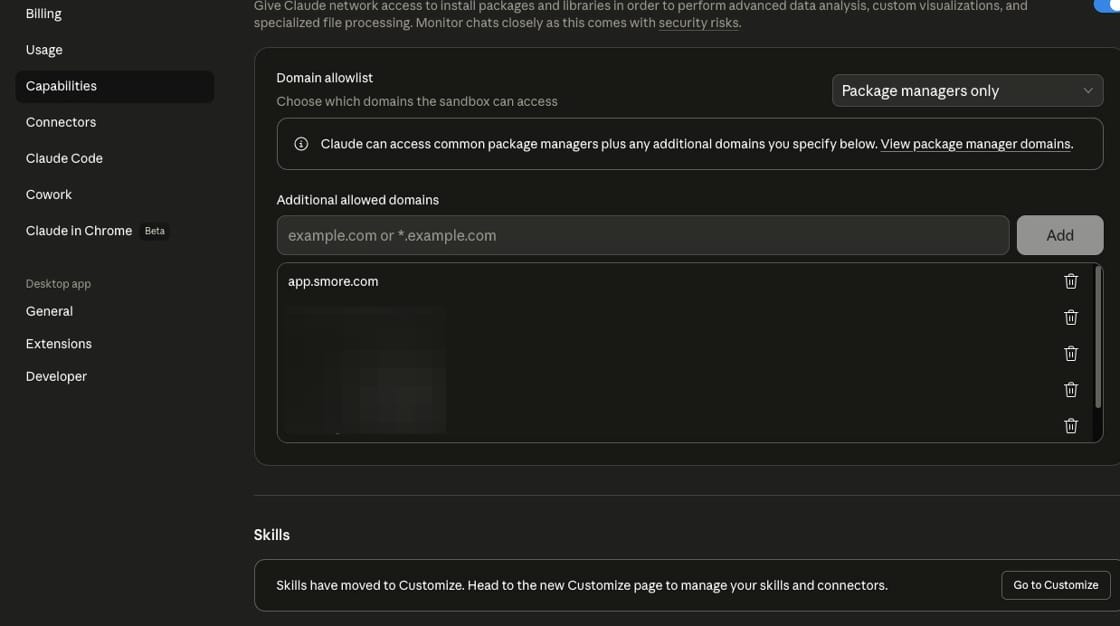
My school sends emails through an external email newsletter link. Claude can open that link using a WebFetch tool, but just in case that doesn't work, I have the school's email newsletter domain added as an Allowed Domain in my Claude account.
Basically, if Claude has to open any school links, set this up as a fallback so this process doesn't get interrupted.
In Claude, go to Capabilities, and then type in the domain under "Additional Allowed Domains." My school uses app.smore.com for email newsletters.
Again, you don't need an Allowed Domain if the entirety of your school communications is in the body of the emails you receive.
Step 3: Describe what you want and what you don't want
Next, you'll install Claude CoWork app on your desktop. CoWork can run in the background, including opening Claude in Chrome.
Open a new chat session in CoWork, which is much like what you'd do in the Claude chat feature in the browser. Tell it what you want it to do. Something like:
I need your help creating a weekly digest for my school emails. You'll use the Gmail connector and search for any emails with a "Newsletter" filter. If there are any external links, you'll use the Claude in Chrome extension to open the links and read them.
That's just the baseline. Let CoWork run and do its thing and make sure it can find some examples. Manually apply the Newsletter Label to a few emails.
If you're using a different email provider, your instructions would look like this:
I need your help creating a weekly digest for my school emails. You'll use Claude in Chrome to find any emails in my (Outlook, Yahoo, etc) email account "Newsletter" filter. If there are any external links, you'll use the Claude in Chrome extension to open the links and read them.
Once you've confirmed that CoWork can find the emails, now you start adding instructions about what you want included in your weekly digest, and what can be ignored.
For example, I told CoWork:
- The grades of my kids. If the email says "6th grade dance," I don't have a 6th grader so I don't need to know. You'd need to update this at the start of a new school year.
- My kids' activities. None of my kids are in sports, so any sports-related announcements can be ignored.
- I told CoWork to put any district-wide events (like no school due to a teacher in-service day) at the top of the email. I also told Claude to filter out any duplicates. Each school would announce an in-service day, but I only need to see it once.
- Rather than give CoWork the names of my children (just not something I'm comfortable with), I use their initials. That way, CoWork can tie each school to each kid.
Have CoWork create some samples of what the digest would look like, and keep tweaking it until it matches what you want to see.
Step 4: Determine how you'll receive the output
With the native Gmail connector, Claude can only create drafts of emails, not send them. So once a week, you'd need to go look at the Drafts to see your Digest. From there, you can either send it to yourself (or another parent) or delete it.
Because I already have a Zapier account, I'm using the Zapier MCP connector. With this, I can send emails with Gmail as a connected tool.
Lots of apps have MCP connectors. You could also do something like have Claude create a page in Notion, if you use Notion, by connecting Notion's MCP. New connectors are added all the time. Once you have the app connected, just tell CoWork that you'd like the output sent to a particular app using the MCP.
But creating a draft in Gmail will work just fine. You could also use Claude in Chrome to actually send an email, but you'd want to test carefully and make sure CoWork follows your instructions carefully, since it would have to click around on your browser.
Step 5: Mark the email as processed
I have a label in Gmail that says "Processed." Claude applies this label once it has finished reviewing an email. That way, it knows not to repeat itself with the same email the following week.
Step 6: Set up a scheduled task
Once everything is working the way you'd like, you'll set up a Scheduled Task. CoWork does this for you. Just tell it that you want to set up a Scheduled Task so this process can run weekly. Mine runs Sunday mornings at 6:00 am.
The tricky part here is getting CoWork to filter out the emails that were processed the previous week. You could tell Claude to only include emails that were sent in the past 7 days, for example. But if CoWork can't run on your scheduled day/time (like your computer is turned off), you'll miss some.
You could also have CoWork apply a different Label for any emails it processes. For example, you could have it apply "Processed." That way, in each search, it looks for emails with the Label "Newsletter" that do not have the Label "Processed."
Once set up, the scheduled task will just run in the background.
Bonus: Connect your calendar and to-do list
I have Claude search the school emails for events I need to attend, like Curriculum night. Claude automatically creates an invite for the event. If it's not something I would attend, I decline the invite.
I also use the to-do app Todoist, and Claude adds any to-do items that are obvious from the email. Like it might say "Fill out a school form by XYZ date." That shows up on my to-do list. I check it off when done, and since Claude can see completed items, it knows not to add it again.
Enjoy a more peaceful inbox
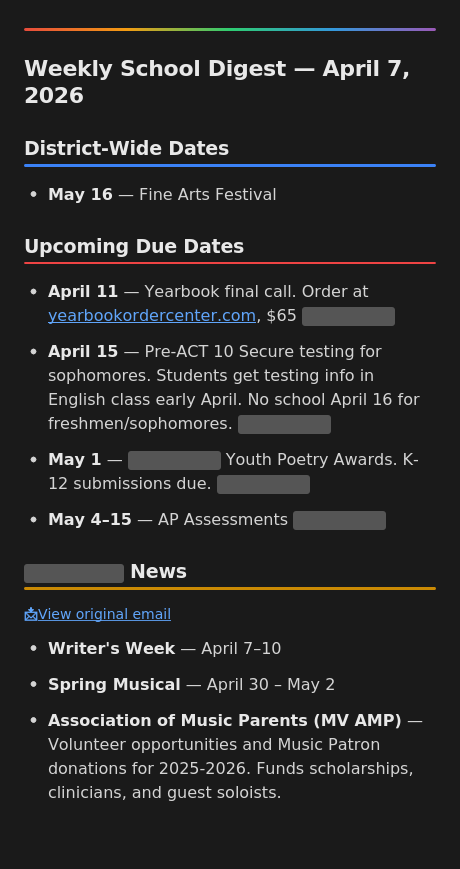
I was so happy when I got my weekly digest from Claude. I pretty much ignore any school emails that come in (other than from specific teachers), because I know the digest will send me what I need.
More resources:
- How I keep my computer safe while using Claude CoWork
- Parenting while running a business: 4 tips for solopreneurs

Want to see what automation actually looks like in a solo business?
Check out my free guide.