Add a Human in the Loop Step to Zapier
How to pause a Zap for human review.

I've been using AI to create social posts from my blog posts for a long time. Zapier picks up newly published blog posts, runs them through AI using my Voice and Tone guide, and sends the post to Buffer [affiliate link*]. From there, I edit the post and publish.
This works most of the time. But I also publish social posts using graphics created in Canva. In these instances, AI creates the text based on the blog post, and Zapier sends the text to Trello. My virtual assistant then adds the text to a Canva graphic and uploads it to Buffer for me. Saves me the step of creating the graphic.
The problem? Sometimes the text isn't exactly the way I want it. So then I'm modifying the already-created Canva graphic slightly. Defeats the purpose of having someone help me with this task.
Zapier has a Human in the Loop feature that solves this problem. Now, the AI-generated text comes to me first. I modify it, and then the Zap sends my modified text to my VA. Still mostly automated, but gives me a chance to review/approve the text.
Here's how it works.
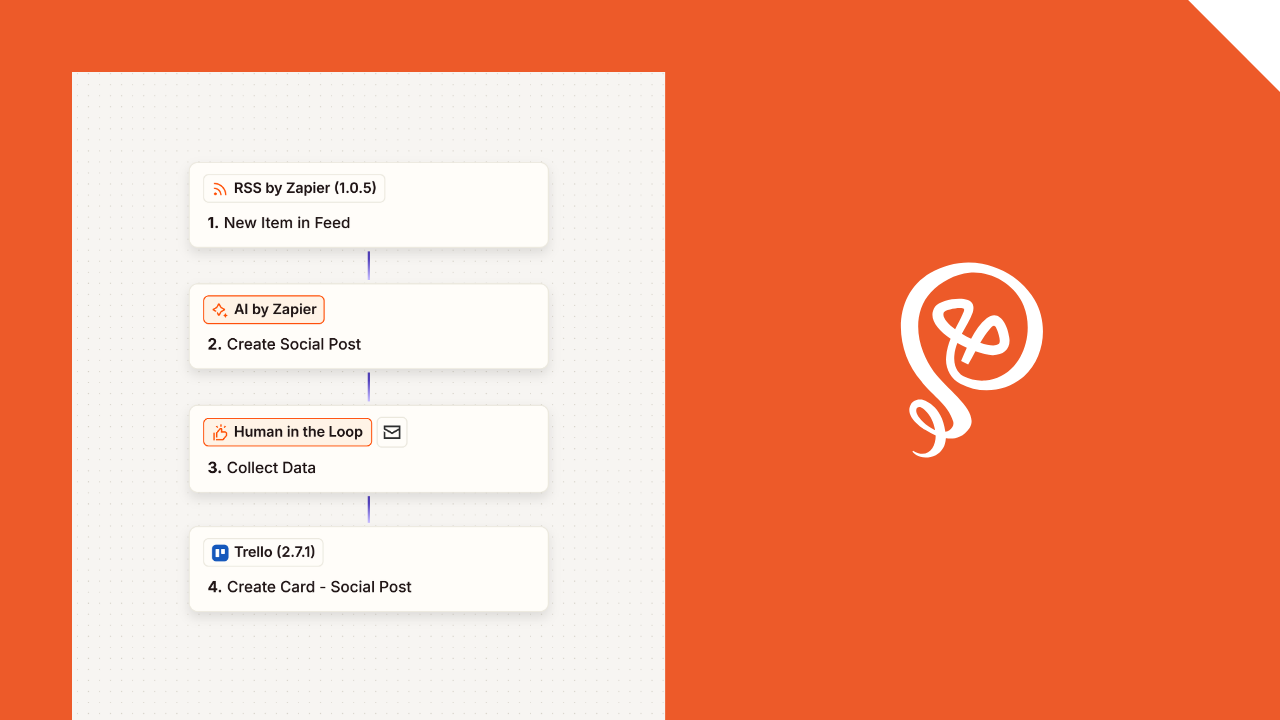
Step 1. Adding a Human in the Loop step
After my AI by Zapier step (which creates the social post), I have a Human in the Loop step.
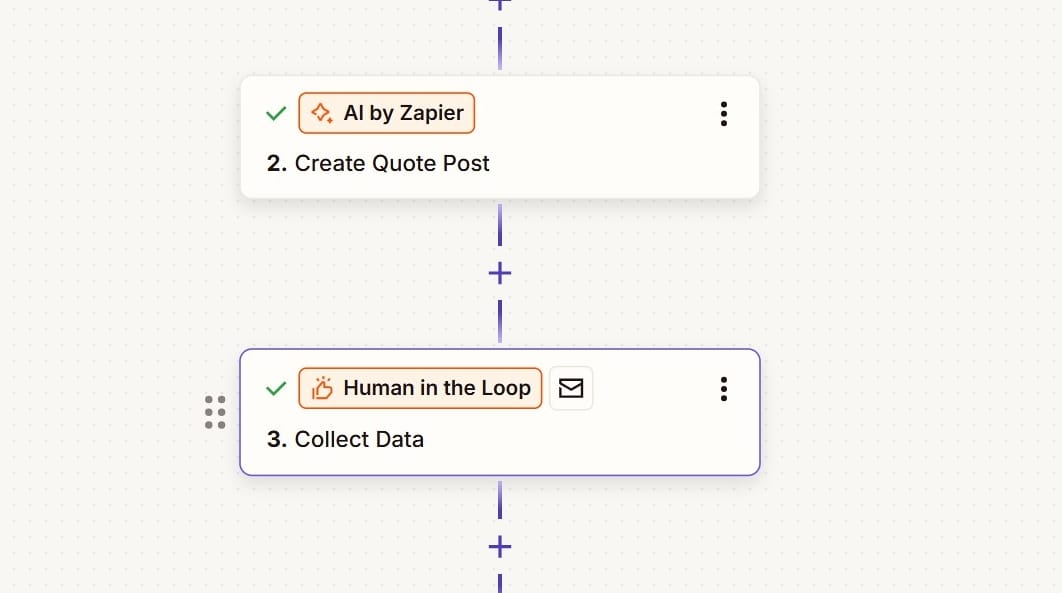
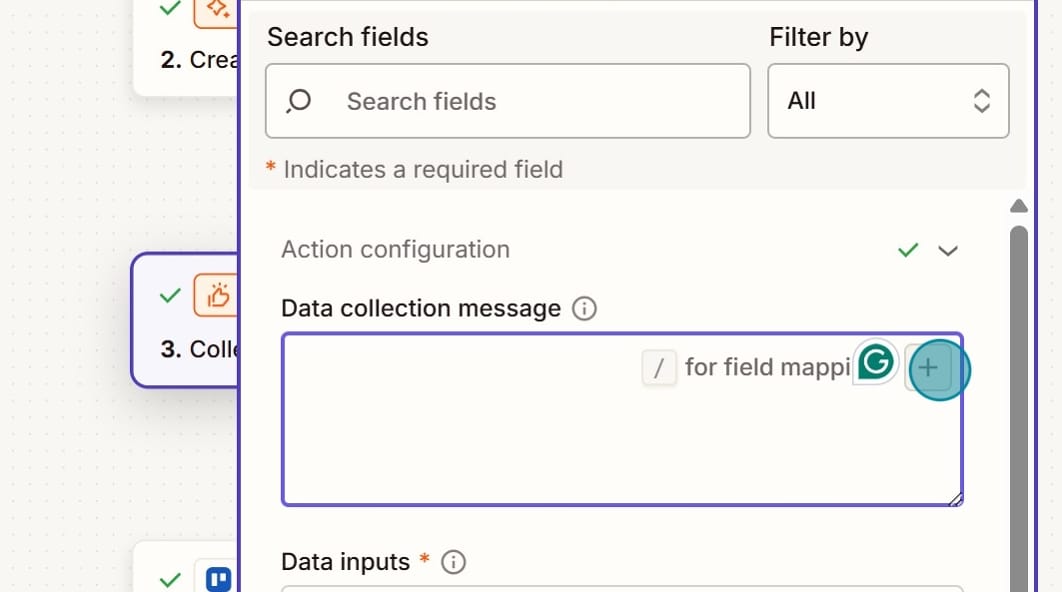
In this step, you'll need a "Data collection message." This is what will be sent to you for review. Click the (+) button.
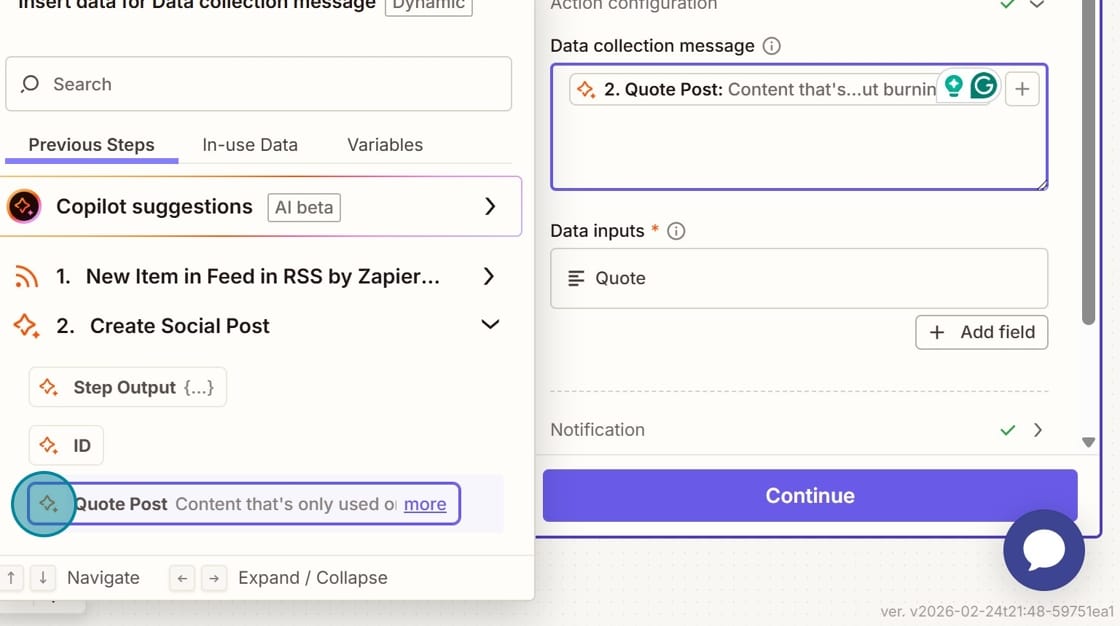
Since I want to review the AI-generated output, I select the output from my prior step. In this case, the AI by Zapier's output is called "Quote Post." Once I select it, it will appear under my "Data collection message."
Next, I have to create a "Data input" field. This is my response to the Human in the Loop step.
I select Text as the "Data input type." I will be entering text to send to my virtual assistant.
You'll need to give your "Data inputs" a field name.
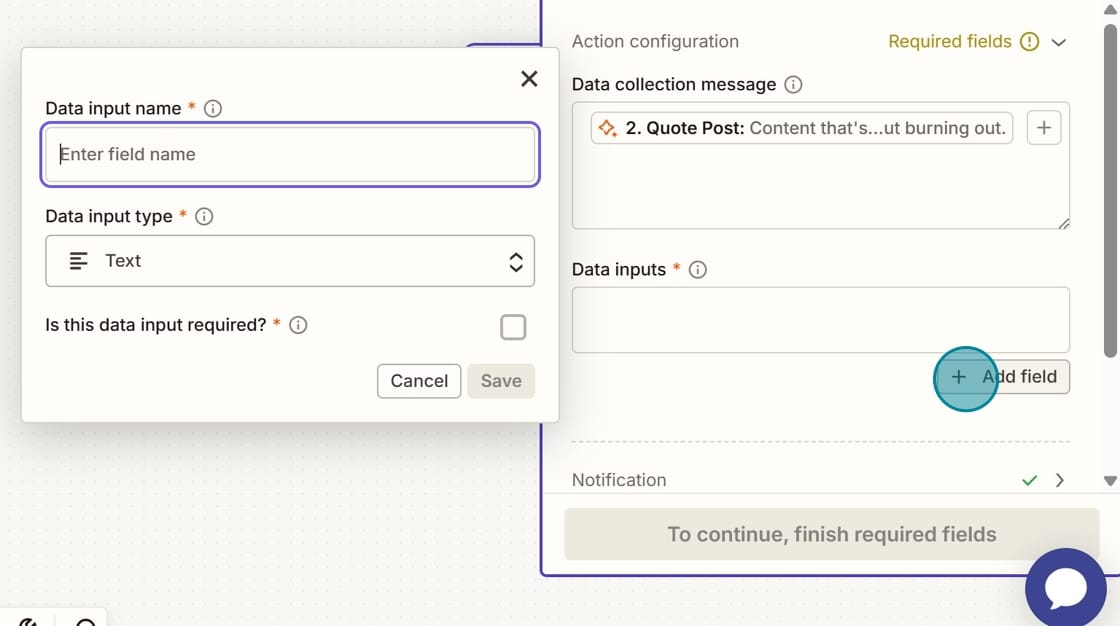
I name my field Quote. This is what it looks like once the field is added.
Note: You can add more than one Data input field.

Next, you'll configure the notification. Click on the arrow.
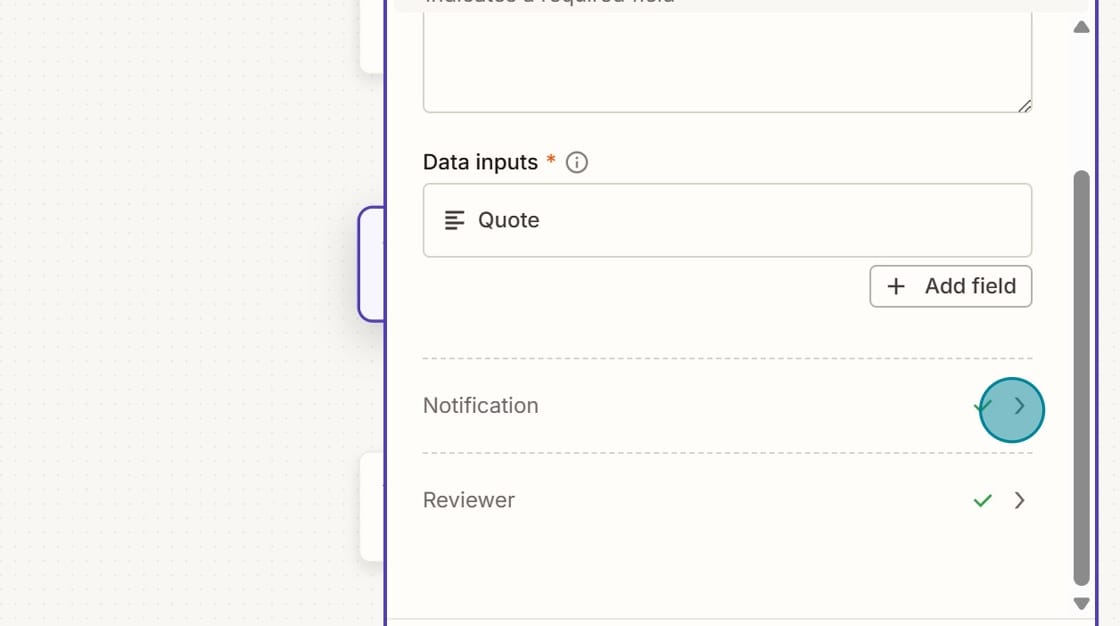
I choose to have my Human in the Loop step come to me via Email. But you could also have it sent via Slack or Trigger a Zap.
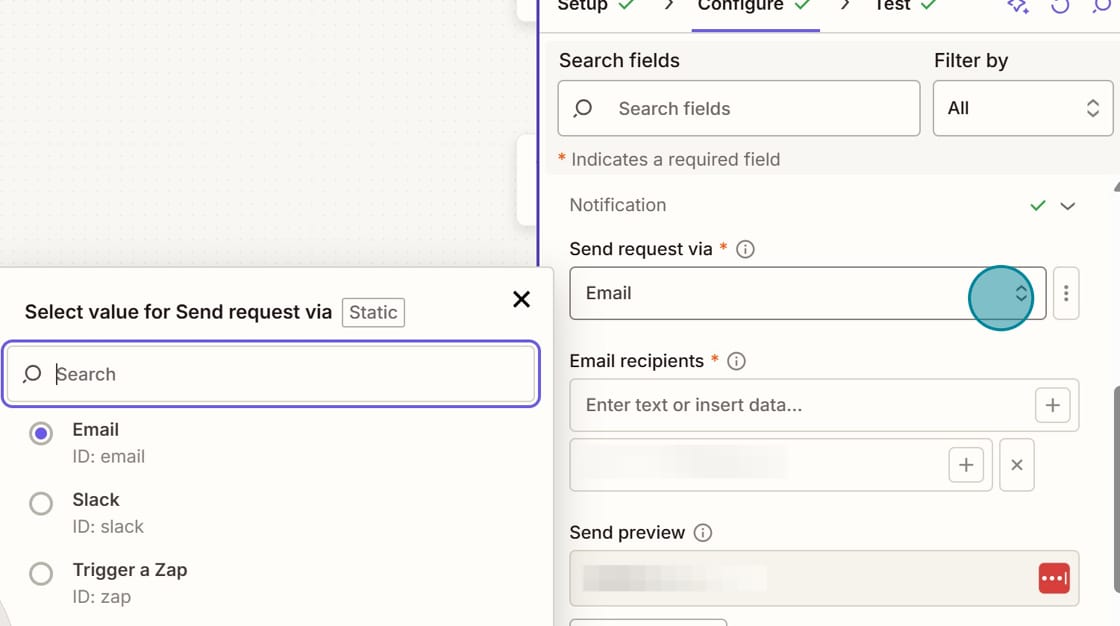
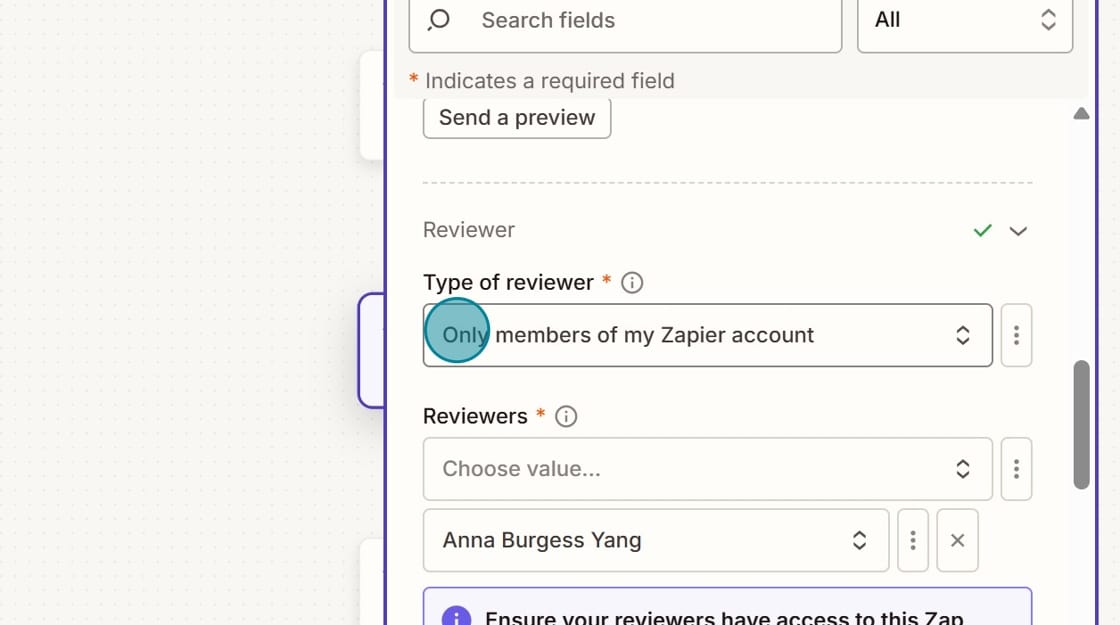
You'll also configure the "Type of reviewer." My Zapier account only has one member (me). But if you have an account with a team, you can choose who is allowed to review the step.
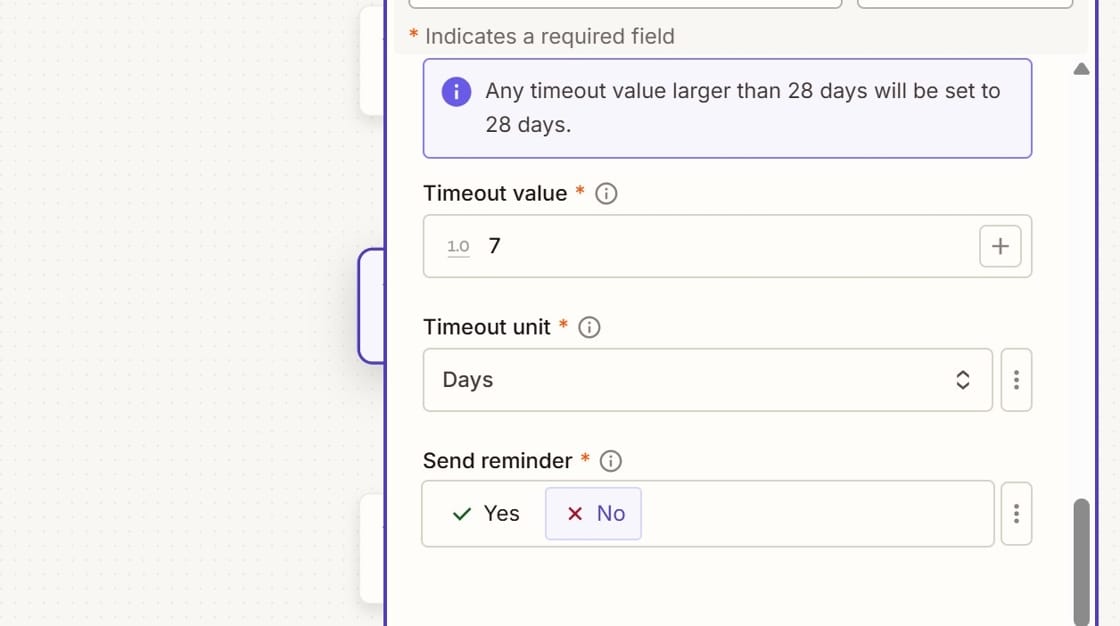
Finally, you'll configure the Timeout value. This is how long you have to review the Human in the Loop step. I set mine for 7 days. Usually I review the Human in the Loop step immediately, but I don't want my virtual assistant to wait forever.
I choose not to "Send reminder" because it sits in my email inbox until I deal with it. But if you need reminders, you can configure that also.
Step 2: Sent the reviewed output to another app
To finalize the Zap, next I need to send the output from my Human in the Loop step to my VA.
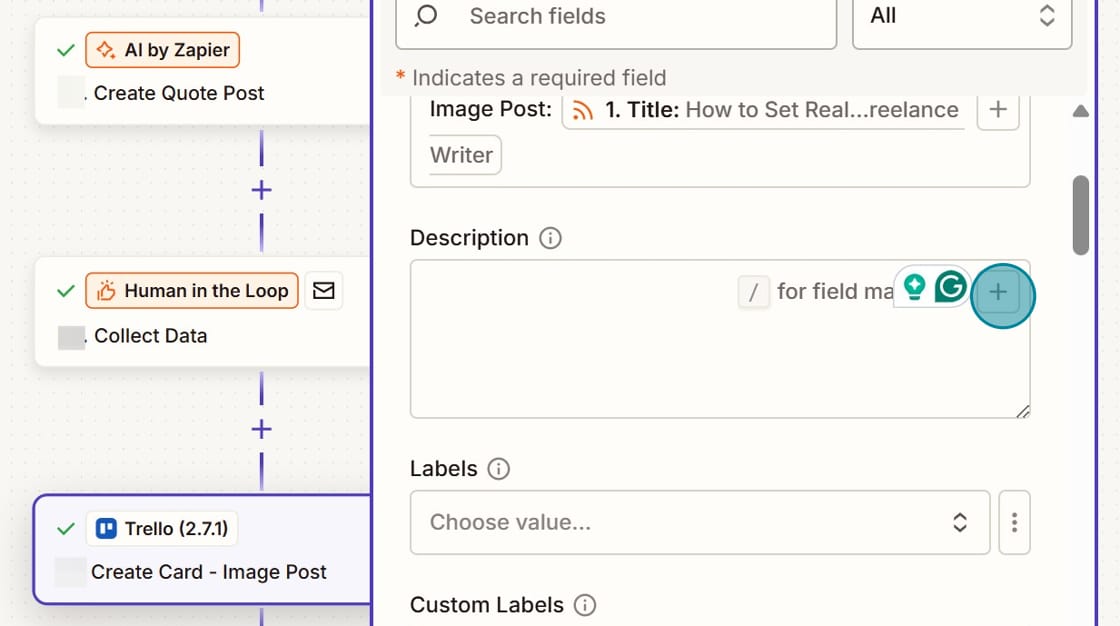
In this case, my app is Trello and I want to put the Human in the Loop step in the "Description" field. But you could send the output to any app.
Click on the (+) button.
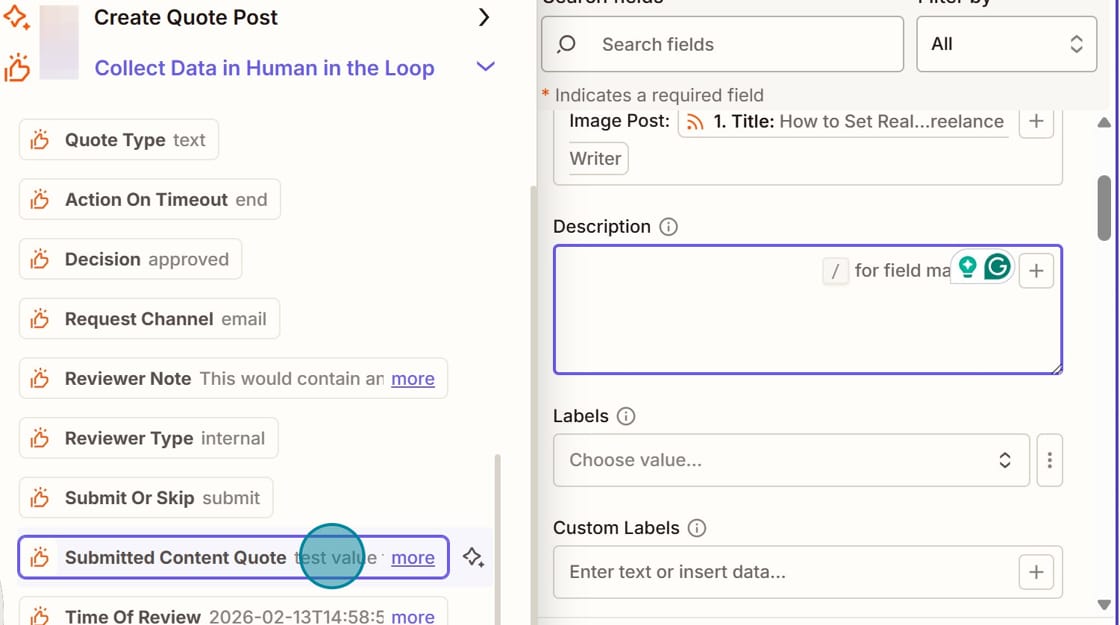
You'll select "Submitted Content" from your Human in the Loop step.
This is what it looks like once it is added.
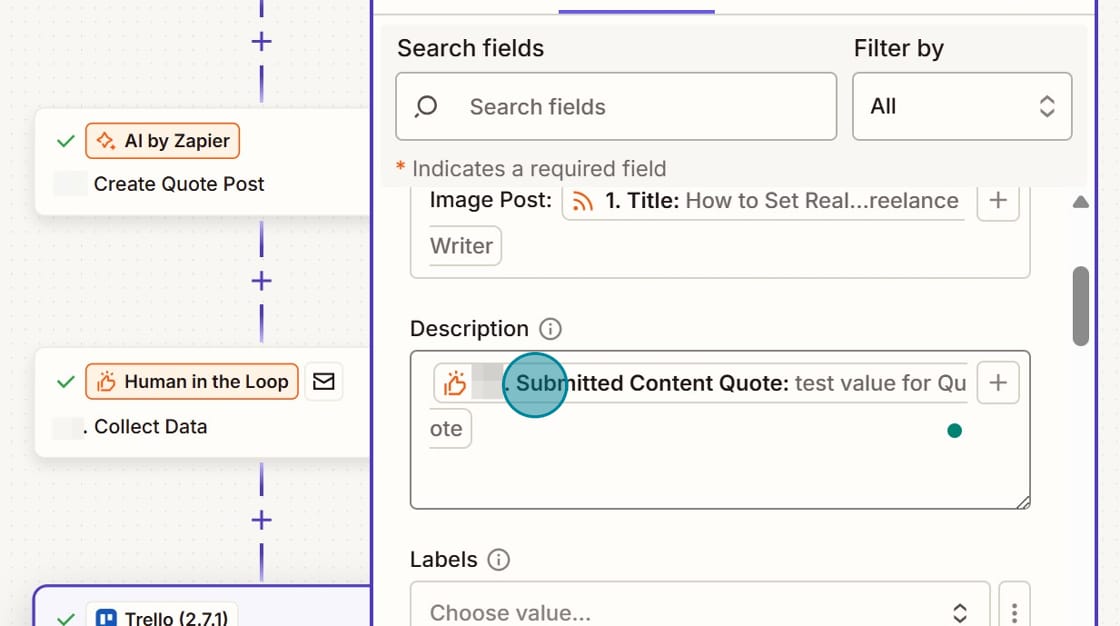
When this runs in real life, my VA will get my Submitted Content from the Human in the Loop step, not the output from the AI by Zapier step.
Step 3: Human in the Loop review process
Here's what happens when I get a request for review. This is from one of my actual blog posts.
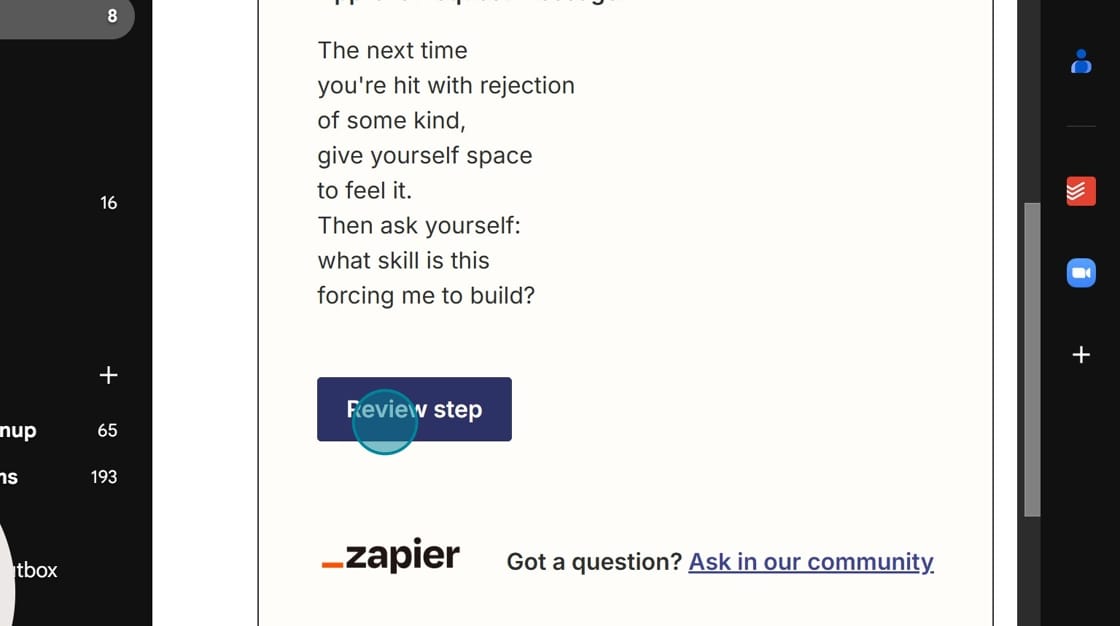
I get an email with the text output from my AI by Zapier step (the "Data collection message" from my Human in the Loop step). I click Review step.
I'm taken to Zapier and shown the "Data collection message." Right below that is the "Quote" field I created. I can enter the text I want my VA to use.
In this case — and in most cases – I edit the text generated by AI.
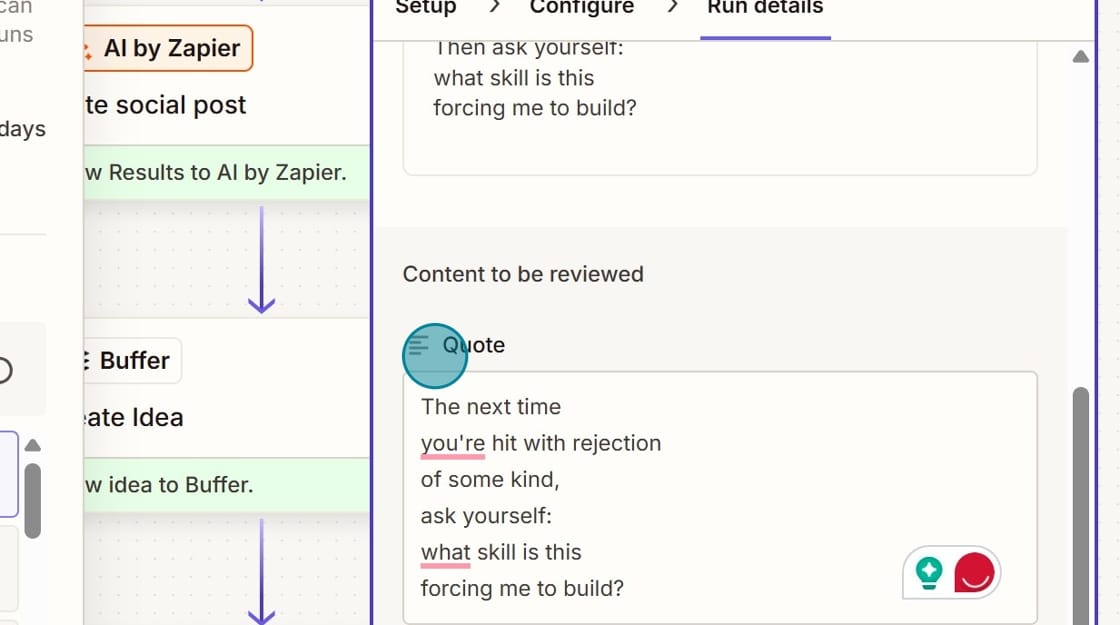
The Quote text becomes my Submitted Content and gets sent to Trello.
Pro tips:
- You could add another field to the Human in the Loop step to "reject" the output. Then put a filter before your next step. If that field is true (such as a boolean field), then the data goes nowhere. In this case, the Trello step would be skipped entirely.
- You can use this for a lot of things, not just AI-related steps. Automation is amazing, but any time there is a team, you might need to take a beat and review something before it goes to the next person.
More resources:
Want some inspiration? These content repurposing automation examples include everything from transcripts to carousels to videos.